

Sigma Rules
Write a Sigma rule in YAML, convert it to a KQL query, and run it as a search in Search Data.
Sigma is an open, vendor-neutral format for detection logic, widely shared in the security community. On the Sigma Rules pages you paste or write a rule in Sigma's YAML format and SXMonitor converts it to a KQL query. The conversion targets SXMonitor's OCSF schema — the one your events are normalised into — so the query names the fields your events really carry and finds them in Search Data.
You can save each converted rule, run it again on any log source and time range, and keep editing it: SXMonitor keeps every version.
You do not need to know KQL. Write the logic in Sigma YAML and let SXMonitor convert it; you can still adjust the query before each search.
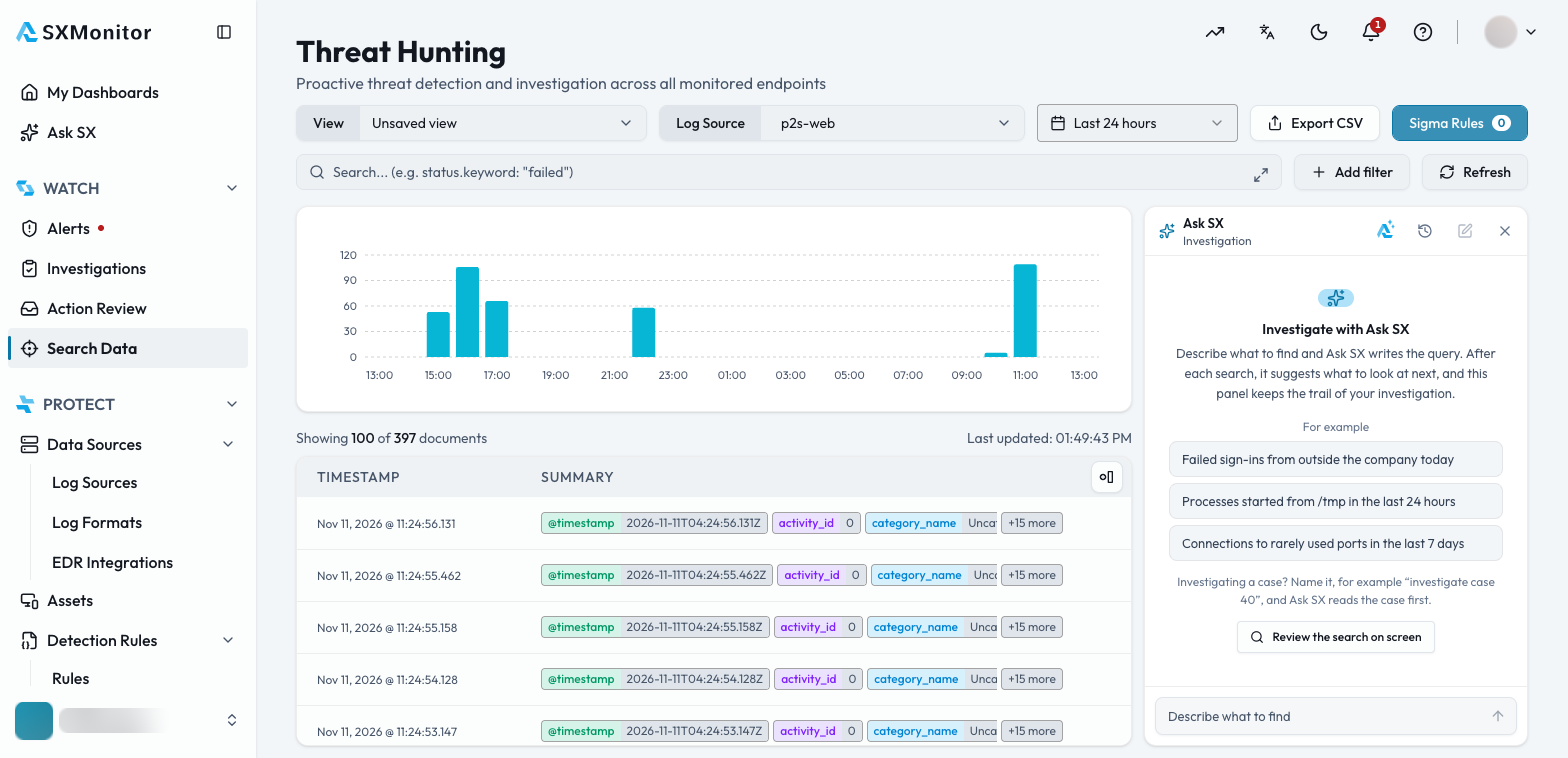
To open the list, go to Watch › Search Data and click Sigma Rules at
the right end of the toolbar; the number on the button is how many rules are
saved. The button shows only when your role has access to Sigma rules. Every
Sigma page starts with the trail Search Data › Sigma Rules, the way back.
Links and bookmarks to the old /sigma-rule-converter address still work:
they open the new pages.
1. The rule list
The Sigma Rules page lists the rules you have saved. Search them with Search rule..., narrow them with Status (All, Ready or Draft), and click Convert Sigma Rule to start a new one.
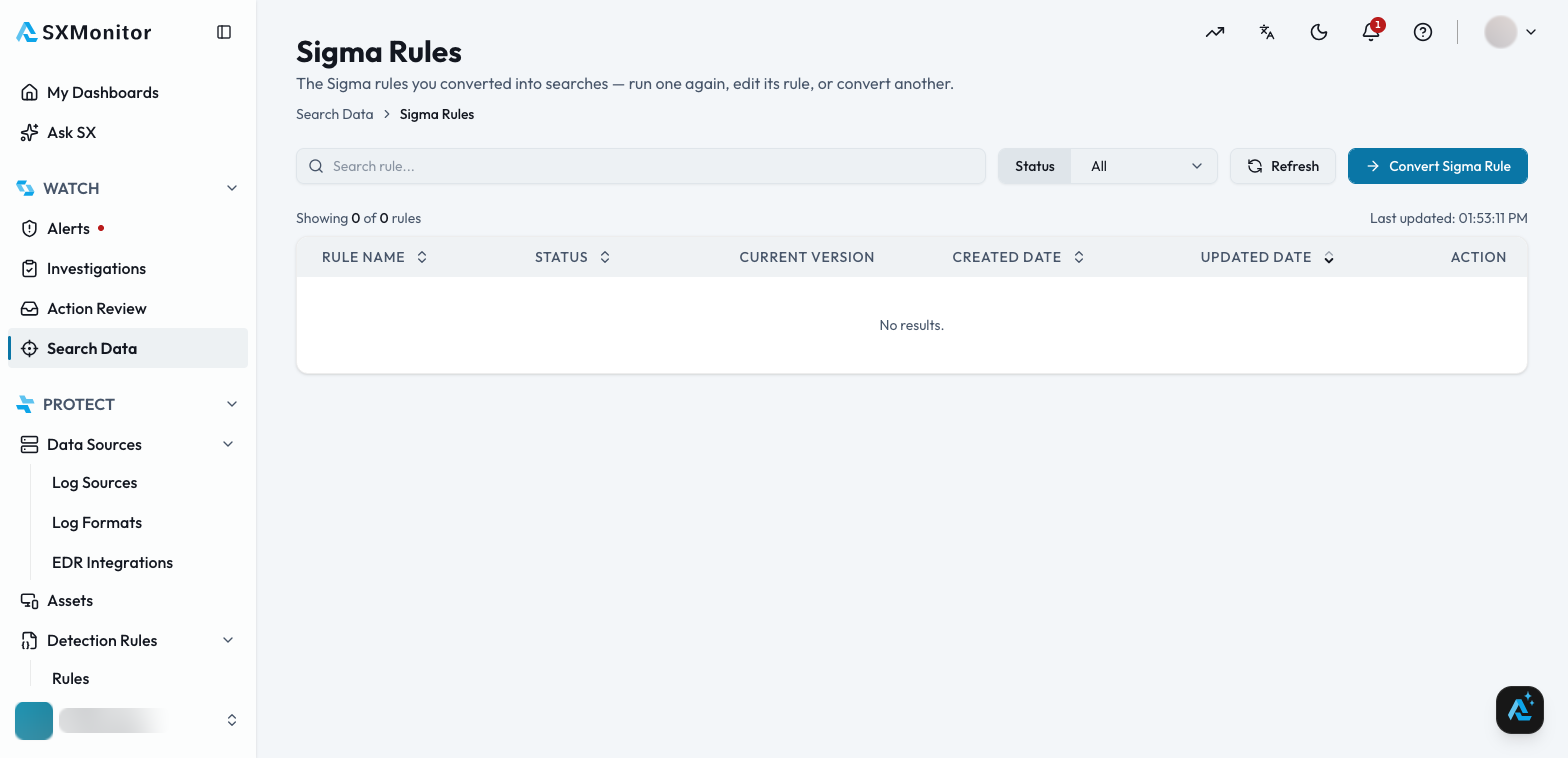
| Column | What it shows |
|---|---|
| Rule name | The name you gave the rule. Click a rule to open its read-only Rule Detail. |
| Status | Ready — converted to KQL and ready to search. Draft — saved before conversion; it cannot run as a search until you edit and convert it. |
| Current version | The rule's version, for example v2. It goes up each time you save an update. |
| Created date | When the rule was created, and by whom. |
| Updated date | When the rule last changed, and by whom. |
| Action | A ⋮ menu: Edit, Duplicate, Run Search and Delete Rule. |
2. Convert a rule
-
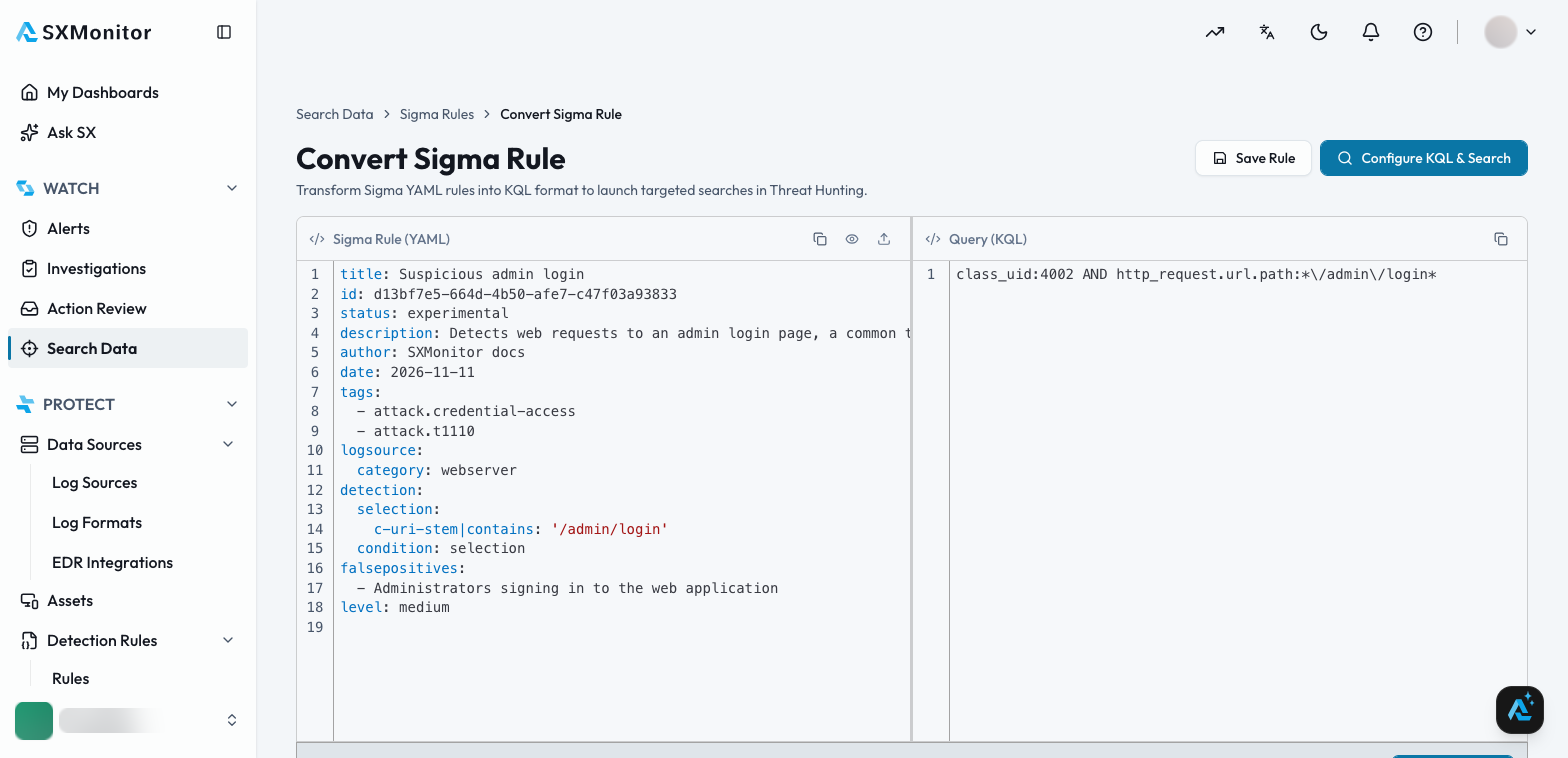
Click Convert Sigma Rule. The page has two panes: Sigma Rule (YAML) on the left and Query (KQL) on the right.
-
Write or paste the rule in the left pane. A Sigma rule has a
title, alogsource(category and product), adetectionblock with the conditions, and acondition. The eye icon (View Sample) shows a valid example to copy; Upload File loads a YAML file of up to 1 MB; a saved rule can be at most 64 KiB.title: Suspicious admin login logsource: category: webserver detection: selection: c-uri-stem|contains: '/admin/login' condition: selection level: medium -
Fix what the checker finds. SXMonitor checks the YAML as you type and lists errors with their line — for example a missing
detectionorcondition. Errors block the conversion; warnings, such as a missingid, do not. -
Click Convert at the bottom of the page. It activates once the YAML is valid; clicking outside a valid rule also converts it. The right pane shows the KQL, and Conversion successful. KQL query generated. confirms it. The query uses OCSF fields: the rule above becomes
class_uid:4002 AND http_request.url.path:*\/admin\/login*— class 4002 is HTTP Activity, and the Sigma fieldc-uri-stembecomeshttp_request.url.path. That is why the field names differ from those in your YAML. The pane is read-only; to adjust the query for a search, use Configure KQL & Search. -
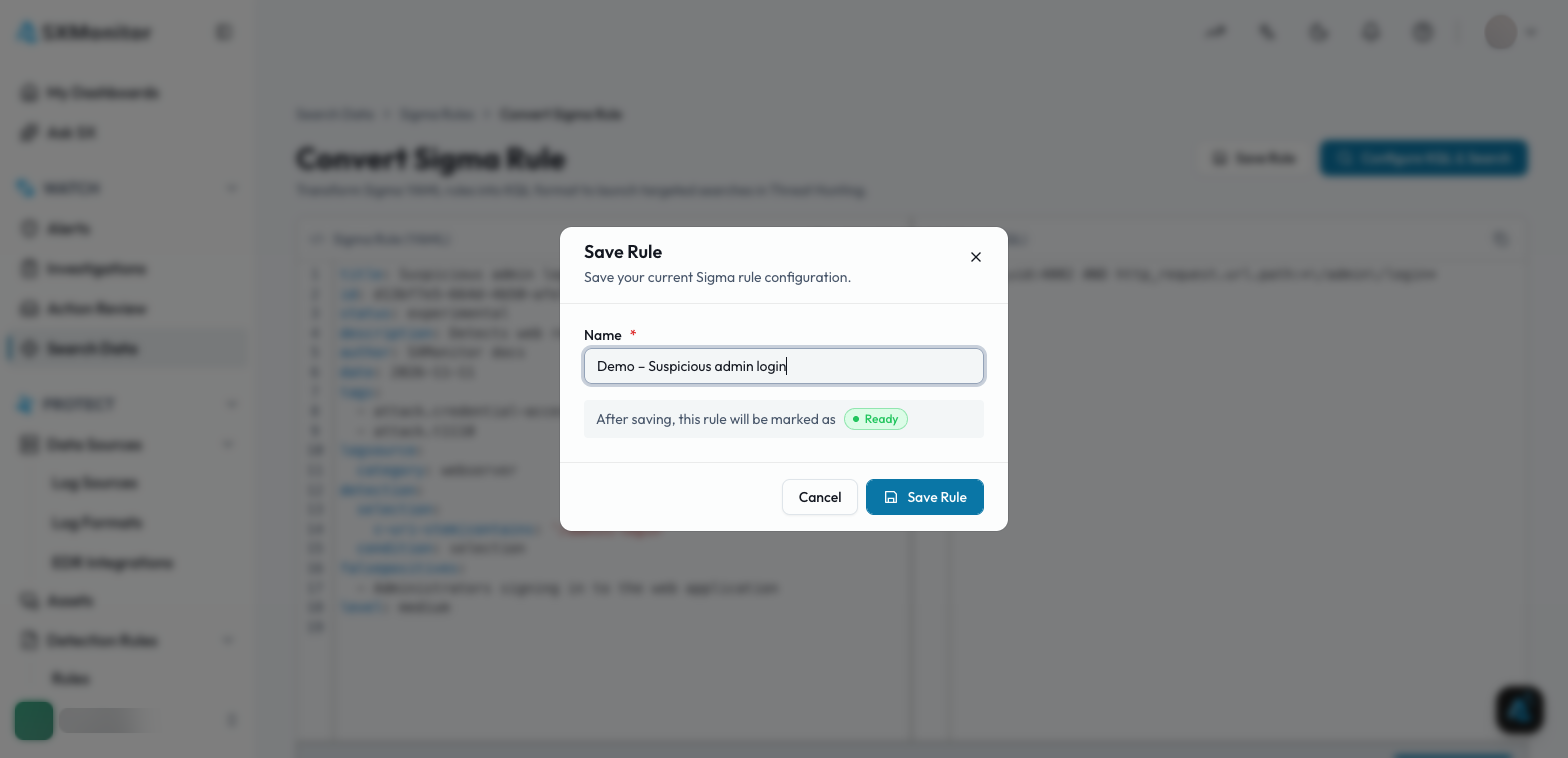
Click Save Rule and enter a Name. The dialog shows the status the rule will get: Ready when it has a converted query, Draft when not.
3. Manage a rule
| Action | What it does |
|---|---|
| Edit | Opens Edit Sigma Rule: change the name or the YAML and convert again. |
| Duplicate | Copies the rule under a new name, filled in as Name - Copy. Use it to try a variant without touching the original. |
| Run Search | Opens Configure your KQL for this rule — see Search with a rule. |
| Delete Rule | Deletes the rule and all its versions. For a Draft, confirm with Delete Rule; for a Ready rule, type Delete and click Delete any way. |
Save an edited rule
On Edit Sigma Rule, open Save Options and choose:
| Save option | What it does | When to use it |
|---|---|---|
| Update to New Version | Saves the changes as the next version of the same rule (for example v1 → v2), with an optional Change note. The previous version stays in the history. When the rule has a query, Save & Run Search also runs the updated rule in Search Data. | You refine a rule — tighter logic, more coverage. |
| Save as New Rule | Saves the changes as a separate rule and leaves the original as it was. | You want a variant for another use. |
Duplicate a rule
Duplicate opens a dialog that names the rule being copied, with its status and version, and previews its content. Change the Name if you like and click Duplicate.
Rule detail and version history
Click a rule in the list to open Rule Detail: the Sigma YAML and the KQL of the current version side by side, with who created and last updated it. From there, Edit opens the editor, Configure KQL & Search runs it, and View History opens Version History. In the history, open any earlier version and Restore This Version to save its content as a new version — the current one stays in the history.
Delete Rule is permanent and removes the version history too. If you may need the rule again, Duplicate it first.
4. Search with a rule
Configure KQL & Search — on the convert and edit pages and in Rule Detail — and Run Search in the list open Configure your KQL.
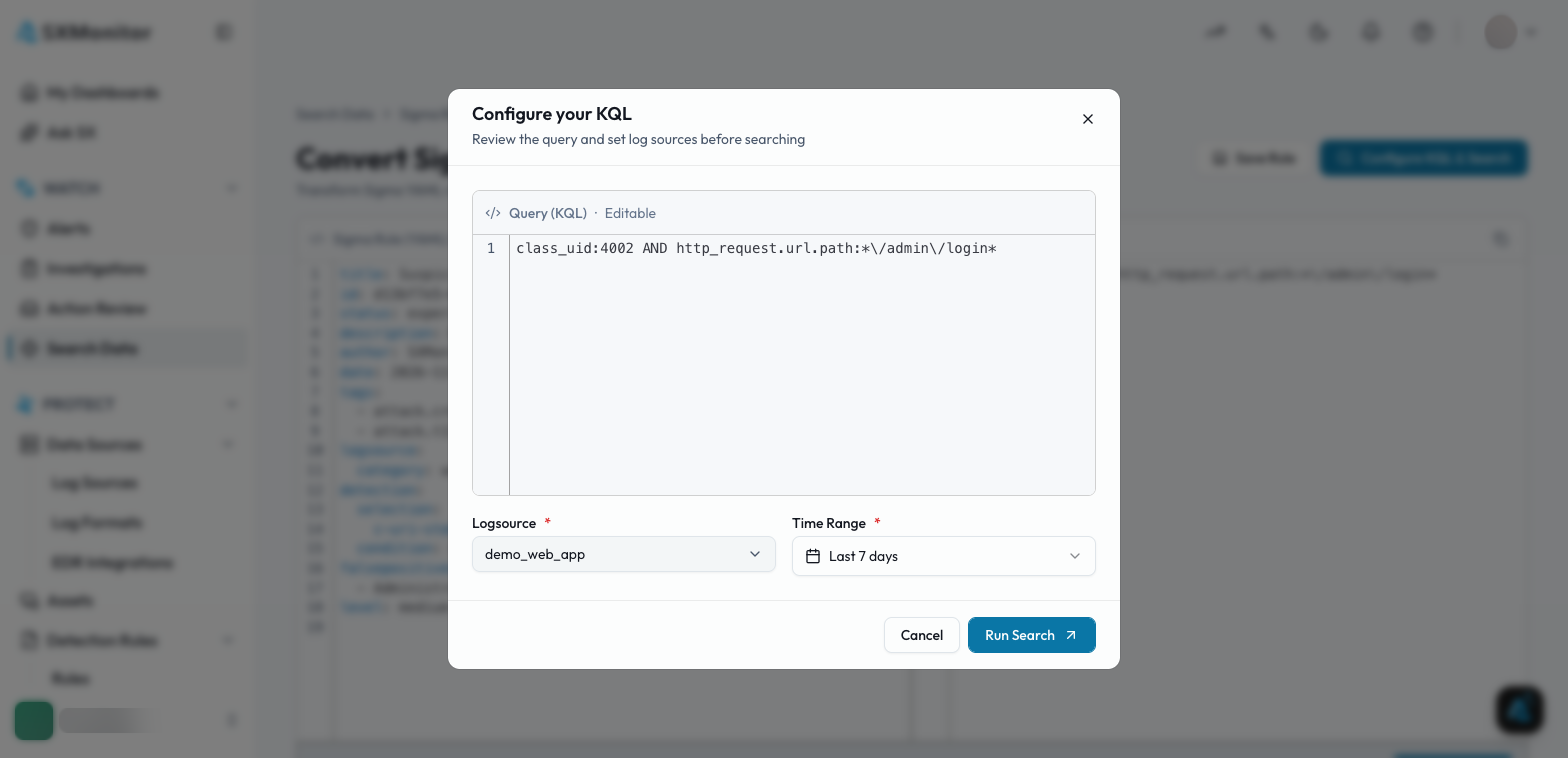
- Review the query. It is editable here. Your changes apply to this search only; the saved rule does not change.
- Check the Logsource. SXMonitor fills in one of your log sources; pick the one you want to search, by the name you gave it.
- Choose the Time Range with the same picker as in Search Data. It starts at Last 7 days.
- Click Run Search. Search Data opens with the query in the search bar and your log source and time range applied.
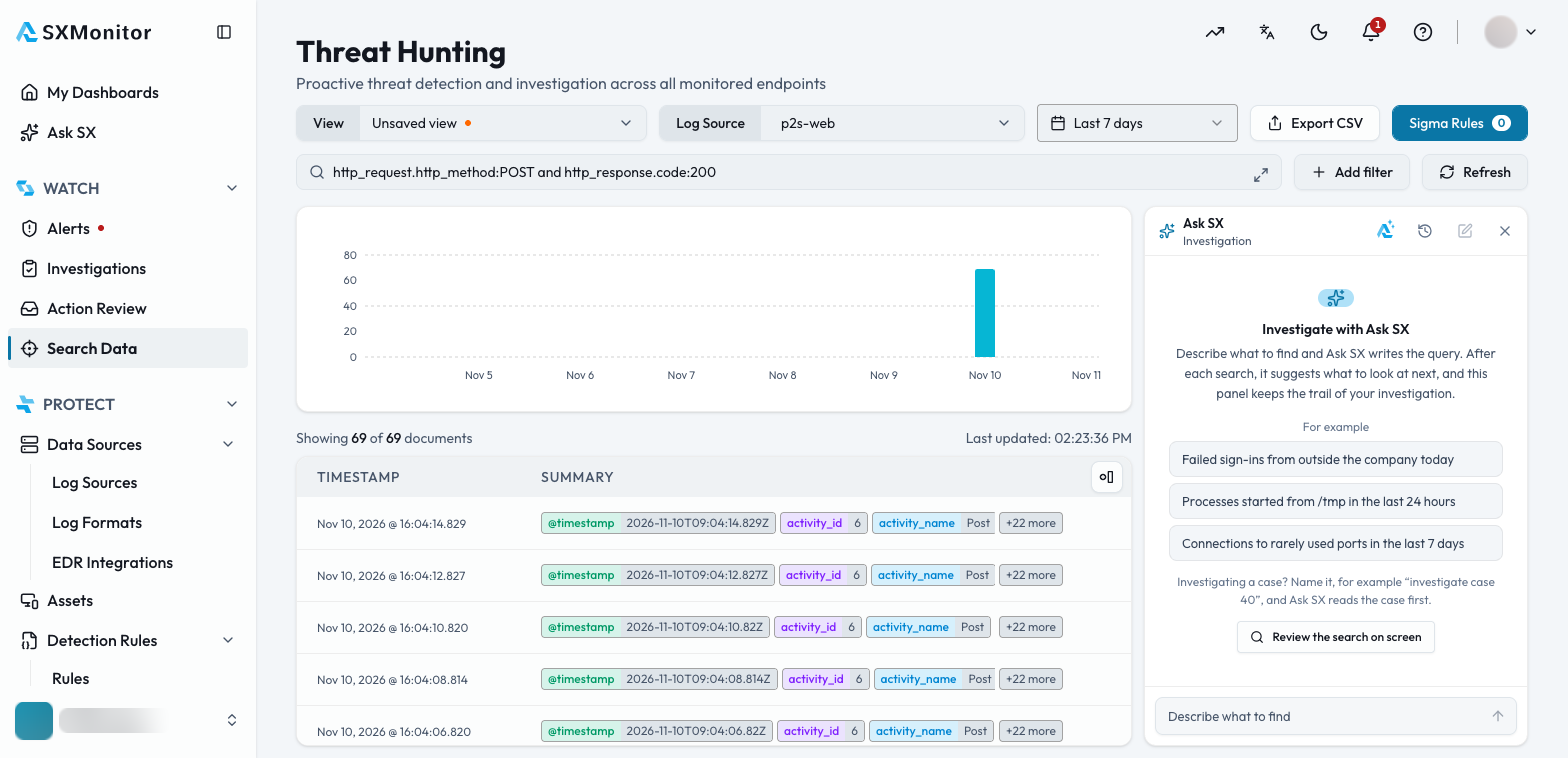
From there, add filters or columns, and save the search as a view with View › Save as new view — see Search Data.
Next
- Build on the results in Search Data.
- Turn proven logic into rules that raise alerts in Detection Rules.