

Playbooks
The automated playbooks your security team runs on your alerts — what each one does, whether it is on, and every time it ran.
Playbooks are the automation your security team, SXMonitor SOC, runs on your alerts. A playbook picks up a certain kind of alert, for example Wazuh alerts from your Linux web servers, groups them into a case, enriches it, and can send you a task or a few questions when the team needs your input.
Playbooks run in the background. You don't build or edit them: the security team manages them and turns them on for your tenant. This page lets you see which playbooks exist, what each one does, and every time one ran.
To open the page, go to Protect › Playbooks.
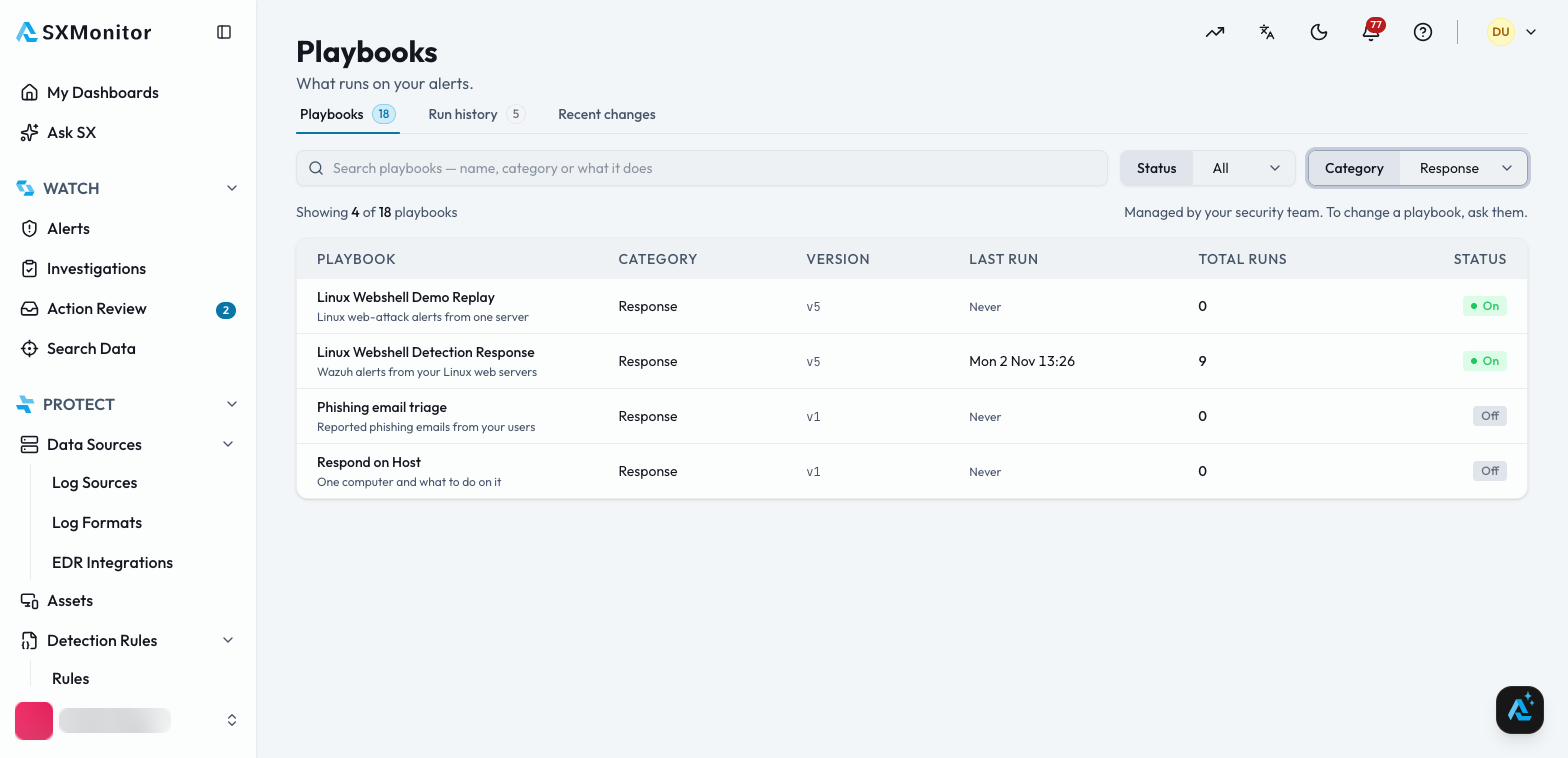
The page has three tabs: Playbooks, Run history and Recent changes.
Playbooks
The list shows every playbook available to your tenant. Under each name, a short line says which alerts it works on.
| Column | What it shows |
|---|---|
| Playbook | The playbook's name and the alerts it works on. Click the name to open it. |
| Category | Case building, Response, Enrichment or Reporting. |
| Version | The version that is currently published. |
| Last run | When the playbook last ran for your tenant, or Never. |
| Total runs | How many times it has run for your tenant. |
| Status | On — it runs on your alerts. Off — it does not run for this tenant. Not in plan — your subscription does not include it. |
Use Search to find a playbook by name, category or what it does, and the Status and Category filters to narrow the list.
To turn a playbook on or off, or to change what it does, ask your security team.
Inside a playbook
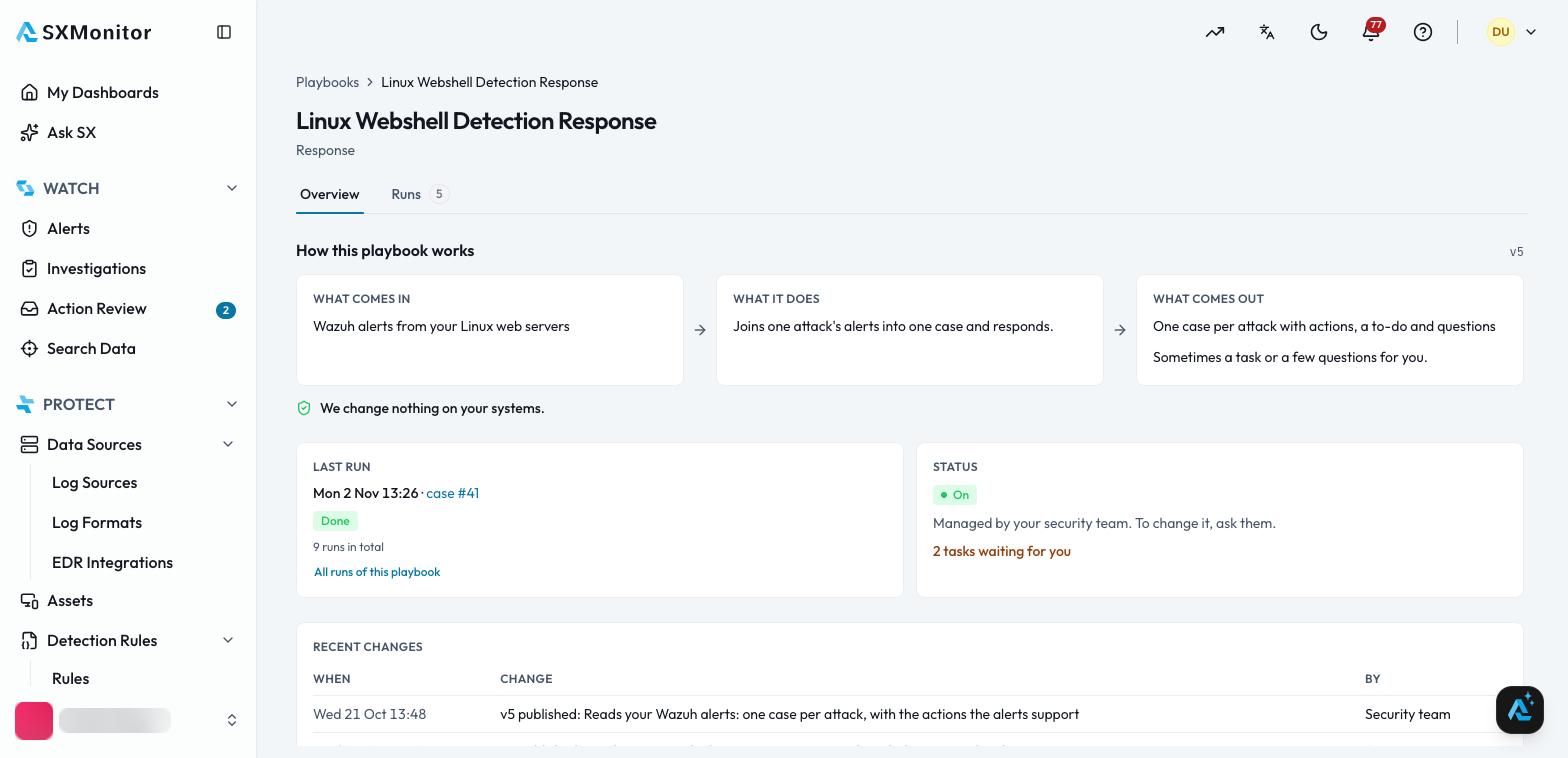
Click a playbook's name to open it. The Overview tab explains it in plain words.
| Section | What it shows |
|---|---|
| How this playbook works | Three steps: What comes in (the alerts it reads), What it does, and What comes out (for example a case, actions, a to-do or questions for you). |
| Last run | When it last ran, the case it worked on and the result. All runs of this playbook opens its Runs tab. |
| Status | Whether it is on for your tenant. When it has tasks for you, a link shows how many are waiting in Action Review. |
| Recent changes | New versions and on/off changes, with when and by whom. |
Below the three steps, We change nothing on your systems is the security team's promise for the playbook. Actions on your hosts, such as blocking an IP, are response actions: they appear on the case's Response tab and follow your action policy — see EDR Integrations.
The Runs tab lists this playbook's runs from the last 90 days, with the columns of Run history below except Playbook, and no search or filters.
Run history
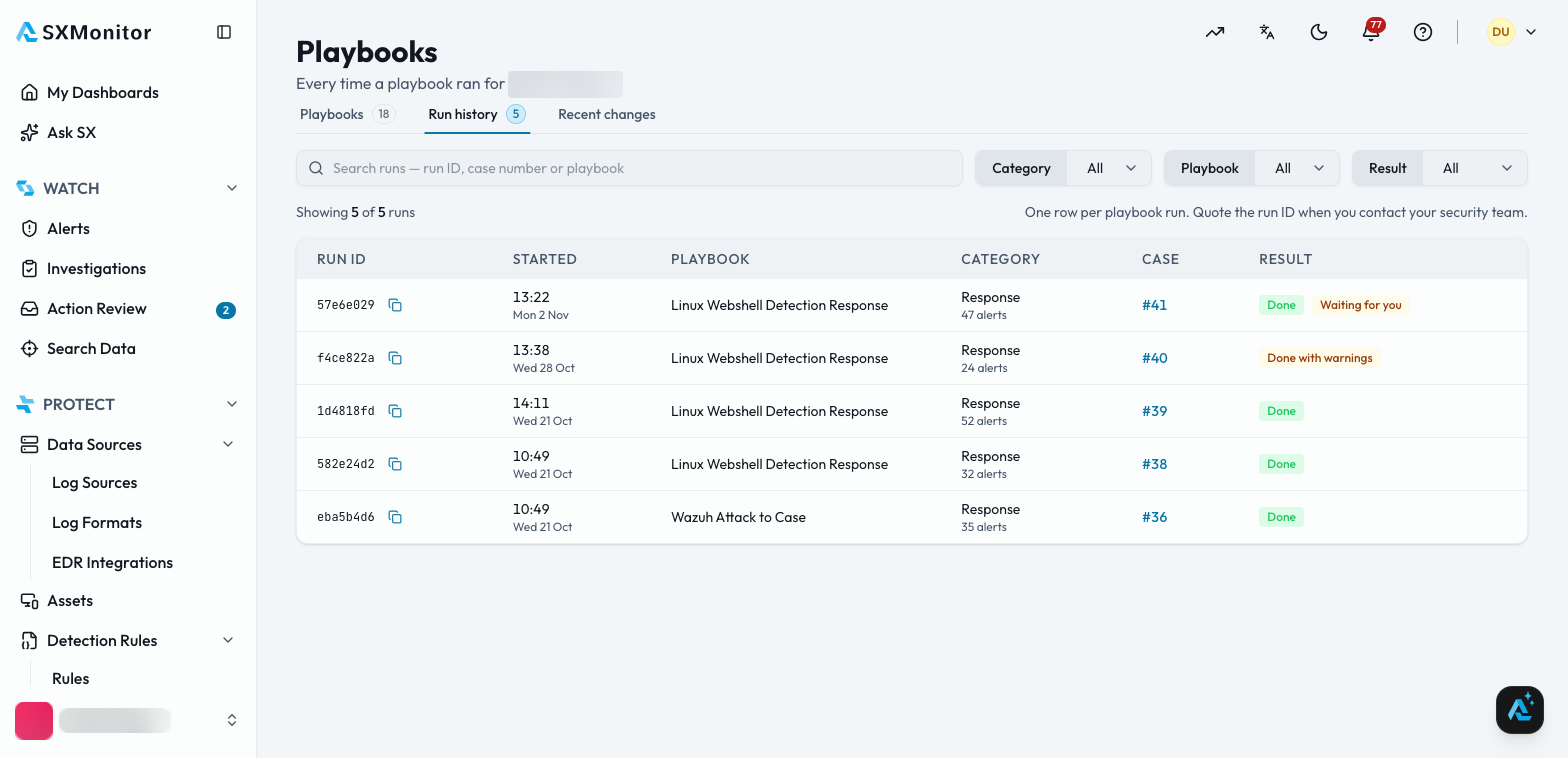
Run history lists every time a playbook ran for your tenant in the last 90 days, newest first.
| Column | What it shows |
|---|---|
| Run ID | A short ID for the run. Click the copy icon next to it. |
| Started | When the run started. |
| Playbook | The playbook that ran. Click it to open the playbook. |
| Category | The playbook's category and how many alerts the run worked on. |
| Case | The case the run built or worked on. Click the number to open it. |
| Result | Done, Done with warnings or Failed. Waiting for you means the run sent you a task you have not answered yet. |
Search by run ID, case number or playbook, or filter by Category, Playbook and Result.
Quote the run ID when you contact your security team about a run.
Recent changes
Recent changes lists every change to the playbooks that run for your tenant: each new version the security team publishes, with its note, each time a playbook is turned on or off for your tenant or reset to your organization's default, and changes to your organization's defaults.
In a case
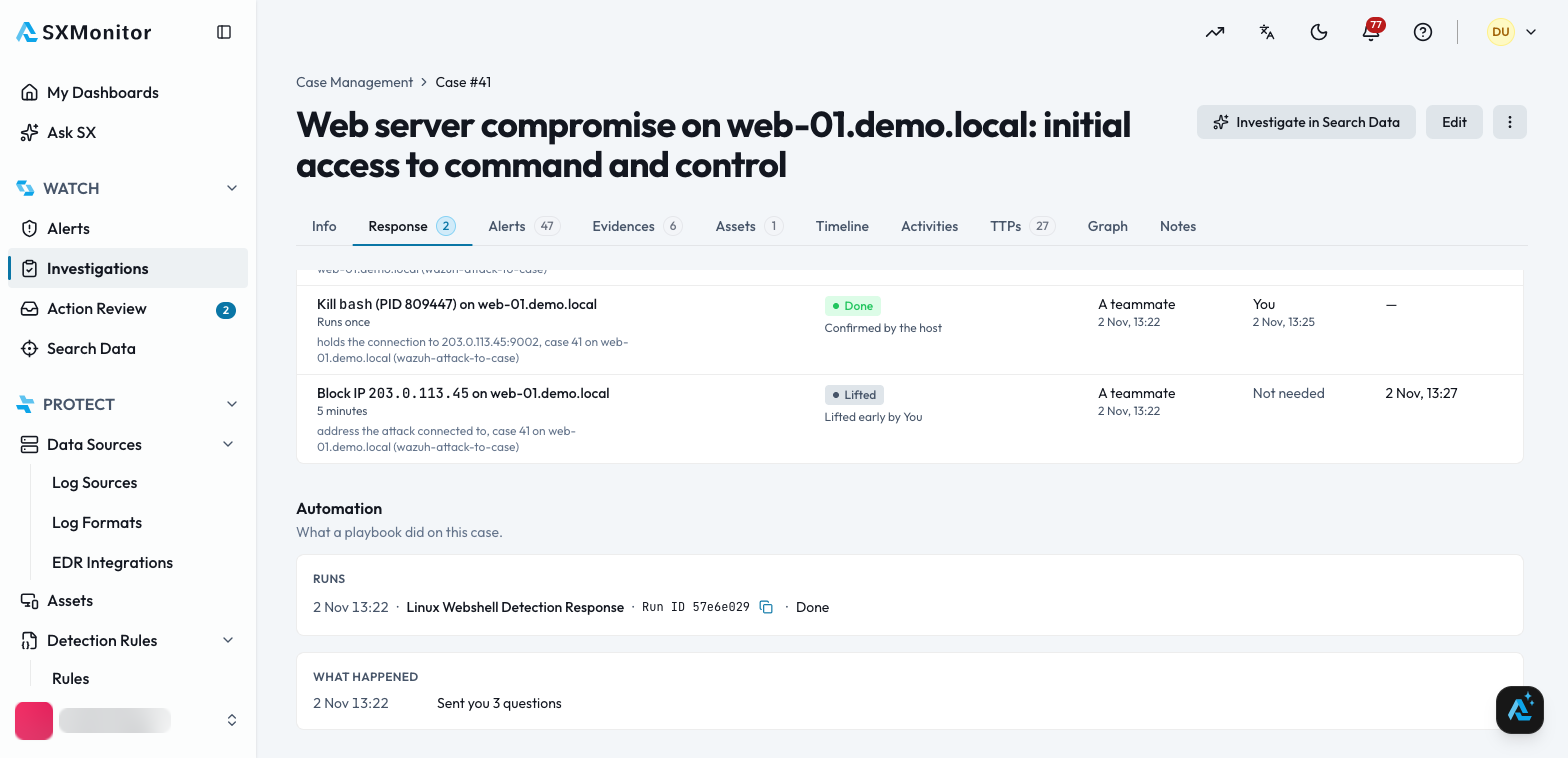
When a playbook works on a case, the case's Response tab shows an Automation section: the run, with its run ID and result, and What happened — for example that it sent you three questions. What waits on you there, and how to answer it, is described in Playbooks on a case.
Who can see it
Seeing Playbooks, Run history and Action Review needs Viewer on the SOAR row of your role. Answering tasks needs Editor. See Role Management.
Next
Answer what a playbook asks you in Action Review, and see the rest of a case in Inside a case.