

Playbooks on a case
What an automated playbook did on a case, what it is waiting on you for, and where you answer — all on the case's Response tab.
Playbooks are the automation your security team, SXMonitor SOC, runs on your alerts. When one works on an incident, it can build the case from the alerts, enrich it, ask for a response action on one of the case's hosts, and send you a to-do or a few questions. What it did, and what it is waiting for, shows on the case's Response tab.
To see it, open the case from Watch › Investigations and click Response. The tab reads from the top down: Needs You, Tasks, Response Actions and Automation. The number on the Response tab is how many requests are waiting on you.
Needs You
Needs You appears at the top of the tab when something on the case is waiting for you: a to-do or questions from a playbook or from your security team, and — if you can approve them — response actions waiting for approval. Requests are grouped by who sent them — From the playbook, Asked by your security team or Asked by an analyst — with when they were sent.
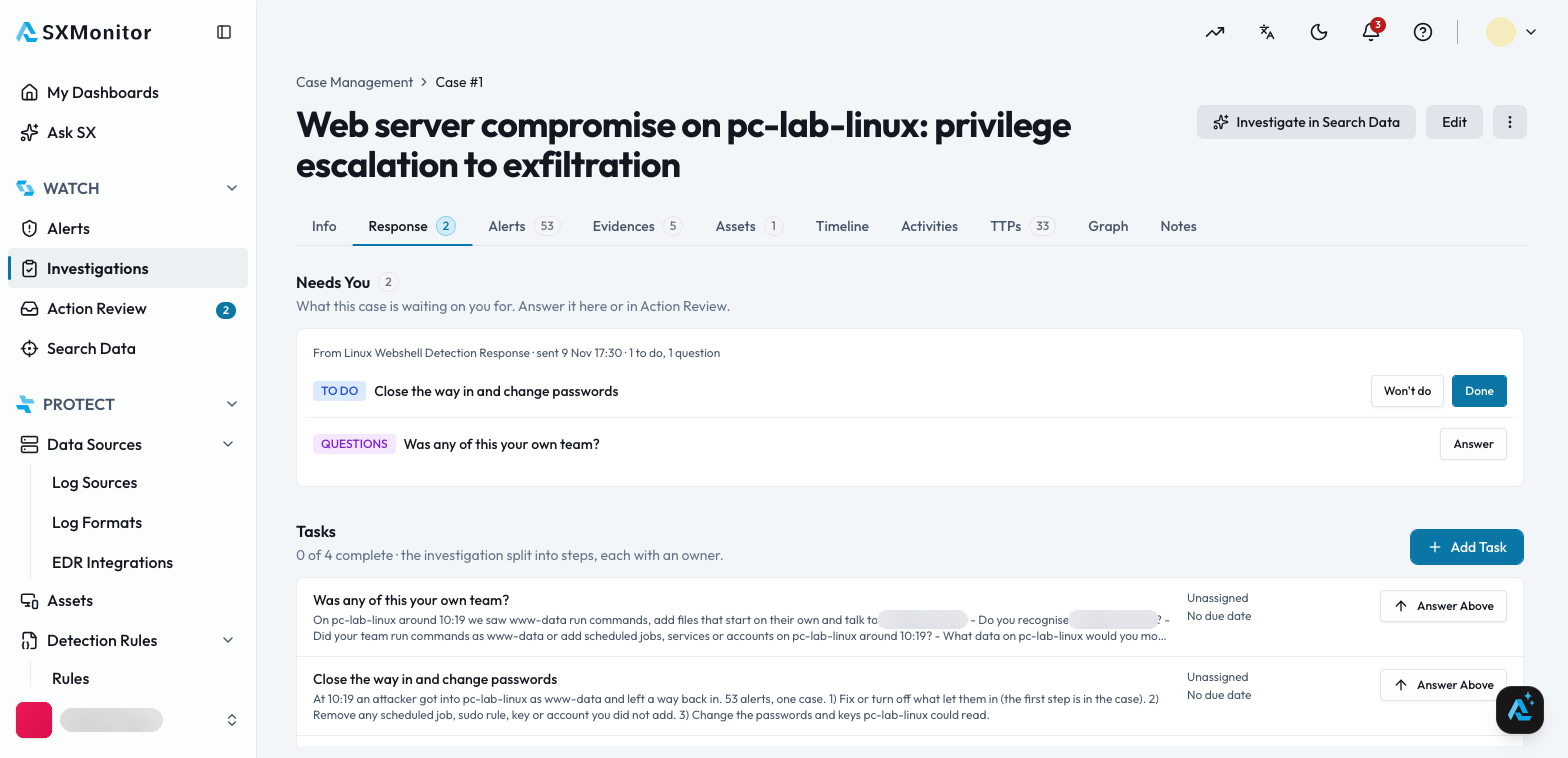
- A to-do: answer it on its row with Done or Won't do.
- Questions: click Answer. A panel opens with the questions; Previous, Next and Skip move between the requests still waiting, and Open full page opens the request in Action Review.
- A response action: click Approve, then Confirm — a line beside the buttons says what is sent to which host — or Reject and give a reason.
Your answer is written to the case, just as when you answer in Action Review. The matching task under Tasks is then set to Done. A task created for a playbook's request can't be moved by hand: its row shows Answer Above, which leads back to Needs You.
Automation
Automation, the last section of the tab, shows what a playbook did on the case. It is read-only.
| Part | What it shows |
|---|---|
| Runs | The run on one line: when it started, the playbook, its run ID with a copy button, and how it ended. |
| What happened | Up to four timed lines from the run, for example that it sent you three questions. |
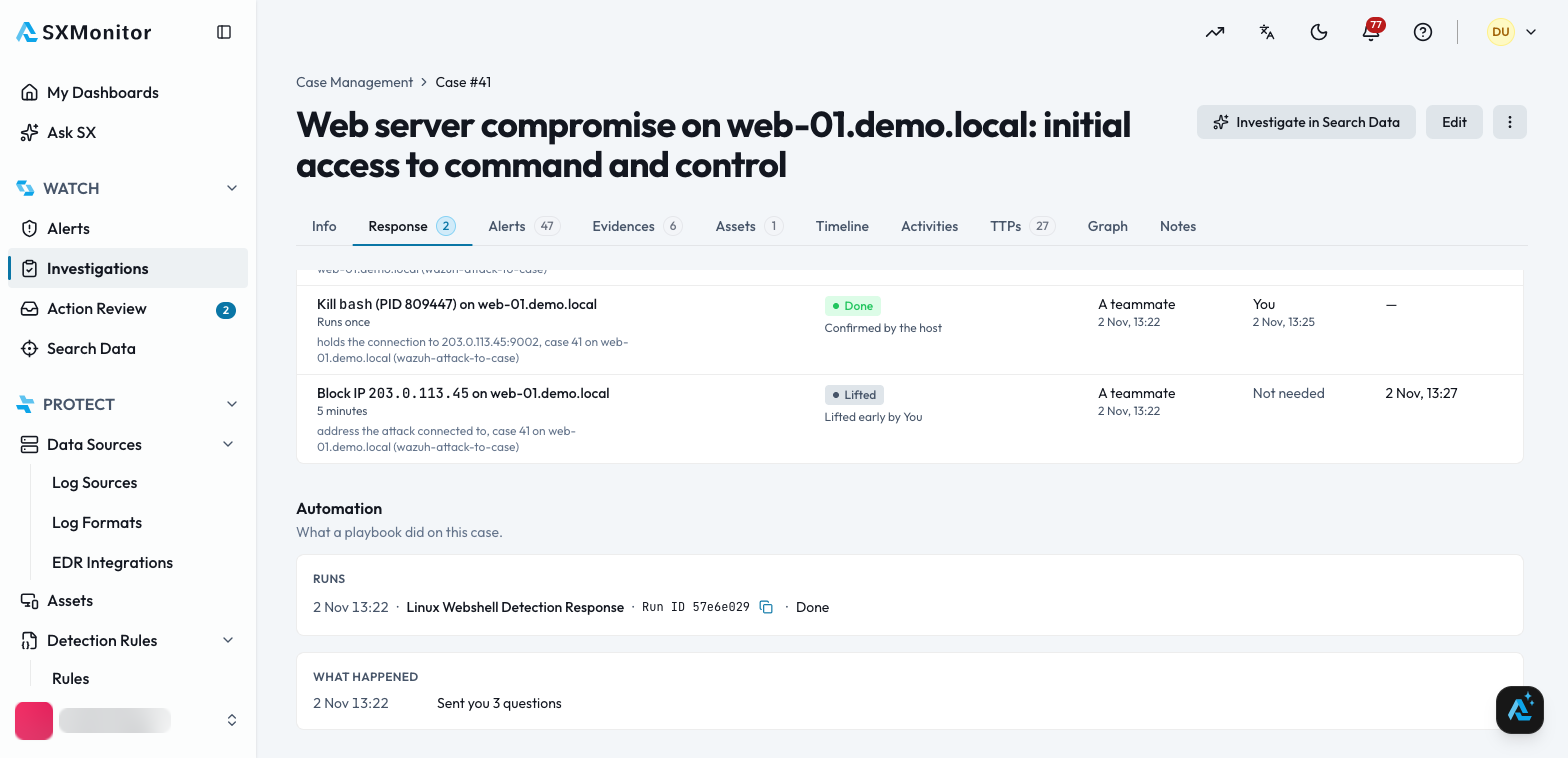
When no playbook has worked on the case, the section says Automation has not run on this case. If you ask your security team about a run, quote its run ID.
Response actions from a playbook
A playbook can ask for a response action, such as Block IP, on one of the case's hosts. The request shows under Response Actions with SXMonitor Automation as the requester and, while it waits for approval, in Needs You for those who can approve it. Nothing runs on the host until someone approves it, except a Block IP whose approval your integration's policy sets to Not needed — that block runs at once. See Response actions.
Who can see it
| Section | Follows |
|---|---|
| Needs You (to-dos and questions) and Automation | The SOAR row of your role: Viewer sees them, Editor also answers. |
| Response Actions and approvals | Your access to EDR — see Approve or reject a response action. |
Roles are set in Role Management.
Next
- See every playbook and every time one ran in Playbooks.
- Answer what is waiting on you across all cases in Action Review.