

Evidences
The Evidences tab of a case — its observables and IOCs, and the files attached to it with their chain of custody.
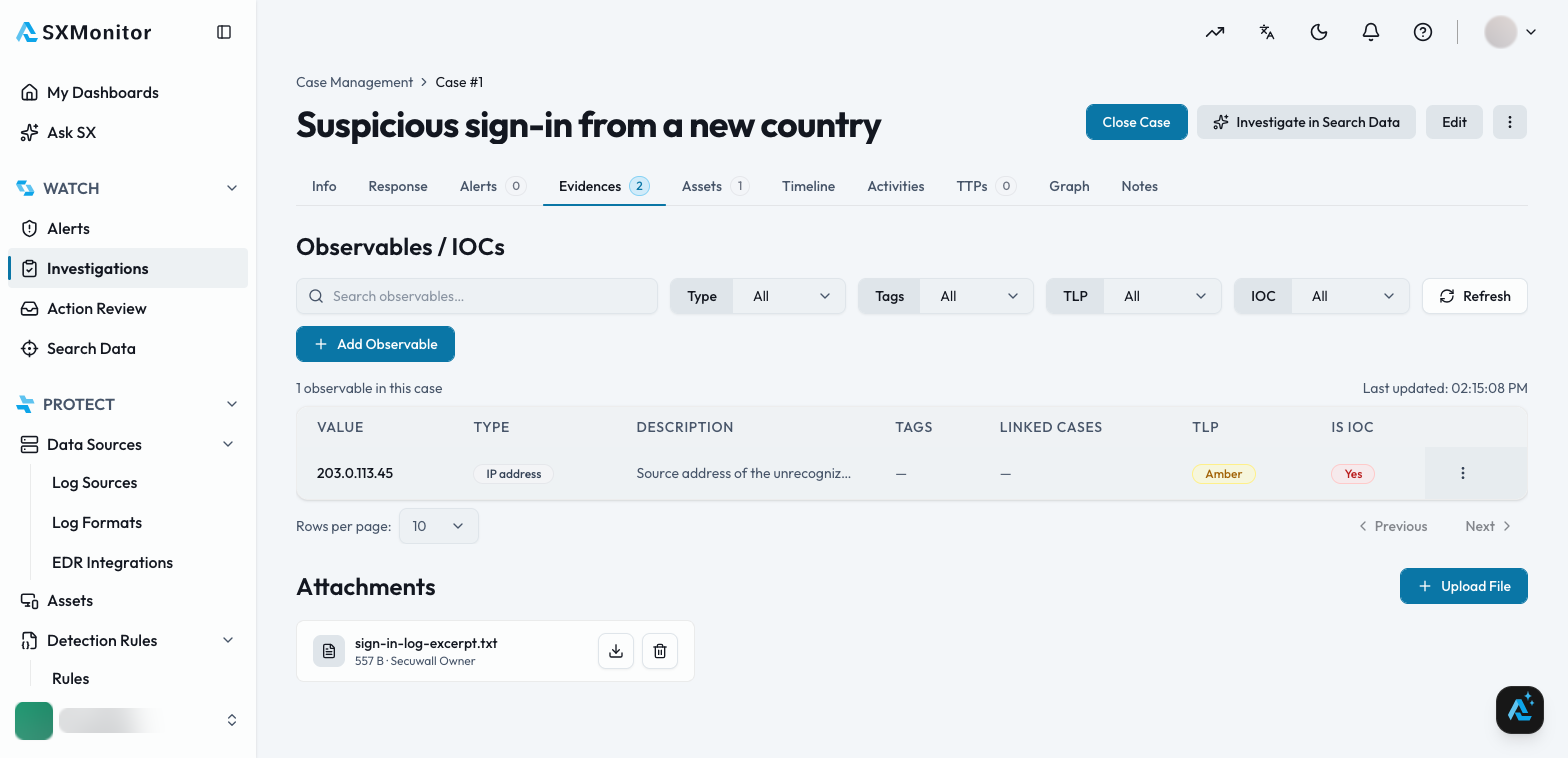
The Evidences tab of a case holds the indicators and files the investigation turned up: Observables / IOCs at the top and Attachments below. The number on the tab counts both together. To open it, open a case from Watch › Investigations and click Evidences. The rest of the case page is described in Inside a case.
Observables and IOCs
Observables are the indicators the investigation turned up — IP addresses, hashes, domains, accounts and so on. The Linked cases column shows other cases that hold the same value. Narrow the list with the Type, Tags, TLP and IOC filters.
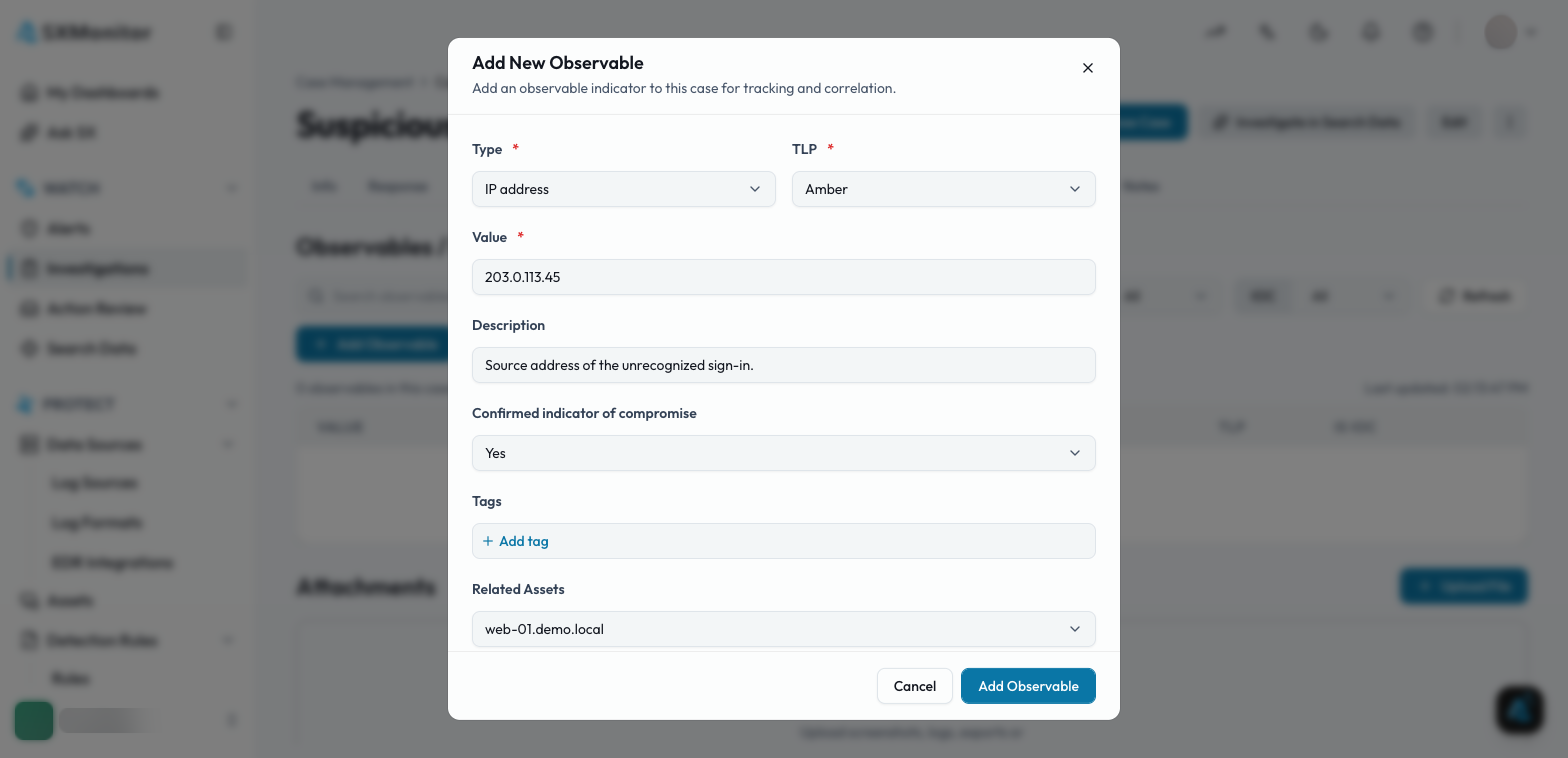
To add one, click Add Observable and fill in Type, TLP (Green by default) and Value, which are required, and optionally a Description, Tags and the Related Assets it was seen on. Set Confirmed indicator of compromise to Yes to mark it as an IOC.
Click an observable to open Observable Detail: its value, type, TLP, description, tags, linked cases, and when it was added and last updated. Edit or delete it there, or with ⋮ at the end of its row.
Attachments and chain of custody
To attach screenshots, logs, exports or samples, click Upload File, choose up to 10 files and click Upload. Any file type is accepted, up to 1 GB per file and 5 GB per case. A file recognised as a program is stored inside a password-protected zip and marked Zipped.
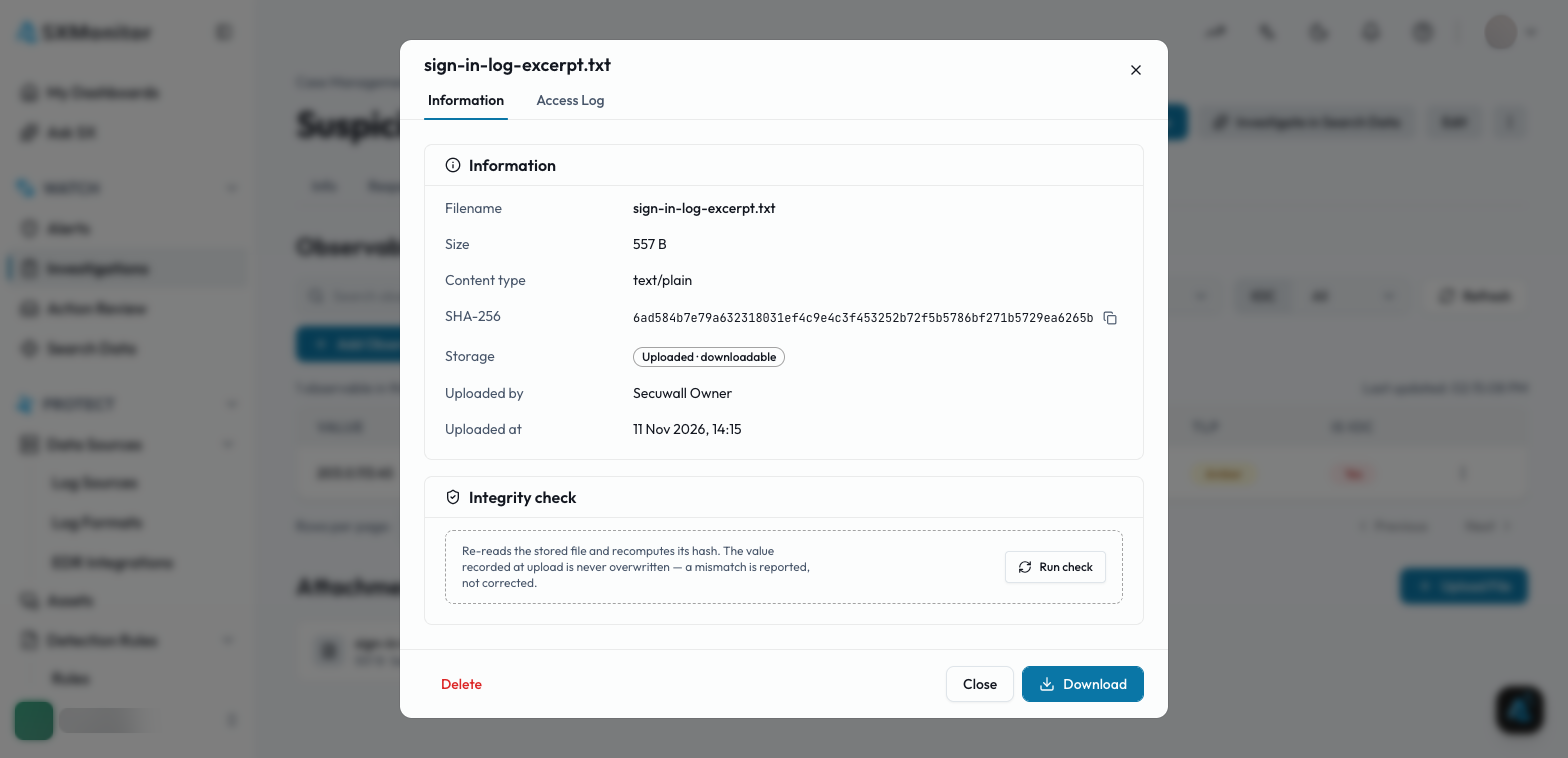
Click a file to open its details. Information shows its size, content type, SHA-256 hash and who uploaded it when. Run check re-reads the stored file and compares its hash with the one recorded at upload; a mismatch is reported, never overwritten. The Access Log tab lists every download, integrity check and transfer of the file — its chain of custody.
A customer view does not show this tab — see What customers see.
Next
- Record the systems involved in Assets.