

Notifications
Follow what happens on your cases from the bell, and choose which events reach you in the app and by email.
Notifications tell you when something happens on a case that concerns you: a case or a task assigned to you, an @mention, a new comment, a status change, a reopened case or a High-severity alert attached to your case. They collect in the panel under the bell in the header and, if you want, reach you by email.
Notifications belong to the tenant you are working in: switch tenant to see another tenant's. Most are about cases; you also get one in the app when a response action waits for your approval. New alerts from your detection rules show as a red dot on Alerts in the sidebar instead, and you send alerts to Slack, Google Chat or a webhook with Notification Channels.
To open the panel, click the bell (Notifications) in the header. The red badge on the bell is the number of unread notifications.
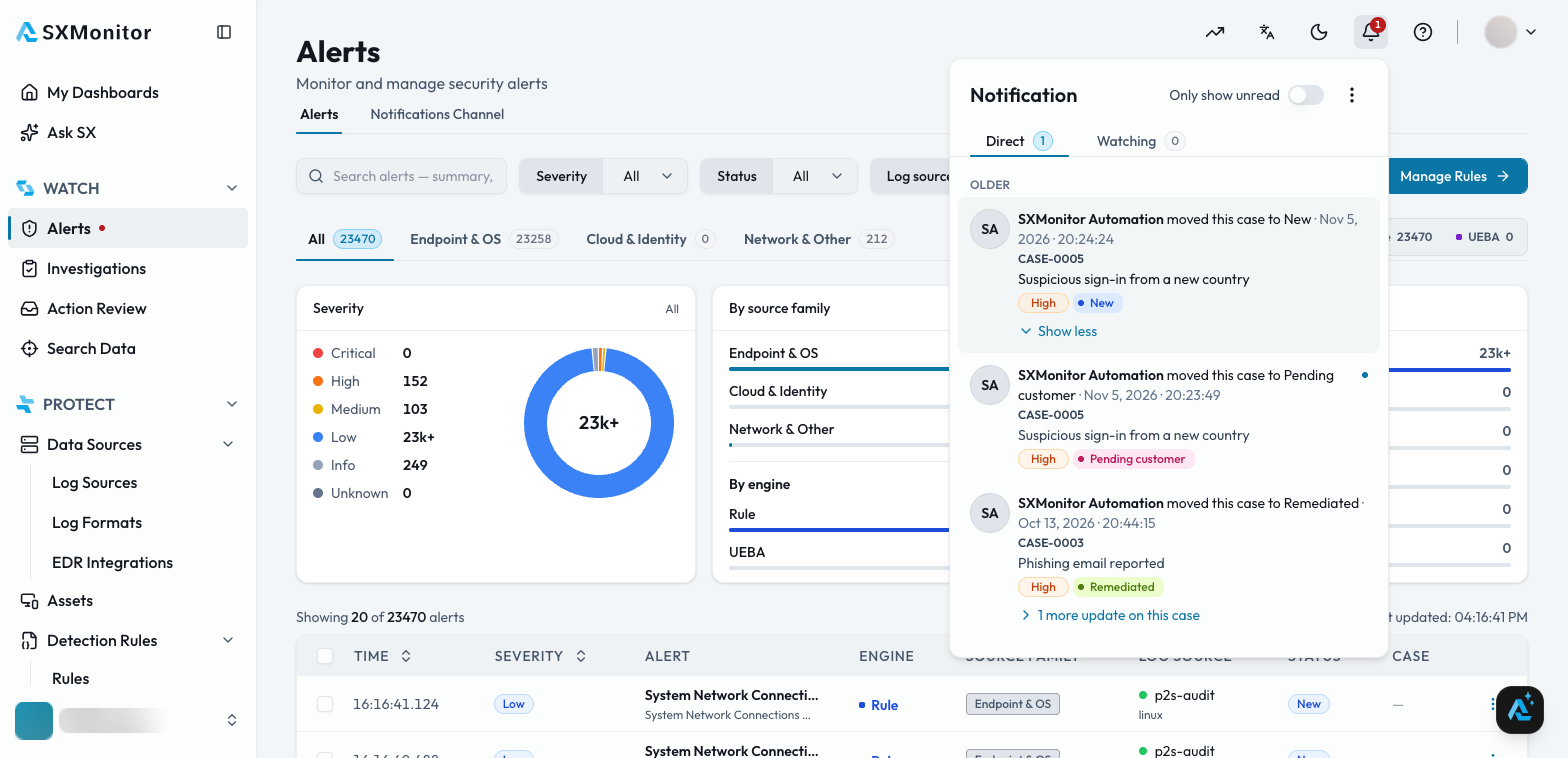
The notification panel
| Area | What it does |
|---|---|
| Direct | Notifications about you: a case or a task assigned to you, a mention of you, and changes to cases you are assigned to or own. The number is how many are unread. |
| Watching | Other activity on cases you have worked on, such as new comments. |
| Only show unread | Hides the notifications you have read. |
| ⋮ | Mark all as read and Notification setting — see below. |
| Today, Yesterday, Older | The notifications, newest first, grouped by day. Load more at the bottom shows older ones. |
Each notification shows:
| Part | What it shows |
|---|---|
| Avatar and sentence | Who did what, for example SXMonitor Automation moved this case to New or … mentioned you in a comment. |
| Time | How long ago for the last 24 hours, Yesterday · and the time, or the date and time. Point at it for the exact moment. |
| Case | CASE- and the case number, its title, and its severity and status at that moment. A comment or a mention also shows the start of the comment. |
| Blue dot | Not read yet. |
| 1 more update on this case | Earlier updates on the same case, folded under the newest one. Click to show them; Show less folds them again. |
If you can no longer open the case, the notification says You do not have access to this case. instead of its details.
Open a notification and mark it as read
- Click the bell and choose Direct or Watching.
- Click a notification. SXMonitor opens what it is about — the comment in the case thread, the task, the attached alert or the case itself — and marks the notification as read.
- To clear a tab without opening every notification, click ⋮ and choose Mark all as read. It marks every notification in the open tab as read.
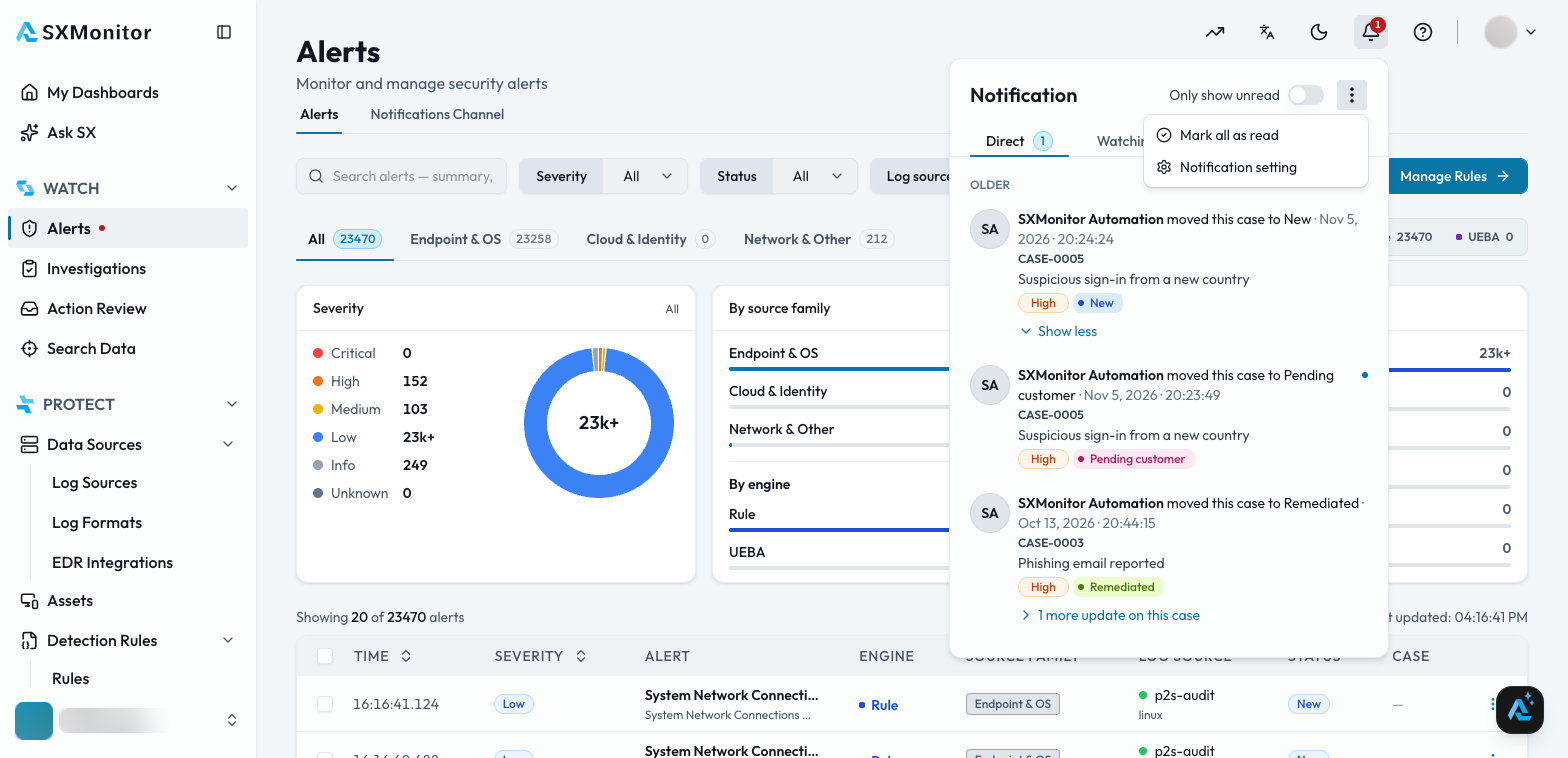
New notifications appear in the panel while you work; you do not need to reload the page. When there is nothing to show, the panel says You’re all caught up.
Mentions
To bring a colleague into a case, mention them in a comment on the case, a
task or a note: type @, pick them from the Mention a colleague list and
post the comment. They get a notification on their Direct tab —
… mentioned you in a comment — and an email straight away, unless they
changed their settings. Mentioning needs edit access to the case; see
Comments and @mentions.
Notification settings
Choose, event by event, whether a notification shows in the panel and whether it reaches you by email. Click ⋮ › Notification setting in the panel, or open Settings › Notifications from your avatar menu.
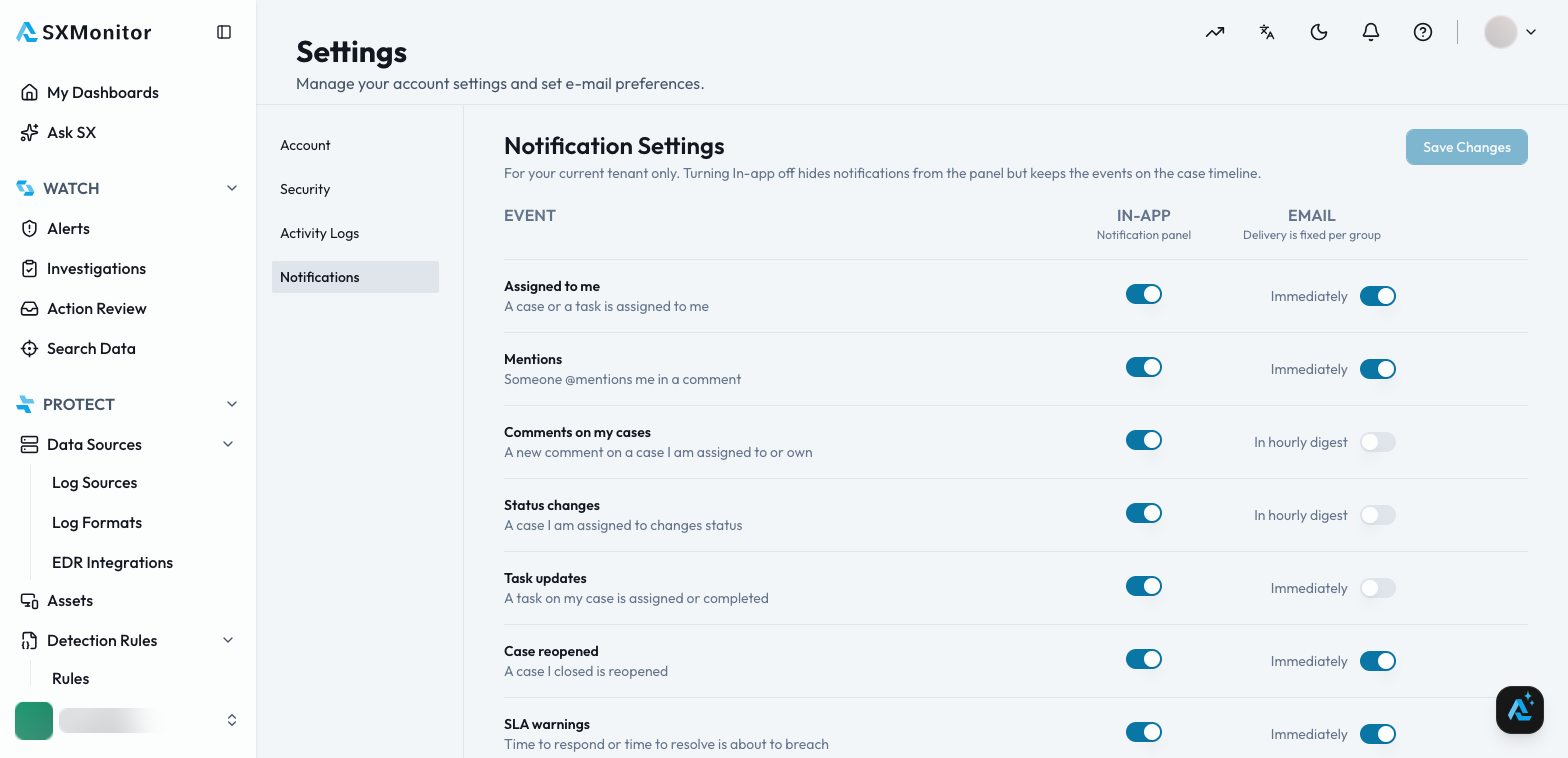
The settings apply to your current tenant only, so set them in each tenant you work in. In-app decides whether the notification shows in the panel; turning it off still keeps the event on the case timeline. Email decides whether it is emailed — Immediately, one email per notification, or In hourly digest, one email an hour that collects them. How each event is emailed is fixed; you choose only whether it is.
| Event | When you get it | |
|---|---|---|
| Assigned to me | A case or a task is assigned to you, or you are made a case's owner. | Immediately |
| Mentions | Someone @mentions you in a comment. | Immediately |
| Comments on my cases | Someone comments on a case you are assigned to or own. | In hourly digest |
| Status changes | A case you are assigned to changes status. | In hourly digest |
| Task updates | A task on your case is assigned or completed. | Immediately |
| Case reopened | A case you closed is reopened. | Immediately |
| SLA warnings | A case's time to respond or time to resolve is about to run out. | Immediately |
| High-severity alerts on my cases | An alert of High severity or above is attached to your case. | In hourly digest |
| Watching | Something happens on a case you have worked on but are not assigned to and do not own. | In hourly digest |
To begin with, every event shows in the panel, and Assigned to me, Mentions, Case reopened and SLA warnings are also emailed. SXMonitor does not send SLA warnings yet in release 1.1.0.
Each notification follows one row only, chosen by how you are linked to the case: Mentions when you are mentioned, Assigned to me when the assignment is yours, the event's own row when you are the assignee or owner, and Watching otherwise.
Change your settings
- Check the tenant at the bottom of the sidebar — the settings are for that tenant.
- Open Settings › Notifications.
- Switch In-app or Email on or off for each event.
- Click Save Changes at the top right. It is active only after you change something.
A row you have changed and saved shows Reset. Click it and then Save Changes to put that row back to the default.
Next
- Comment and mention colleagues in Inside a case.
- Send alerts to your team's tools with Notification Channels.