

Sign Up
Create your SXMonitor account through Google SSO or the registration form.
Getting access to SXMonitor takes two steps — sign up for an account, then sign in once your request is approved. Expect about five minutes of work on your side, plus 24–48 hours of review.
Two paths, one review queue
There are two ways to sign up. Both lead to the same account review queue: the product team reviews your request, usually within 24–48 hours.
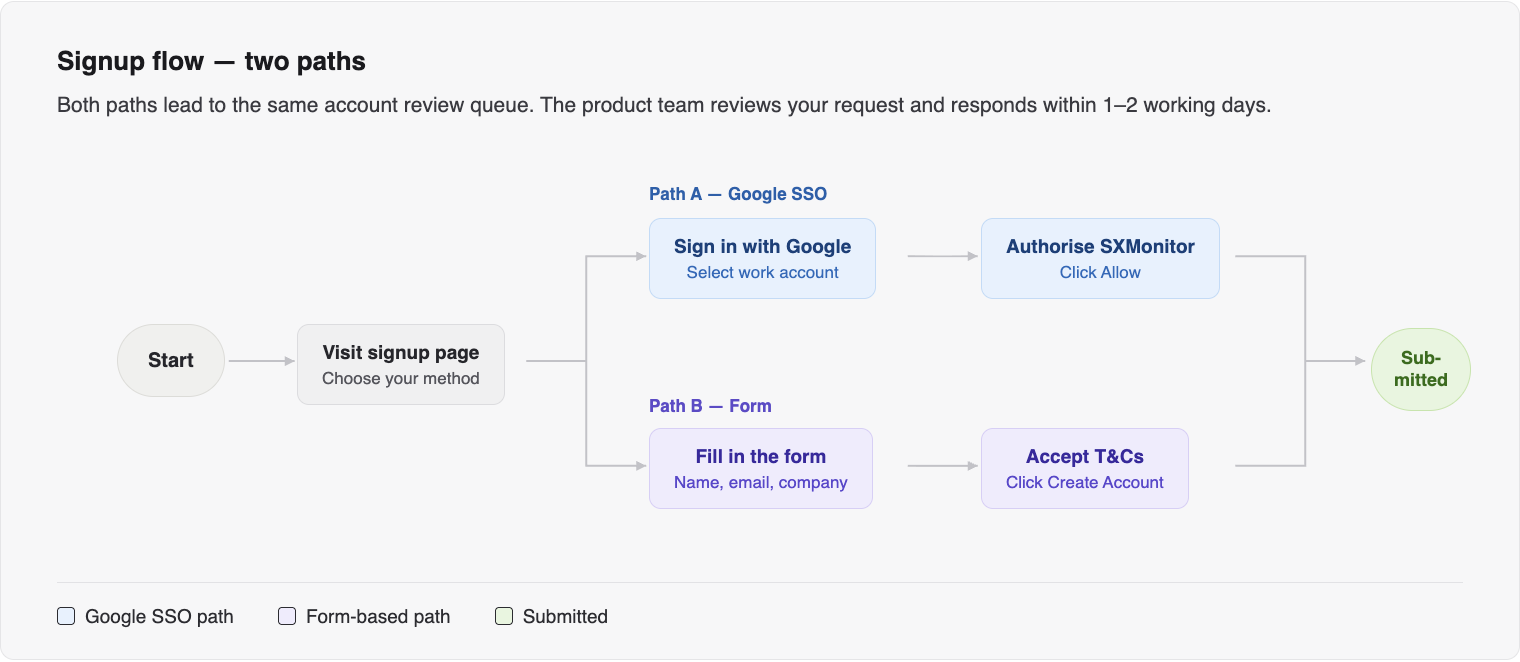
Path A — Sign up with Google SSO
If your organization uses Google Workspace, sign up with a single click using your existing Google account. No password is created in SXMonitor.
- Go to the SXMonitor signup page. You will see Continue with Google at the top.
- Click "Continue with Google". A Google authentication prompt appears. Select the Google account associated with your work email address.
- Authorise SXMonitor. Google asks you to let SXMonitor use your name and email. Click Allow.
- Finalize your account. Back in SXMonitor, the Finalize Your Account form asks for the details under ABOUT YOUR COMPANY. Fill them in and click Create Account. If the form says your session expired, start again with Continue with Google.
- You're all set. A confirmation screen tells you that your request was submitted and is awaiting review.
Path B — Sign up with the registration form
If you prefer not to use Google SSO, complete the registration form with your details.
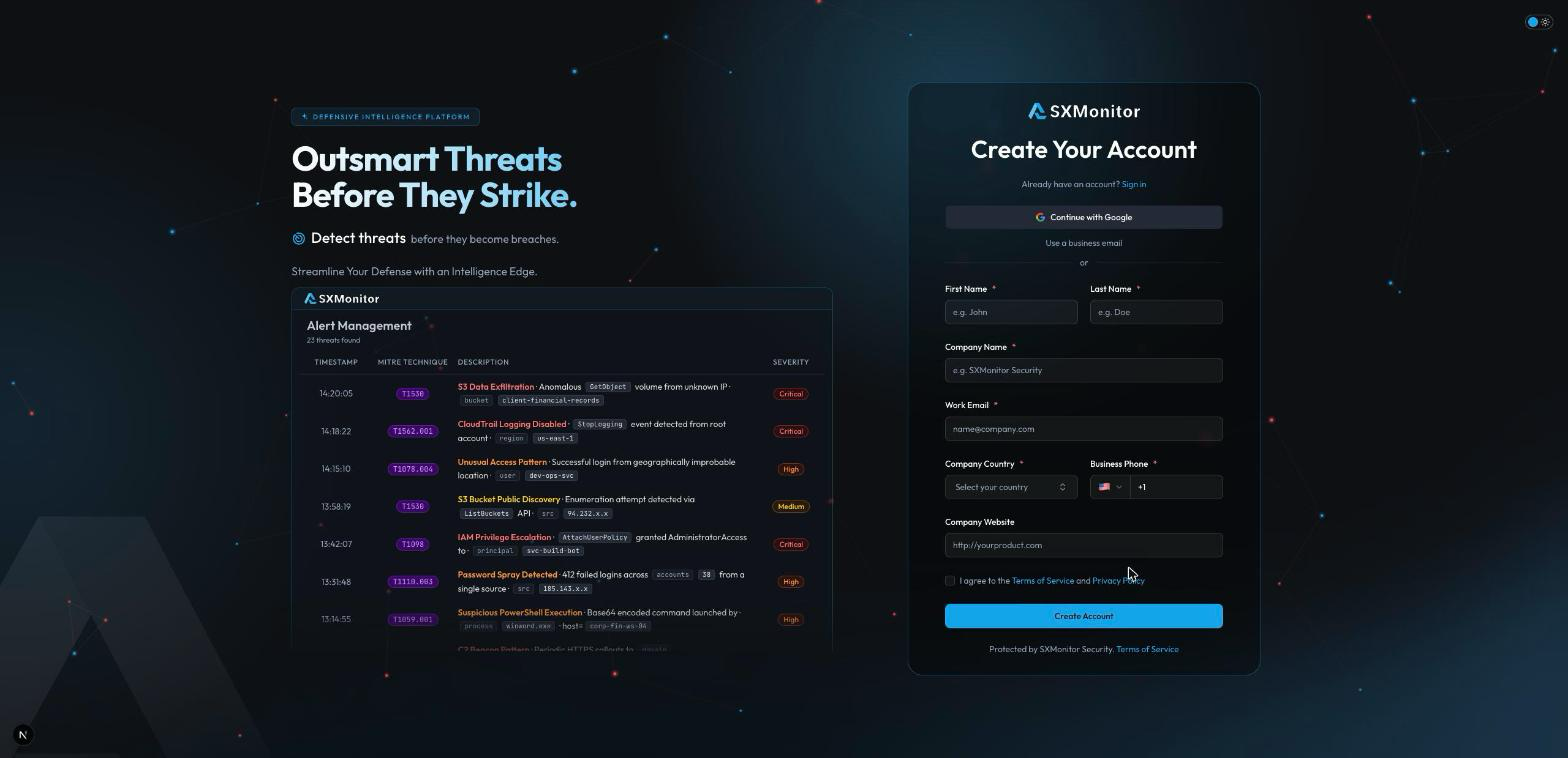
Form fields
| Field | Description | Required |
|---|---|---|
| First Name | Your given name. | Yes |
| Last Name | Your family name. | Yes |
| Company Name | The full legal name of your organization. | Yes |
| Work Email | Your organization email address. Personal addresses may not be accepted. | Yes |
| Company Country | The country where your organization is headquartered. | Yes |
| Business Phone | Your direct business phone number including country code. | Yes |
| Company Website | Your organization's website URL. Optional but helps speed up review. | No |
| Terms & Privacy | You must accept the Terms of Service and Privacy Policy to proceed. | Yes |
Steps
- Complete all required fields. Fill in your First Name, Last Name, Company Name, Work Email, Company Country, and Business Phone. A business email address is required — only business emails are accepted.
- Add your company website (optional). Including it helps the product team verify your organization and can speed up the review process.
- Accept the Terms of Service and Privacy Policy. Check the box confirming you have read and agree to them. You must accept these to proceed.
- Click "Create Account". SXMonitor sends a 6-digit verification code to your work email.
- Verify your email. On the Verify Your Email screen, enter the code under VERIFICATION CODE and click Verify Email. The screen shows how long the code stays valid. If the email does not arrive, click Resend code once the countdown ends; after too many resends you have to start the signup again.
- You're all set. The confirmation screen shows your details with the status Pending Review and what happens next.
What happens after you submit
Once you submit your signup request — via either path — it enters a review queue.
| Stage | What happens |
|---|---|
| 1. Request submitted | Your details are received and logged. The confirmation screen shows the status Pending Review. |
| 2. Under review | The SXMonitor product team reviews your request. This typically takes 24–48 hours. |
| 3. Decision by email | You receive an email with the outcome — approved, or a request for more information. |
| 4. Credentials issued | If approved, your email includes temporary login credentials and a sign-in link. |
If your request is approved, you will receive an email from the SXMonitor team with temporary login credentials. Follow the sign-in steps to access the platform and set your permanent password.
If you have not heard back after 48 hours, check your spam or junk folder first. If there is still no response, contact the SXMonitor team via the support email provided at registration.
Temporary credentials expire after 48 hours. If you do not sign in within this window, contact the SXMonitor team to request new credentials.