

AI investigation
Let Ask SX read a case — ask it about the case on the case page, or have it look for the case's values in your logs, then add what it found to the case yourself.
Ask SX, SXMonitor's AI assistant, can work a case with you in two ways:
- Ask about the case. On the case page, Ask SX answers from what the case holds — what happened, which tasks are open, which techniques are involved.
- Investigate in Search Data. Ask SX reads the case, looks for its values — addresses, accounts, hosts, files, hashes and the like — in your log sources, and suggests the searches to run first. You add what you find back to the case.
Ask SX is there when the AI Assistant is enabled on your SXMonitor deployment. If your plan does not include it, or today's question quota is used up, the panel says so. Owners can follow its use in AI Usage.
Ask about a case
- Open the case from Investigations.
- Click the dark Ask SX button at the bottom right; its tooltip reads Open AI Assistant. The panel header says Grounded on this case, and the suggested questions are about the case: What Happened on This Case, Open Tasks, Techniques on This Case and Detection Gap.
- Ask your question, or click a suggestion.
- To carry on in the larger Ask SX page, click Open full page (the arrows icon). Minimize there takes you back to the case with the panel open.
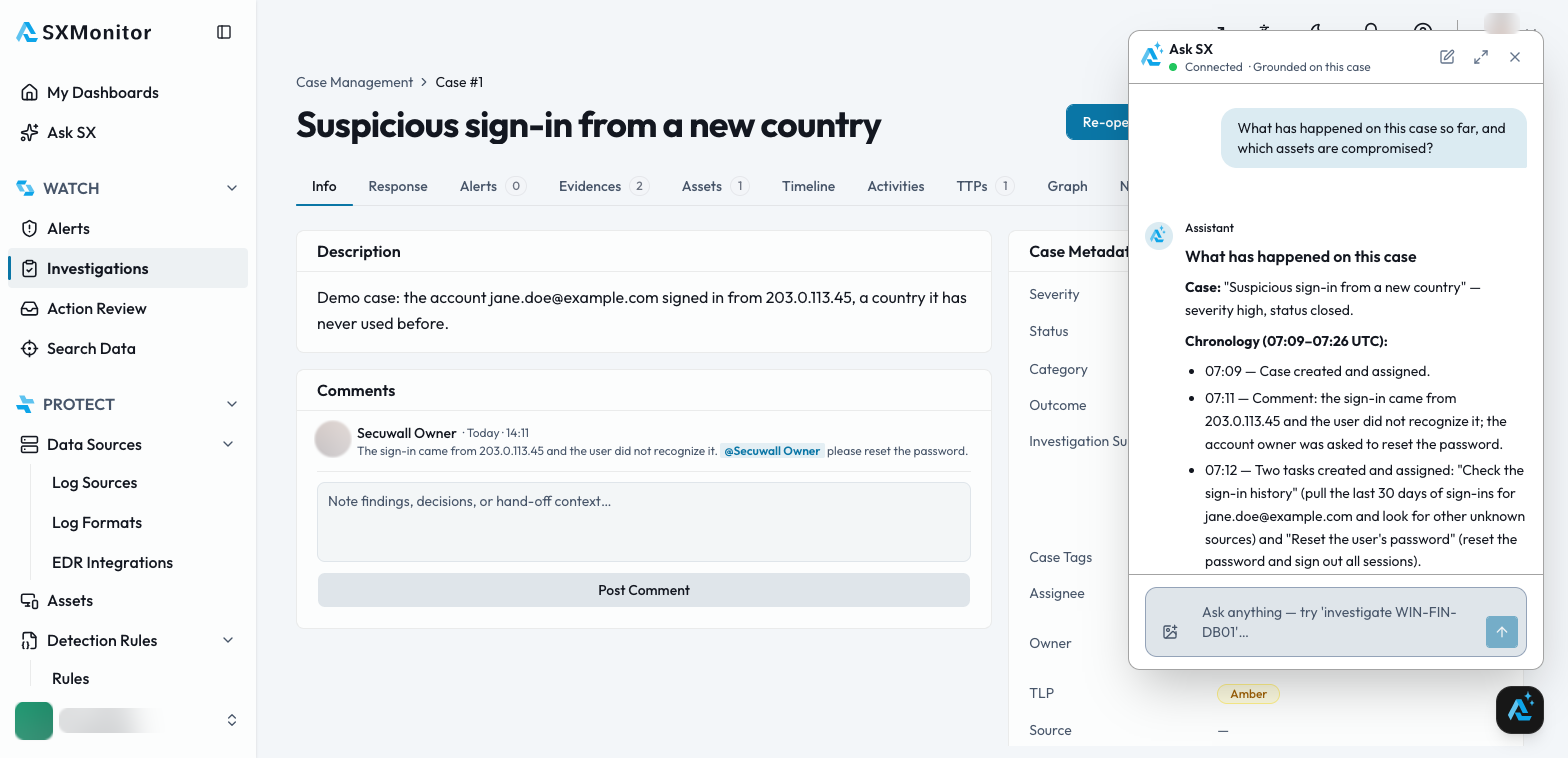
Ask SX answers from the case's details, alerts, comments, tasks, notes, timeline, observables, assets, TTPs and evidence details, but not from the content of evidence files. The conversation stays with that case: open another case and Ask SX starts a new conversation. For the rest of the panel — sources, history and conversations — see Ask SX.
Investigate in Search Data
- On the case page, click Investigate in Search Data at the top. The button is there when your role can use Search Data.
- Search Data opens with the Ask SX panel on the right, and the investigation starts with Help me investigate case #N. Ask SX opens the case and reads it, then looks for the case's values in your log sources. If your latest investigation is already about this case, it opens again instead of starting over.
- It says what it searched — for example Searched 2 log sources for 3 values of the case. — lists under Seen in your logs the values it found, and suggests the searches to run first under Next steps. If none of the case's values shows up, or the case holds nothing to search for, it says so.
- Click Run on a step to put that search on the page. Ask SX reviews the results and suggests what to look at next, the same way as for any search.
- Click Add to case #N to add the search and what Ask SX found to the case as a comment. The button shows on a search Ask SX has reviewed, if you can edit cases.
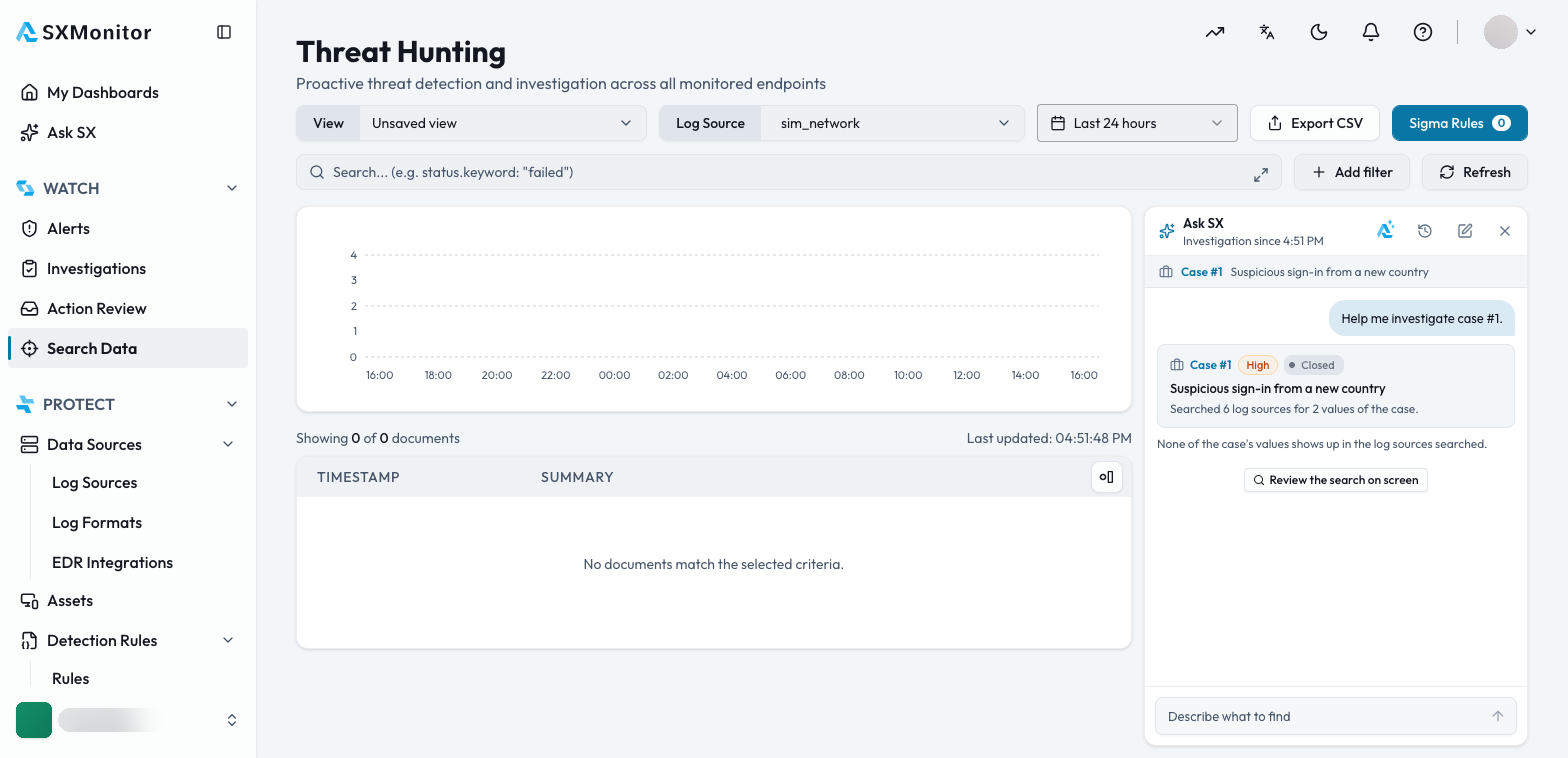
The investigation stays linked to the case: the panel shows Case #N, and Ask SX reads the case again with each request, so you can keep asking. You can also start from Search Data itself by naming the case, for example investigate case 40. History lists earlier investigations and New investigation starts over — see Ask SX about your data.
What Ask SX can read
Ask SX follows the rules in What Ask SX can read. On a case, they mean:
- It reads with your access, so a case you cannot open is one it cannot find.
- It does not change the case. Add to case #N adds a comment only when you click it.
- It reads one case at a time: on a case page only that case, and an investigation in Search Data is linked to one case.
Next
- Ask about anything beyond one case in Ask SX.
- Search your events yourself in Search Data.