

Action Review
The to-dos and questions your security team sends you, and the response actions waiting for your approval — in one inbox.
Action Review is your inbox for what your security team, SXMonitor SOC, needs from you. While a playbook works on a case, it may send you a to-do — something to do on your side, such as changing passwords — or a few questions, such as whether an IP address belongs to you. An analyst can also send you a to-do by assigning you a task on the case. Your answer is written to the case, so the team can carry on.
To open the page, go to Watch › Action Review. The number next to it in the sidebar is how many requests are waiting for you.
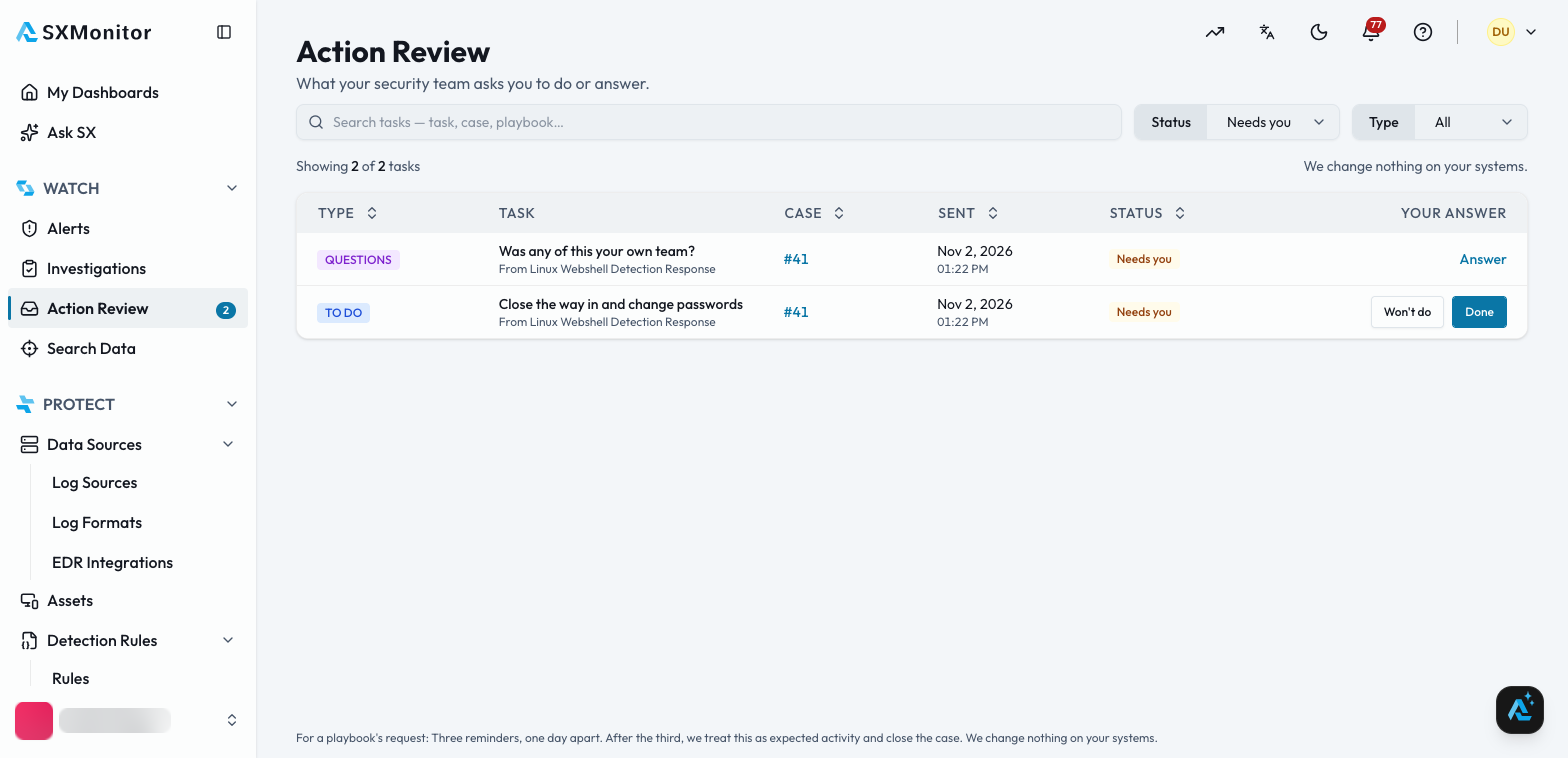
The list
| Column | What it shows |
|---|---|
| Type | To do, Questions or Action (a response action on your hosts; under Needs you, one waiting for your approval). |
| Task | The request, and who sent it: From a playbook, or Asked by a person. |
| Case | The case the request belongs to. Click the number to open it. |
| Sent | When it was sent. |
| Status | Needs you, or what happened to it — for example who answered and when. |
| Your answer | What you can do from the list: Done and Won't do for a to-do, Answer for questions, View for anything already settled. |
Use the filters above the list:
- Status — Needs you (the default), Done, Closed or All.
- Type — All, To do, Questions and, if your role has Viewer on EDR Integrations, Actions.
- Search — by task, case or playbook.
Answer a to-do
A to-do asks you to do something on your own systems. If you have done it, or decided not to, click Done or Won't do right in the list. To read the details first, click the task's title.
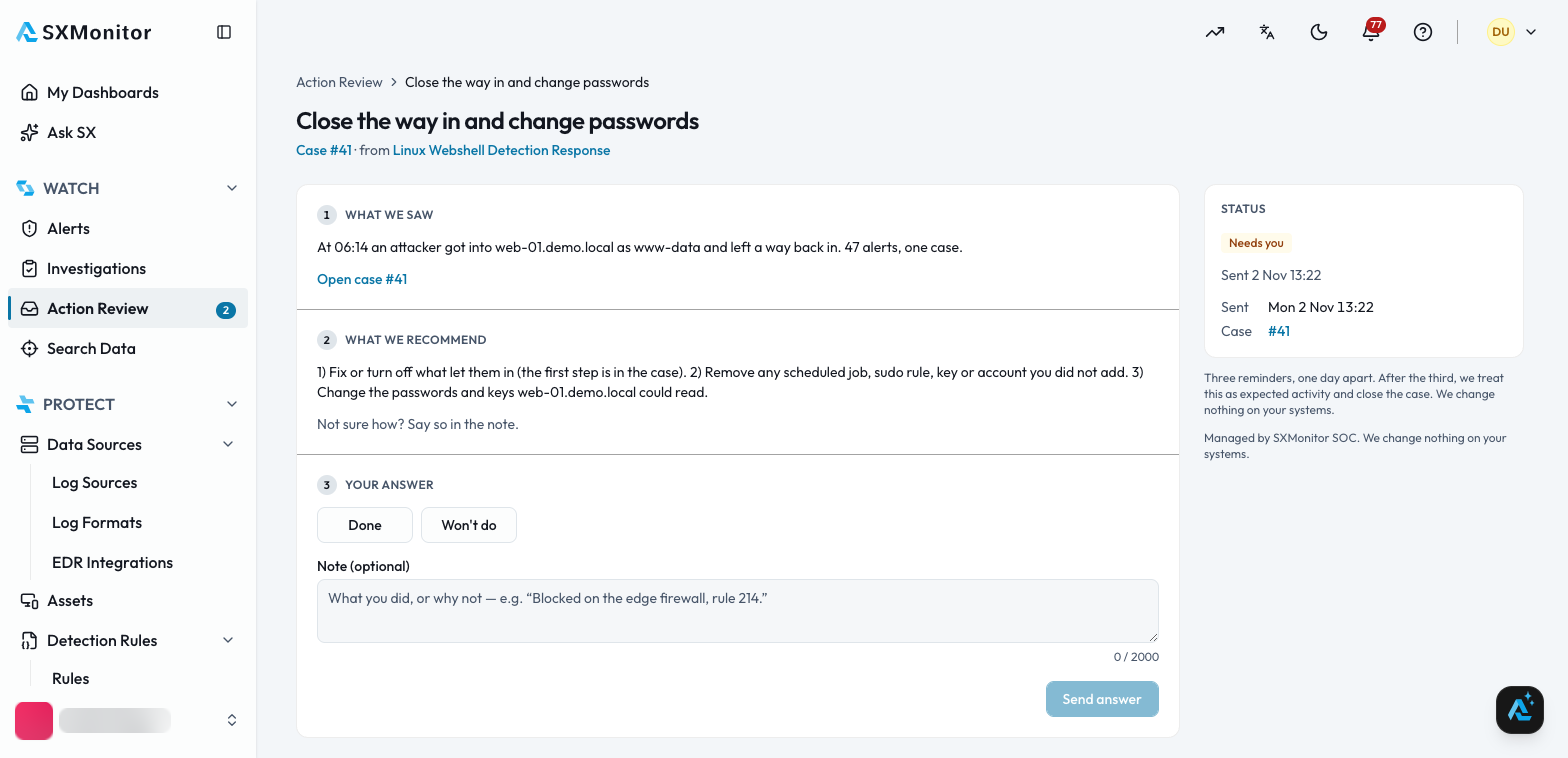
- Read What we saw and What we recommend. Open case takes you to the case.
- Under Your answer, choose Done or Won't do.
- Optionally add a Note — what you did, or why not. If you are not sure how to do it, say so in the note.
- Click Send answer.
Answer questions
Questions open on their own page: click Answer in the list.
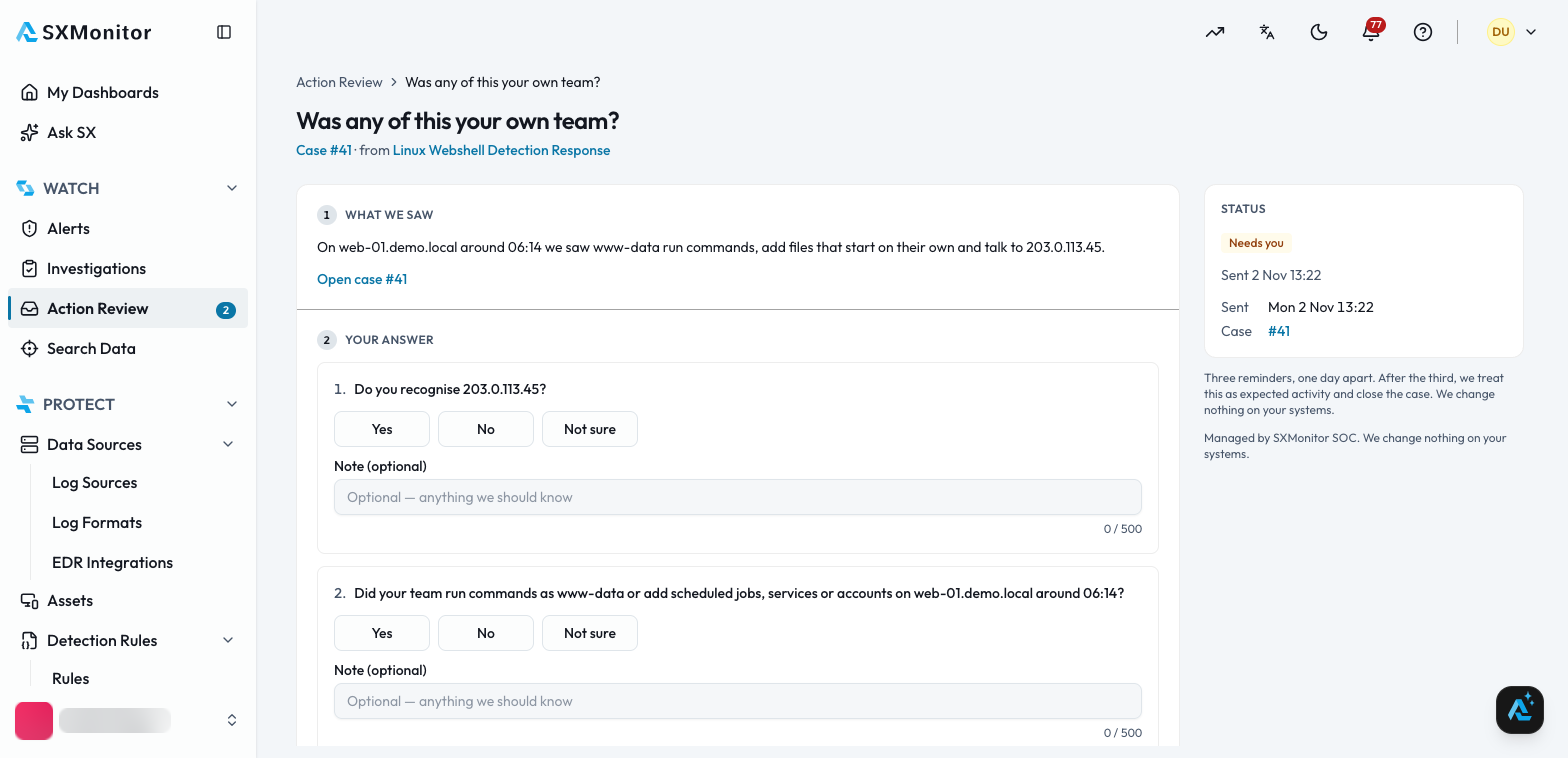
- Read What we saw.
- For each question, choose Yes, No or Not sure, and add a note if it helps. Not sure is a fine answer.
- Click Send answers at the bottom.
Once you send, the request moves to Done and the security team sees your answer as a comment on the case.
Approve or reject a response action
If your role has Viewer on EDR Integrations, Action rows show actions that analysts or playbooks want to run on your hosts, such as blocking an IP. With Full Access on EDR Response Actions, you can decide them: Approve, then Confirm; or Reject, with a reason under Why. Nothing changes on your systems until an action is approved. Your own requests show these buttons only where the integration allows self-approval. Otherwise View opens the action on its case. See EDR Integrations for how response actions and approvals work.
Who can answer
Answering needs Editor on the SOAR row of your role. With Viewer only, you see the requests with a read-only notice. An owner can change your role in People & Access.
Next
See which playbook sent a request in Playbooks, and the full case in Inside a case.