

Role Management
Define what people can do in a tenant with built-in system roles and your own custom roles.
Role Management is where you define the permissions people get inside a tenant. Every member of a tenant holds one role there, and that role sets their access to each SXMonitor module — from read-only to full create, edit and delete. You hand out the roles in People & Access or in the Tenant column of User Management.
SXMonitor comes with four built-in System roles that cannot be changed. You can add custom roles with exactly the permissions your team needs — for example, a SOC Analyst role that can read alerts and edit detection rules, but nothing else.
Role Management is for the organization's Owner and Admins. To open it, click your avatar in the top-right corner and choose Role Management under Organization Management. Roles belong to the whole organization, so you see the same list whichever tenant is active.
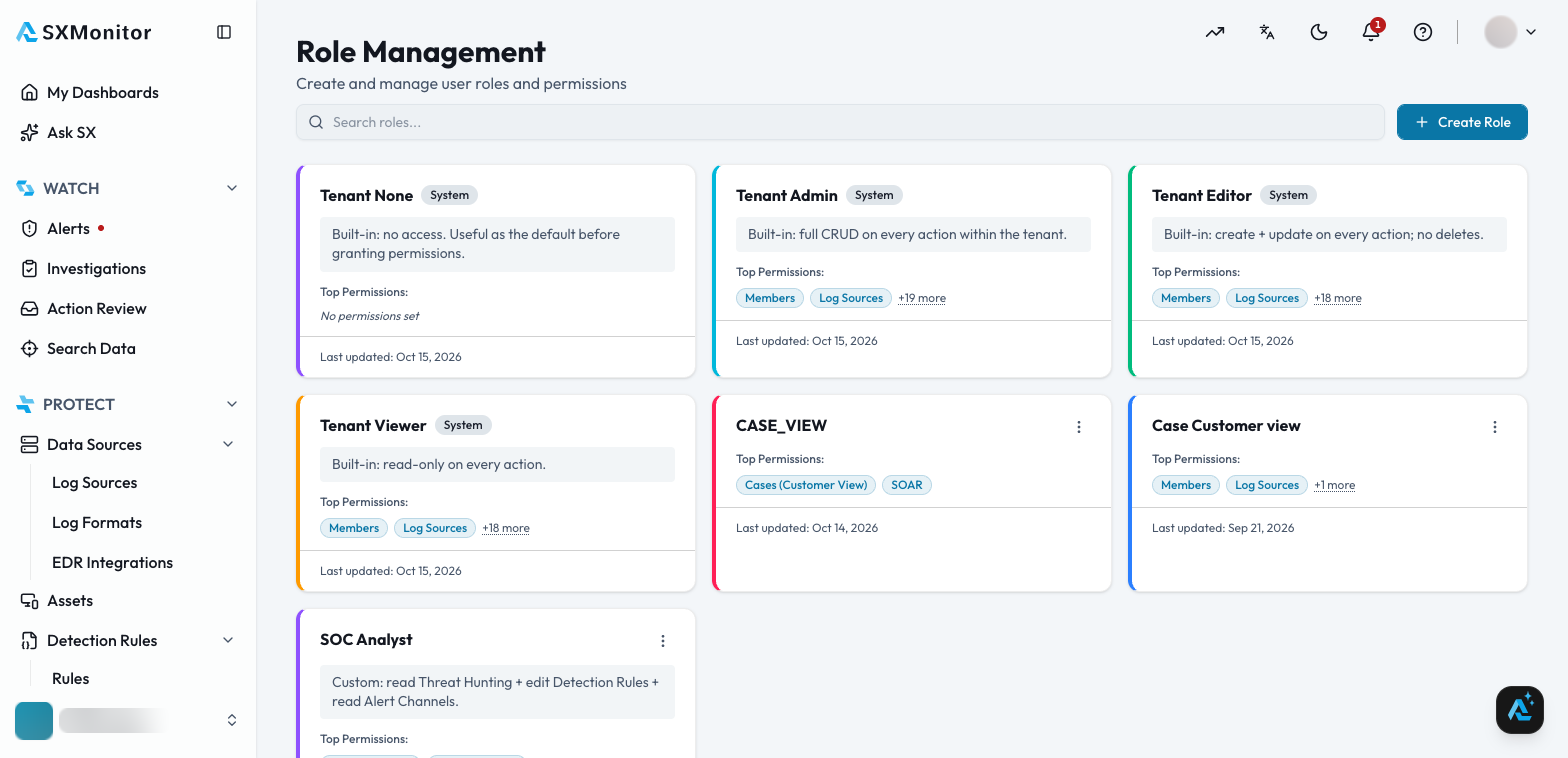
The role cards
Each role is a card. Type in Search roles... to narrow the cards by name.
| Part of the card | What it shows |
|---|---|
| Name | The role name. Built-in roles carry a System badge. |
| Description | What the role is for, as entered when it was created. |
| Top Permissions | The first two permissions the role grants, and +N more for the rest — point at it to see the full list. No permissions set means the role grants nothing. |
| Last updated | The date the role last changed. |
| ⋮ | Custom roles only: Edit and Delete Role. |
Built-in system roles
These four roles come with SXMonitor and exist in every organization. They cannot be edited or deleted.
| Role | Access level | When to use |
|---|---|---|
| Tenant Admin | Full create, read, update and delete on everything in the tenant. | Leads who need unrestricted access in one tenant. |
| Tenant Editor | Create and update on everything — no deletes. | Analysts who configure rules and sources but should not remove anything. |
| Tenant Viewer | Read-only on everything. | Stakeholders, auditors or new team members who need visibility only. |
| Tenant None | No access at all. | A safe placeholder when someone joins a tenant before their access is decided. |
Create a custom role
- Open Role Management. Click your avatar, then Role Management.
- Click Create Role. The Create Role dialog opens.
- Enter a Role Name (required) and, if you like, a Role Description.
Pick a name that says what the role is for, such as
SOC_Analyst,Incident_ResponderorLog_Auditor. - Set the permissions. In the Permissions grid, tick Viewer, Editor or Full Access on each row the role needs. Rows you leave empty stay at no access.
- Click Create Role. The button turns active once the role has a name. The new role appears as a card with a ⋮ menu, ready to assign.
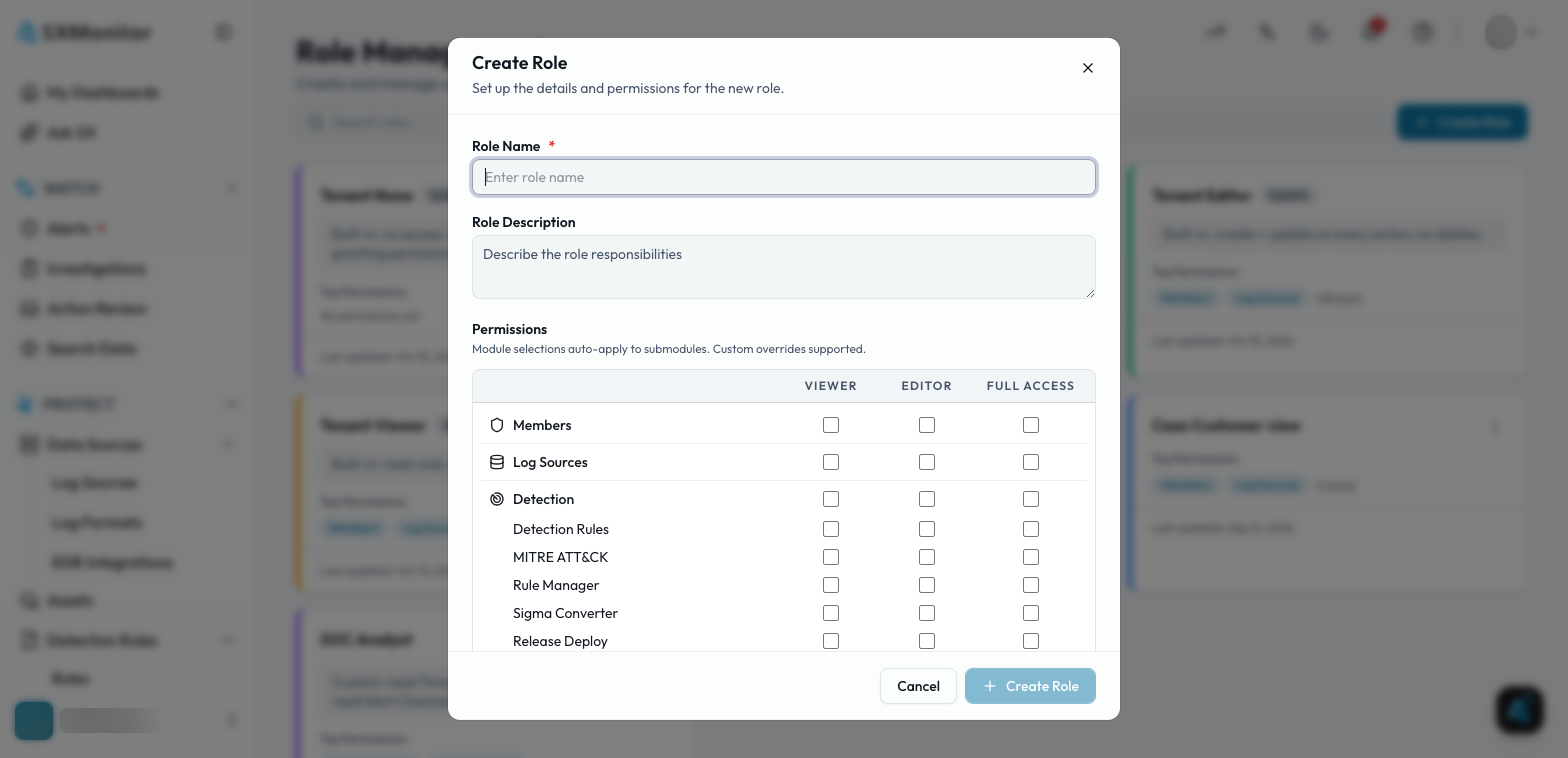
How the grid works
| Action | What happens |
|---|---|
| Tick Viewer | Read-only access to that row. |
| Tick Editor | Create and update. Viewer is ticked with it. |
| Tick Full Access | Create, read, update and delete. All three boxes are ticked. |
| Tick a level on a module row (for example Detection) | The level applies to every row under it. You can then change single rows — "Module selections auto-apply to submodules. Custom overrides supported." |
| Untick a box | Full Access drops back to Editor, Editor drops to Viewer, and Viewer clears the row. |
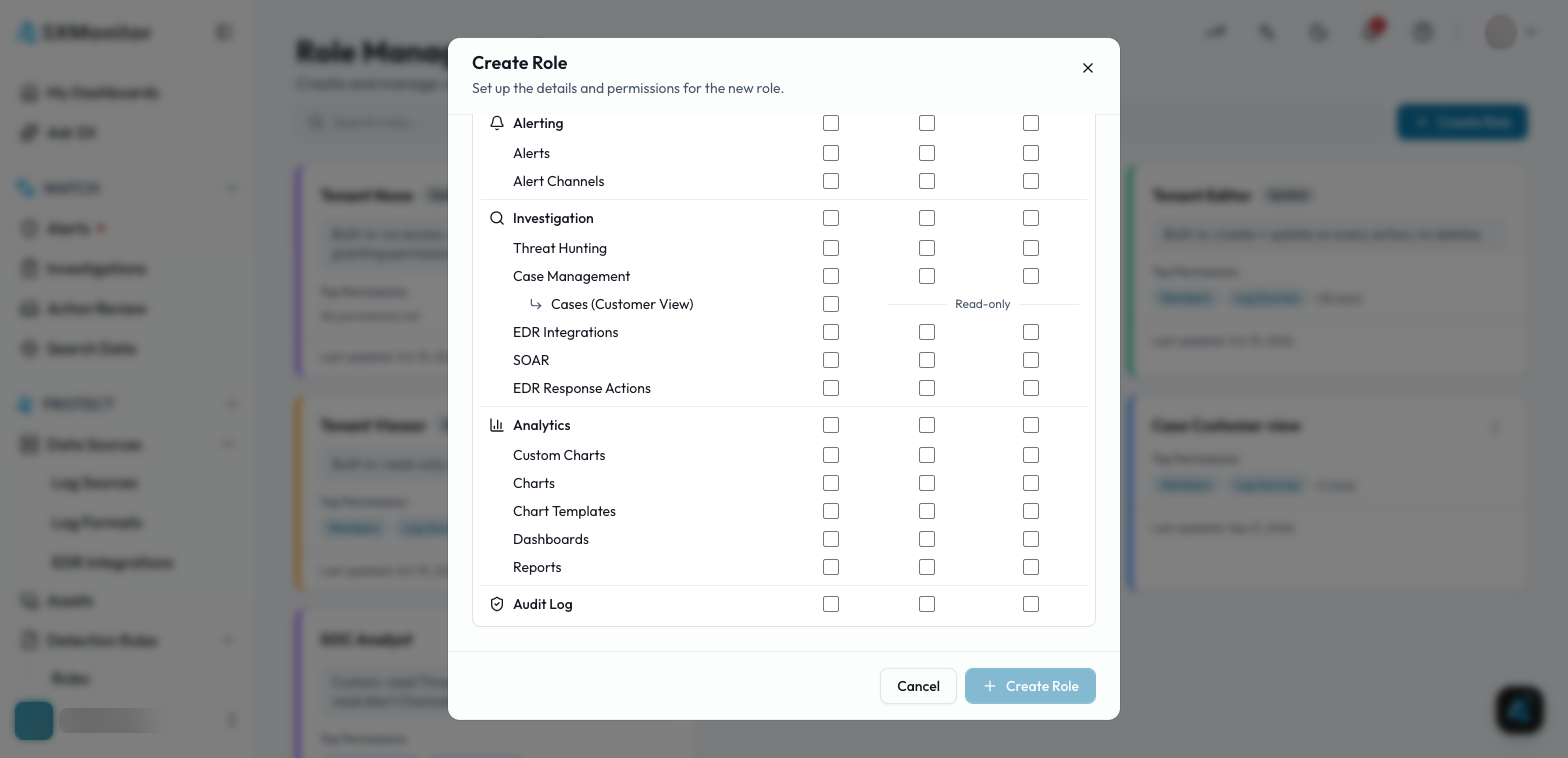
Modules in the grid
The rows come from the platform, not from a fixed list in the app, so the grid can gain rows as SXMonitor grows and may look slightly different from the one below.
| Module | Rows under it |
|---|---|
| Members | — |
| Log Sources | — |
| Detection | Detection Rules, MITRE ATT&CK, Rule Manager, Sigma Converter, Release Deploy |
| Alerting | Alerts, Alert Channels |
| Investigation | Threat Hunting, Case Management, Cases (Customer View), EDR Integrations, SOAR, EDR Response Actions |
| Analytics | Custom Charts, Charts, Chart Templates, Dashboards, Reports |
| Audit Log | — |
Some row labels still use earlier screen names:
| Row in the grid | Screen in the app |
|---|---|
| Members | People & Access |
| Log Sources | Log Sources and Log Retention |
| Sigma Converter | Sigma Rules, opened from Search Data |
| Alert Channels | The Notifications Channel tab of Alerts |
| Threat Hunting | Search Data |
| Case Management | Investigations |
| Custom Charts | Visualize |
Cases (Customer View) is a restricted, read-only way into Investigations — it offers Viewer only. It is an alternative to Case Management, not part of it: ticking one clears the other.
Edit or delete a custom role
Click the ⋮ on a custom role's card.
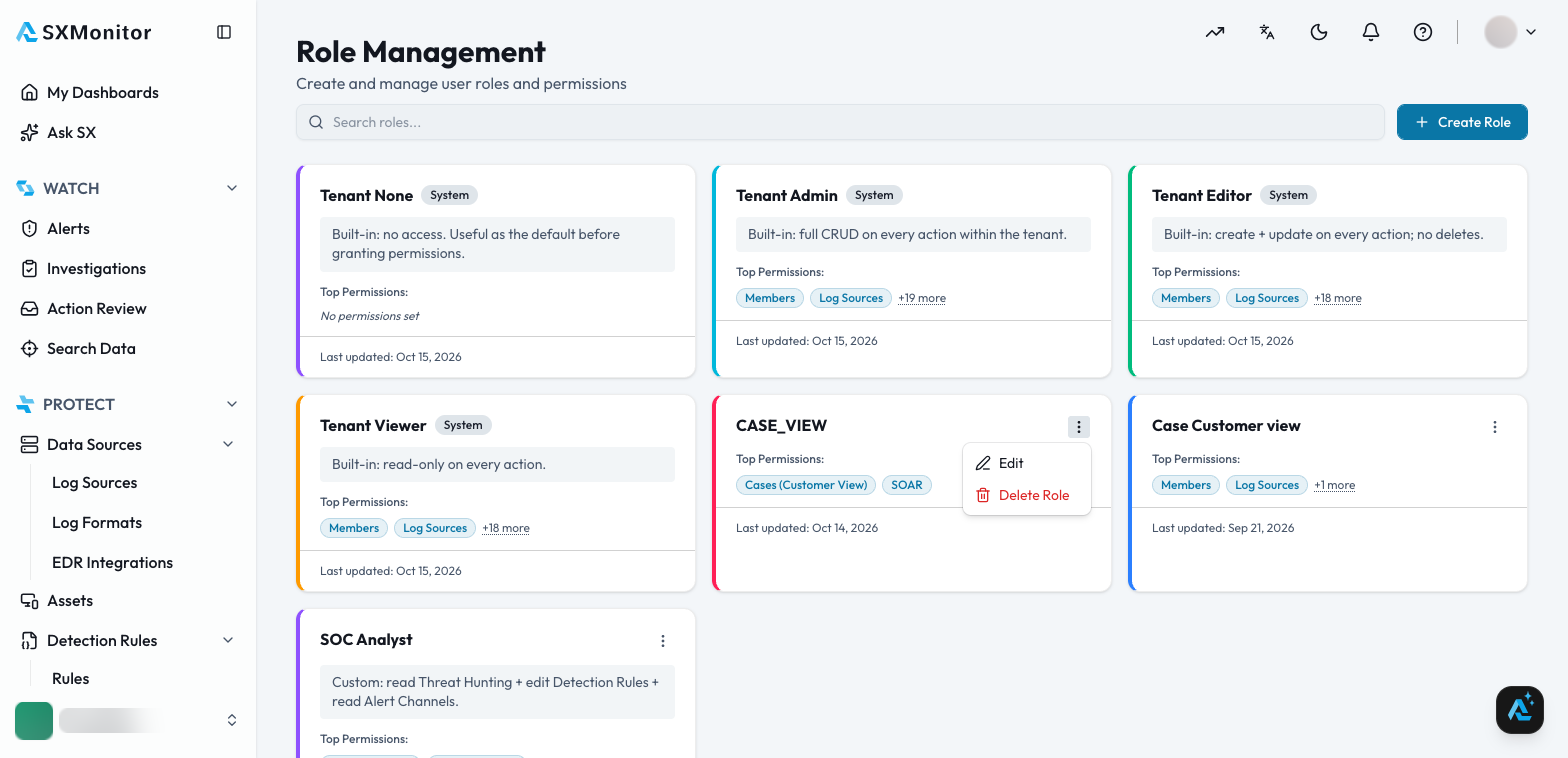
| Action | What it does |
|---|---|
| Edit | Opens Edit Role with the same fields and grid. Click Save Changes to apply. |
| Delete Role | Asks you to confirm, then removes the role. A role that is still assigned to members cannot be deleted — reassign those members to another role first. |
Example custom roles
| Role name | Suggested permissions | Typical assignee |
|---|---|---|
| SOC Analyst | Threat Hunting — Full Access · Detection Rules — Editor · Alerts — Viewer · MITRE ATT&CK — Viewer | Analysts who triage alerts, search data and update rules. |
| Detection Engineer | Detection (all rows) — Full Access · Log Sources — Editor · Threat Hunting — Full Access | Engineers who build and maintain the rule library. |
| Security Manager | Every module — Viewer · Analytics — Full Access | Managers who need charts and reports without operational access. |
| Log Auditor | Log Sources — Viewer · Audit Log — Viewer | Compliance roles that only read log ingestion and the audit trail. |
A role works inside one tenant at a time. The same person can hold SOC Analyst in one tenant and Tenant Viewer in another. Owners and Admins do not need a role — they reach every tenant.
Next
Give people a role in a tenant in People & Access, or invite new users in User Management.