

User Management
Invite people to your organization, set their organization role and give Members access to tenants.
User Management — titled Organization User Management in the app, with the subtitle Invite and manage users of your organization — lists everyone in your organization. The Owner and Admins use it to invite users, set their organization role, give Members access to tenants and deactivate accounts.
Every user holds one organization role:
| Organization role | What it means |
|---|---|
| Owner | The single owner of the organization, shown with an Owner badge. Reaches every tenant with every permission. The Owner cannot be deactivated and their role cannot be changed. |
| Admin | Administrative access to every tenant. Admins manage users, roles and tenants, but only the Owner can create tenants or change someone's organization role. |
| Member | Reaches only the tenants they are added to, with the role they hold in each one. |
How to open it
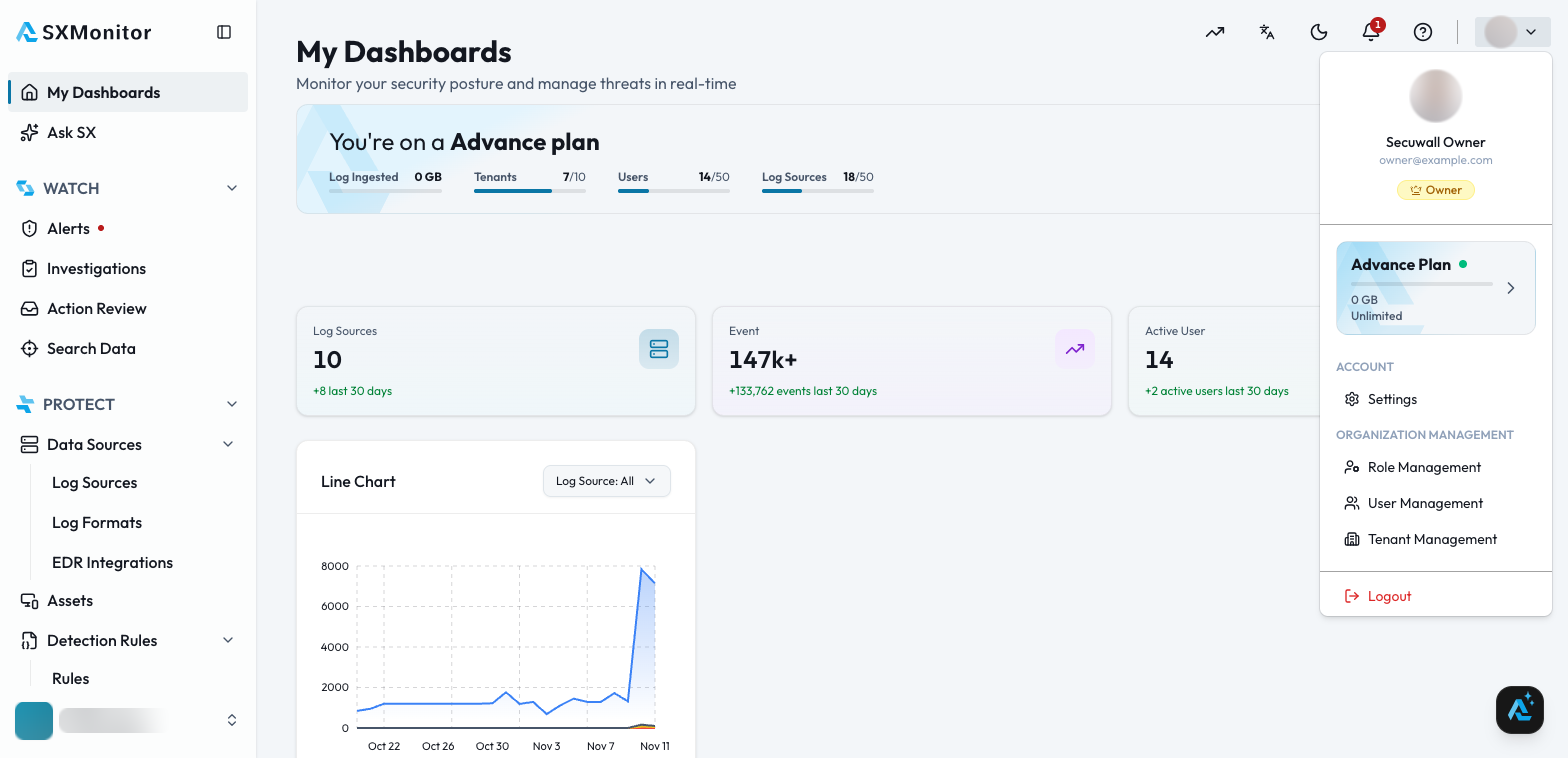
Click your avatar in the top-right corner and choose User Management under
Organization Management. That part of the menu appears only for the Owner
and Admins. Old links to /user-management still work — they open this page.
People & Access in the sidebar is a different page: it lists the members of the active tenant only. See People & Access.
The user table
The table lists every user in the organization. Search by name, email or username, and click Refresh to reload the list. You can sort by User, Email and Created Date.
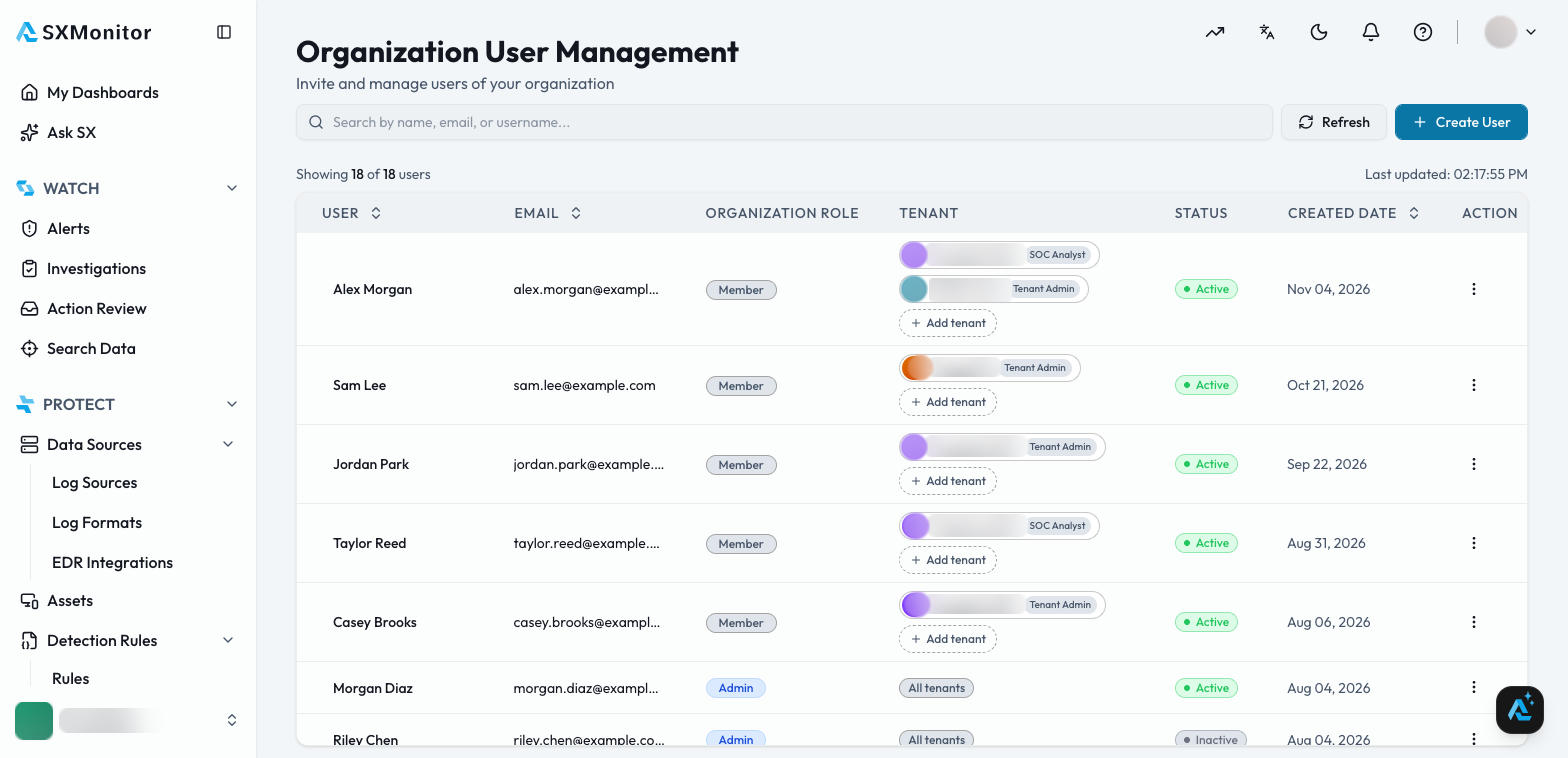
| Column | What it shows |
|---|---|
| User | The user's first and last name. |
| The email address the user signs in with. | |
| Organization Role | Owner, Admin or Member. |
| Tenant | All tenants for the Owner and Admins. For a Member, one chip per tenant with their role there (for example Production SOC · SOC Analyst), and Add tenant. |
| Status | Active, or Inactive for a deactivated account. |
| Created Date | When the user was added. |
| Action | A ⋮ menu with the actions that apply to this user. |
Invite a user
Only the Owner and Admins can add users.
-
Click Create User. The Create User dialog opens.
-
Fill in the form.
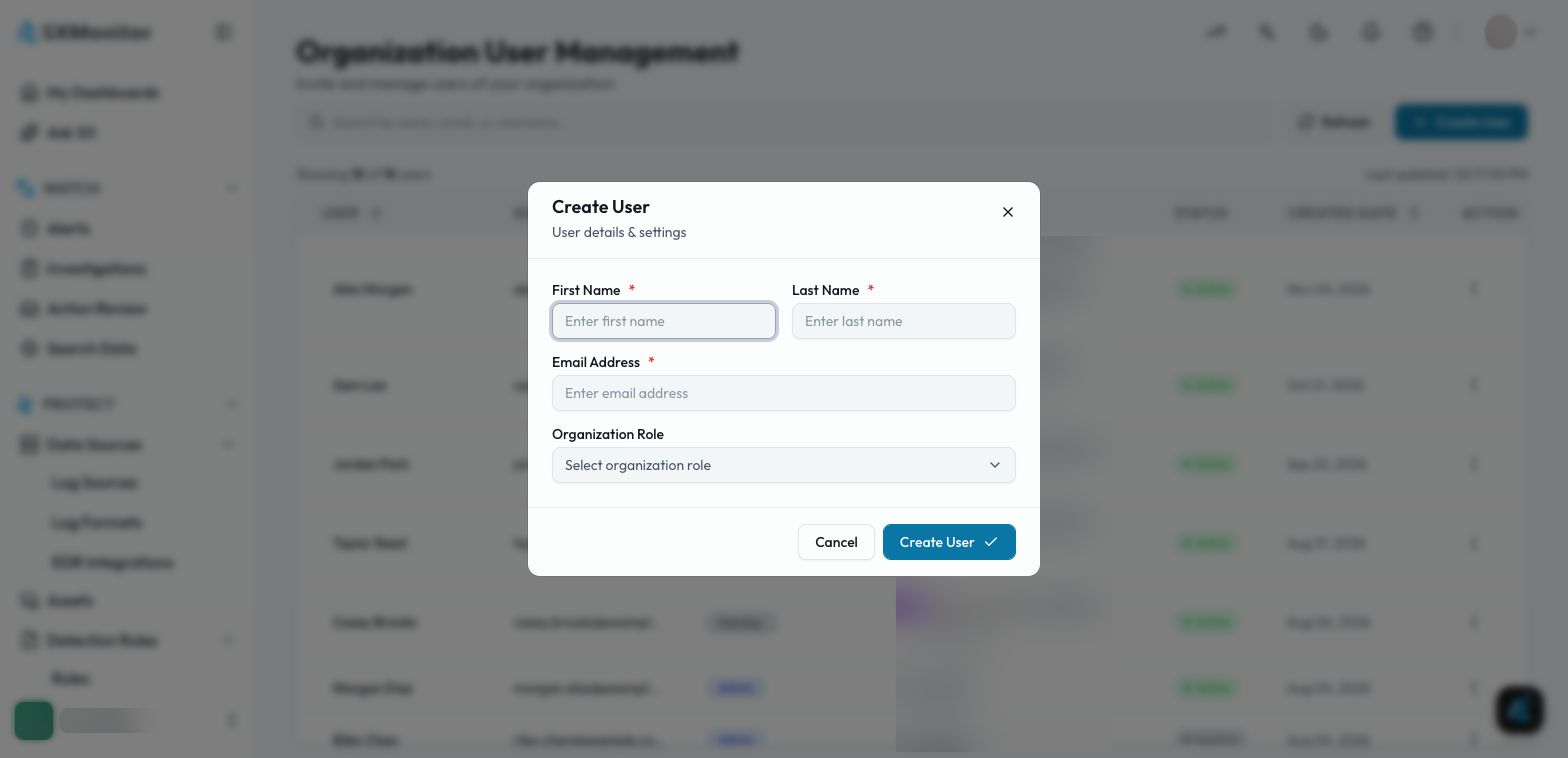
Field What to enter First Name Required. Last Name Required. Email Address Required. The person's work email — it becomes their sign-in name. Organization Role Shown to the Owner only: Member or Admin. Users an Admin creates always join as Members. -
Click Create User. The user appears in the table straight away with status Active, and SXMonitor emails them an invitation link. The link lets them create a password and then sign in.
-
Give a Member their tenants. A Member sees no tenant data until you add them to at least one tenant — see Give a Member access to tenants.
If the email address already belongs to a user in your organization, the dialog says so and nothing is created. Each user takes a seat on your plan.
Change a role, deactivate or activate
Click the ⋮ at the end of a user's row. The menu offers only what applies to that user; the Owner's row has no menu.
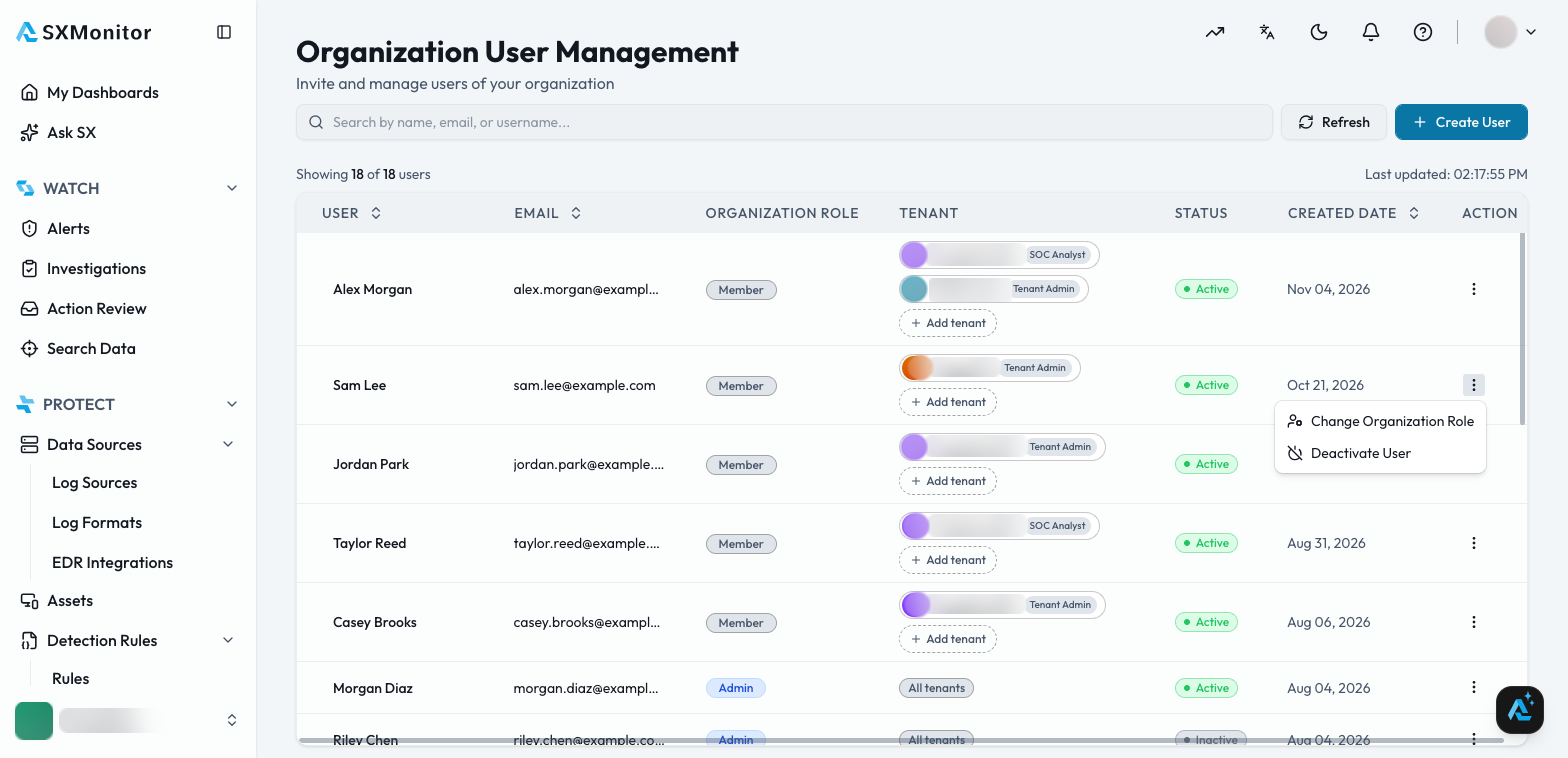
| Action | Shown for | What it does |
|---|---|---|
| Change Organization Role | Everyone but the Owner — and only when the Owner opens the menu | Switches the user between Member and Admin: pick a role under Select Organization Role and click Confirm Assignment. An Admin reaches every tenant; a Member only the tenants they are added to. |
| Deactivate User | Active users | Stops the user's access immediately — they can no longer sign in. They stay in the table as Inactive. |
| Activate | Inactive users | Makes the account usable again. |
Give a Member access to tenants
A Member's tenants and their role in each are set right in the Tenant column.
- Click Add tenant in the Member's row.
- Choose the Tenant and the Role the person should hold there. The Role list holds the system roles and your custom roles from Role Management.
- Click Add. A chip for that tenant appears in the row.
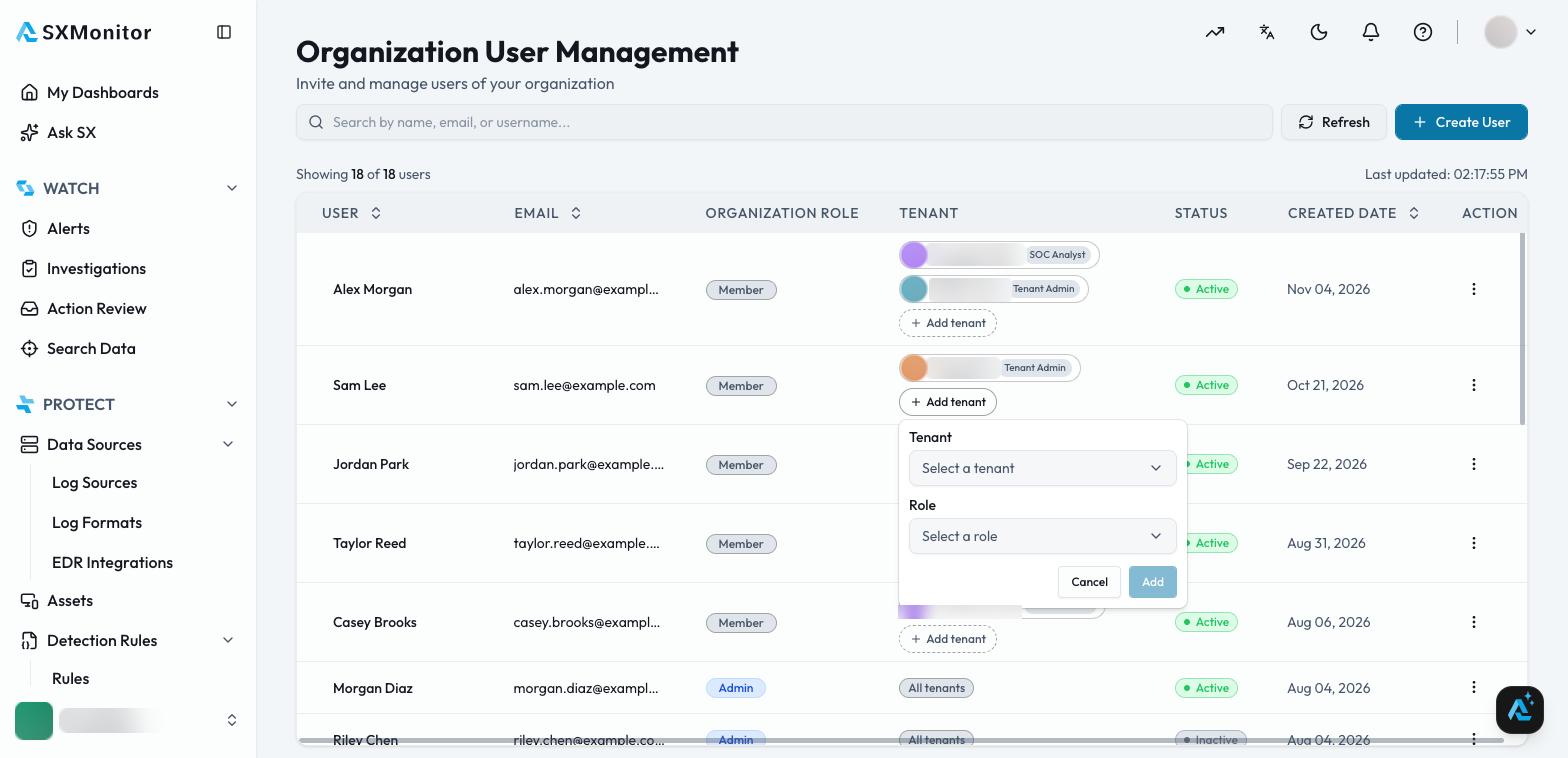
To change the role in one tenant, click its chip, pick another Role and click Save. Remove in the same popover takes the user out of that tenant at once, without asking — add them again the same way if needed. You can manage the same memberships tenant by tenant in People & Access.
When the organization has more members than its plan has seats, a banner at the top of the page says how many members can't sign in, and their rows show No seat — over plan limit. The Owner and Admins can always sign in, then the earliest members. Deactivate members — or, as the Owner, upgrade the plan — and the next members in line can sign in again.
Next
Create the tenants your users work in with Tenant Management, and define what each role allows in Role Management.