

Timeline
The Timeline tab of a case — its events, activities and comments in time order, and how to log or hide entries.
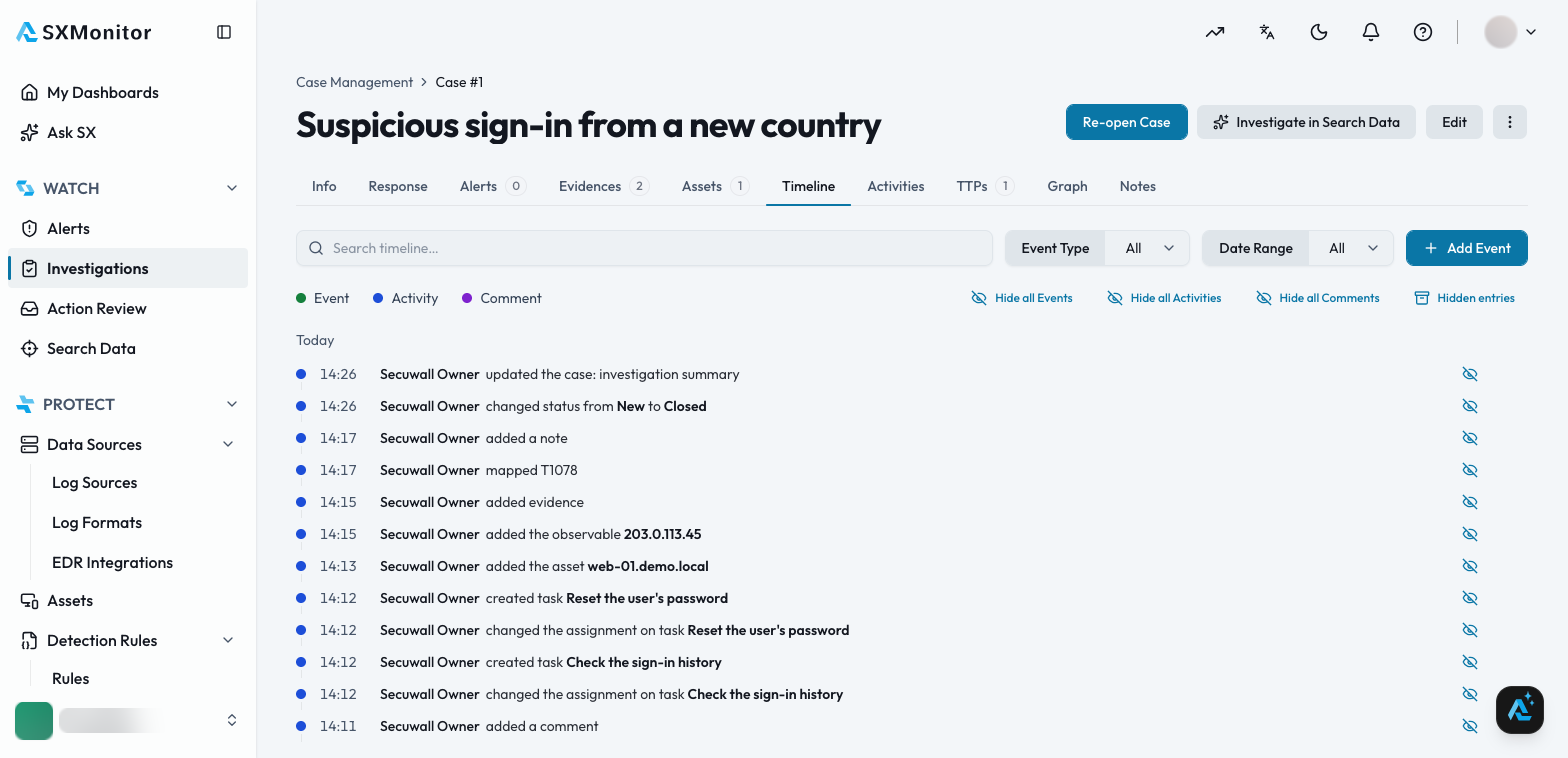
The Timeline tab tells a case's story in time order: Events your team logs, Activities recorded by SXMonitor, and Comments. To open it, open a case from Watch › Investigations and click Timeline. The rest of the case page is described in Inside a case.
The tab opens on Events alone. Tick Activities and Comments under Event Type to add them; with every type ticked the filter reads All, as in the screenshot below. Narrow the view further with Date Range or the search box.
Add an event
Click Add Event to log something that happened, with a Title, a Description and an Event Time (now by default, or an earlier time).
Hide entries
To declutter, hide an entry with the eye icon at the end of its row, or a whole kind with Hide all …. Hiding is shared: a hidden entry leaves the timeline for everyone on the case. Hidden entries lists the hidden entries that match the current Event Type and Date Range, with who hid each one, and lets you restore them.
Next
- See every change made to the case in Activities.