

Settings
Your own account — profile photo, password, two-factor authentication, signed-in devices and a history of your account activity.
Settings is your personal area of SXMonitor: your profile, how you sign in, the devices you are signed in on and what your account has done. Every user has it, whatever their role, and nothing here changes anyone else's account.
To open it, click your avatar at the top right and choose Settings under ACCOUNT. The tabs on the left are Account, Security, Activity Logs and Notifications; the last one is described in Notifications.
Account
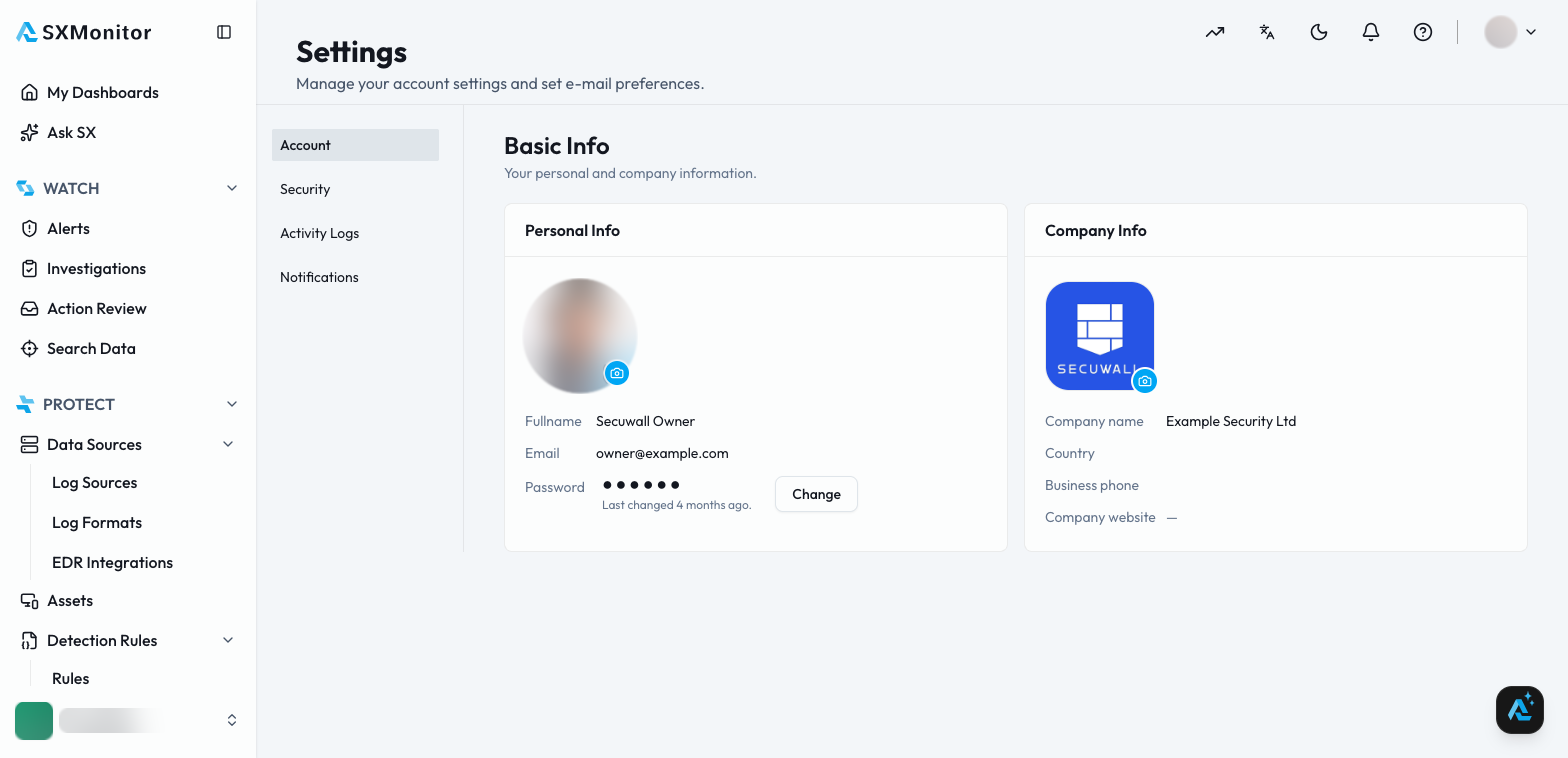
| Field | What it shows |
|---|---|
| Profile photo | Your photo, or your initials. Click it to upload a new one. |
| Fullname, Email | Your name and the email address you sign in with. They are shown here, not edited. |
| Password | When you last changed it, and Change to change it. |
| Company Info | Your organization's logo, Company name, Country, Business phone and Company website, read-only. Only the Owner can change the logo. |
To change your photo, click it or its camera badge. In Update profile photo, drop a JPG or PNG file of up to 5 MB on the box or browse for it, use Zoom to frame it, and click Save.
Change your password
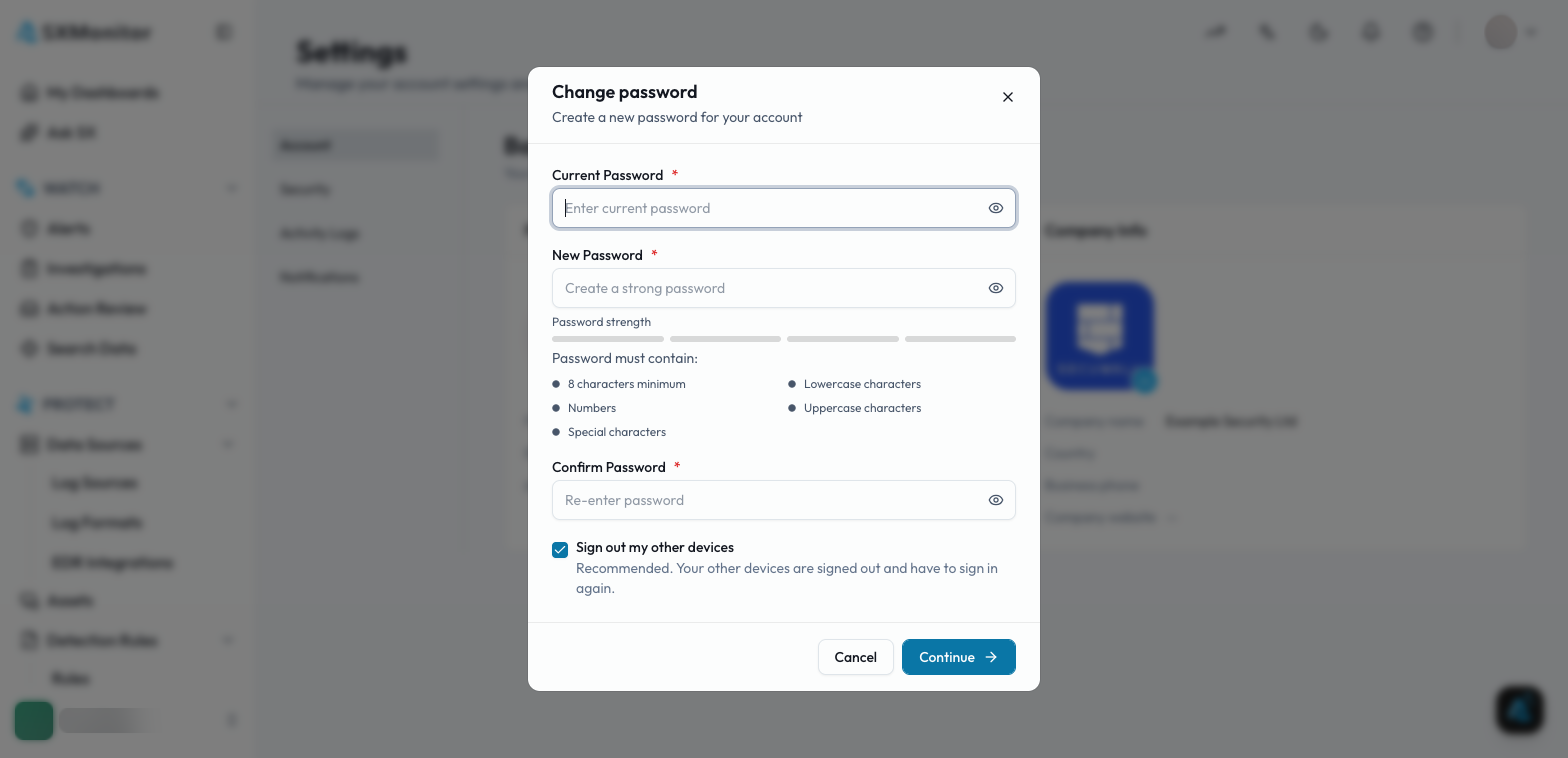
- Click Change next to Password on the Account tab.
- Enter your Current Password.
- Enter a New Password. The bar shows its strength, and Password must contain: lists the rules: 8 characters minimum, numbers, special characters, lowercase and uppercase characters.
- Enter it again under Confirm Password. The eye icon in each field shows what you typed.
- Decide about your other devices. Sign out my other devices is ticked: your other devices are signed out and have to sign in again. Leave it ticked unless you have a reason not to: unticked, every device already signed in keeps its access after the change — including one someone else controls.
- Click Continue. If you use two-factor authentication, SXMonitor then asks for a verification code: pick a method if you have two, enter the 6-digit code and click Verify.
Password changed confirms it, and you stay signed in on this device. SXMonitor refuses a new password that you used recently, that is the same as your current one, or that has appeared in a public data breach, and says which.
Two-factor authentication
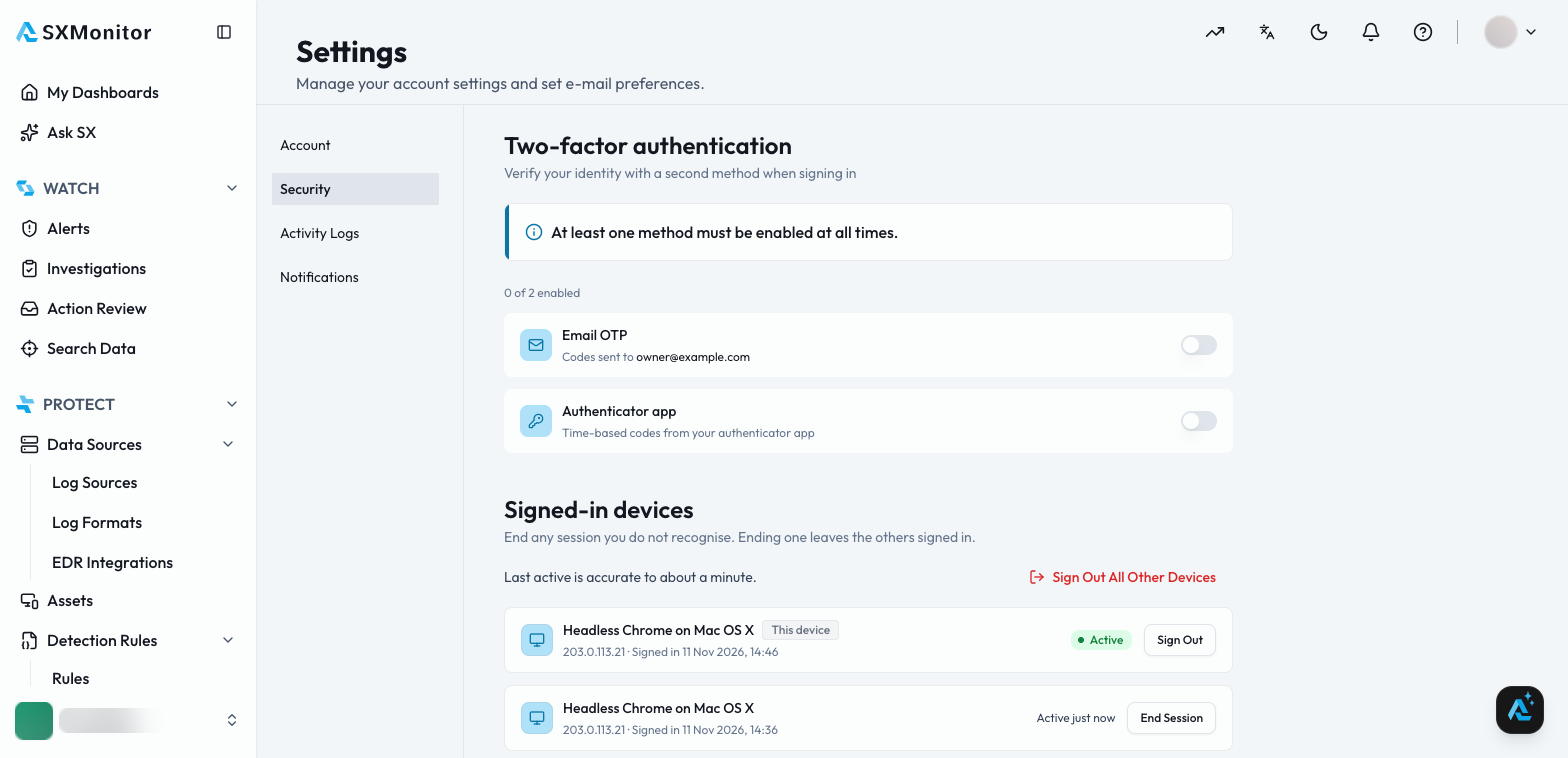
On the Security tab, Two-factor authentication asks for a second proof of identity at each sign-in, on top of your password. The counter shows how many of the two methods are on.
| Method | Where the code comes from |
|---|---|
| Email OTP | A 6-digit code sent to your email address. |
| Authenticator app | A time-based code from an authenticator app on your phone. |
To turn a method on:
- Switch it on. A setup dialog opens.
- For Email OTP, enter the 6-digit code sent to your email. For the Authenticator app, scan the QR code with the app — or click Can't scan? Copy this key manually and enter the Setup key in it — then enter the code the app shows.
- Click Verify & Enable.
From your next sign-in, SXMonitor asks for a code after your password — see Sign in. To turn a method off, switch it off, enter your Password, click Continue, then enter a code from that method and confirm. Once a method is on, one must stay on: the last one cannot be switched off.
Signed-in devices
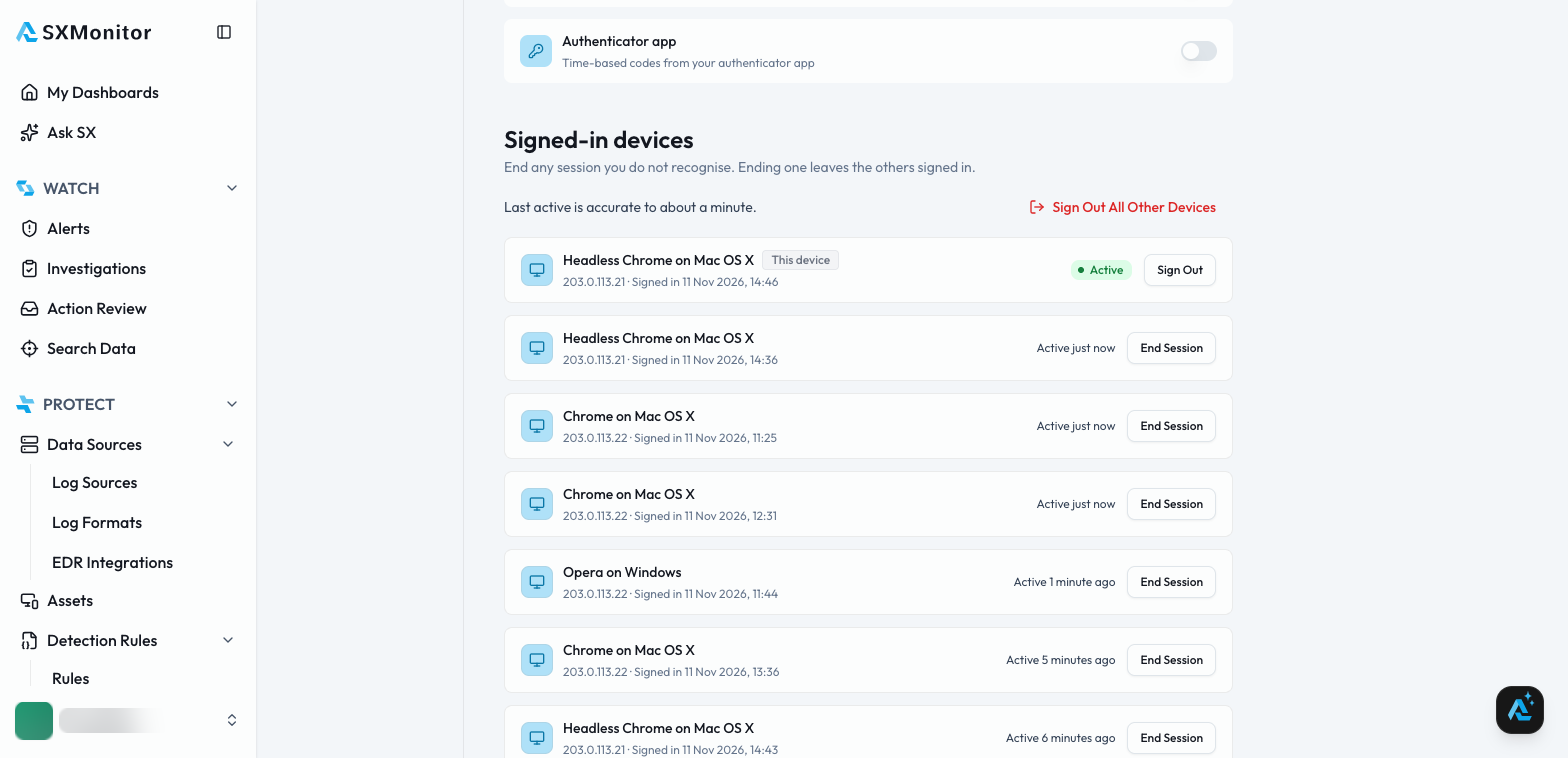
Below two-factor authentication, Signed-in devices lists every session on your account.
| Part | What it shows |
|---|---|
| Device | The browser and system, such as Chrome on Mac OS X. This device marks the one you are using. |
| Detail line | Where the session came from when known, its IP address, and when it signed in. |
| Activity | Active for this device; for the others, when they were last active, such as Active 5 minutes ago. It is accurate to about a minute. |
| Sign Out / End Session | Signs out this device, or ends another device's session. |
To end a session you do not recognise:
- Click End Session on its row.
- Check the device in End this session? and click End Session. That device is signed out on its next request; your other devices stay signed in.
Sign Out All Other Devices ends every session except this one, after you confirm. Sign Out on this device's row signs you out here and returns you to the sign-in page. If the list cannot load, the page says so and offers Try Again — that does not mean that no other device is signed in.
Activity Logs
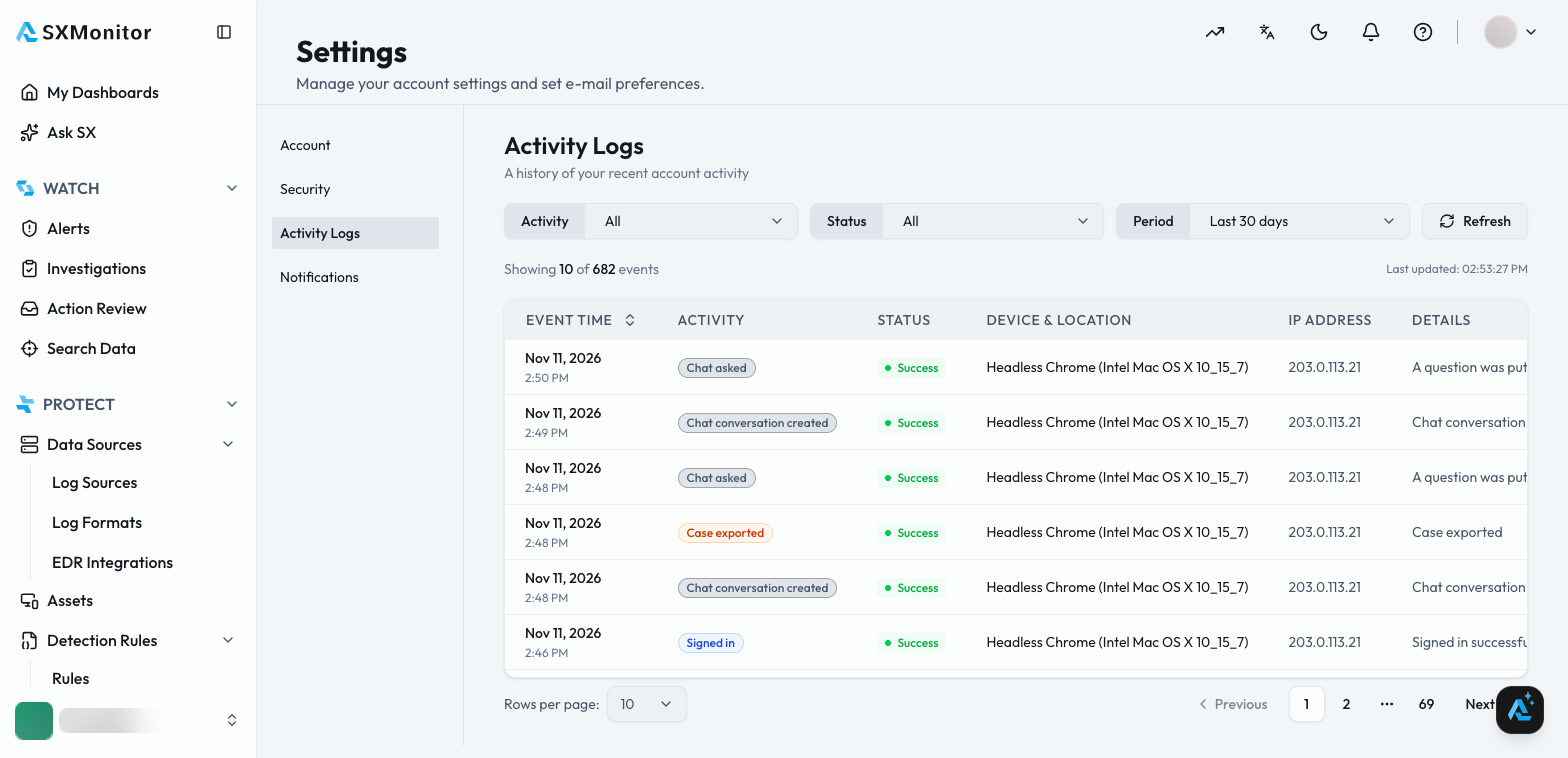
Activity Logs is the history of your own account: sign-ins, password and two-factor changes, profile changes and the actions you took, such as creating a log source or asking Ask SX a question.
| Column | What it shows |
|---|---|
| Event Time | When it happened. The newest come first; click the header to sort. |
| Activity | What happened, such as Signed in or Password changed. |
| Status | Success or Failed. |
| Device & Location | The browser and system used, and the location when known. |
| IP Address | The address the request came from. |
| Details | A short description of the event. |
Narrow the list with Activity (one kind of event), Status (Success or Failed) and Period (Last 7 days, Last 30 days — the default — Last 90 days or All time). Refresh reloads it, and Clear filters appears when nothing matches. Click a row to see the whole event in Event Details.
A Sign-in failed you did not cause is worth a closer look: change your password, turn on two-factor authentication and check Signed-in devices.
Next
- Choose which notifications reach you in Notifications.
- See how a two-factor sign-in works in Sign in.