

Inside a case
Work an investigation from its case page — the header, the tabs, comments, tasks, notes and closing.
Each case has its own page, where analysts work the investigation — discussion, tasks, evidence, affected assets, timeline and, at the end, the outcome — and managers check where an incident stands.
To open a case, go to Watch › Investigations and click the case's title. For the case list and the actions on whole cases — create, merge, delete, restore, export — see Investigations.
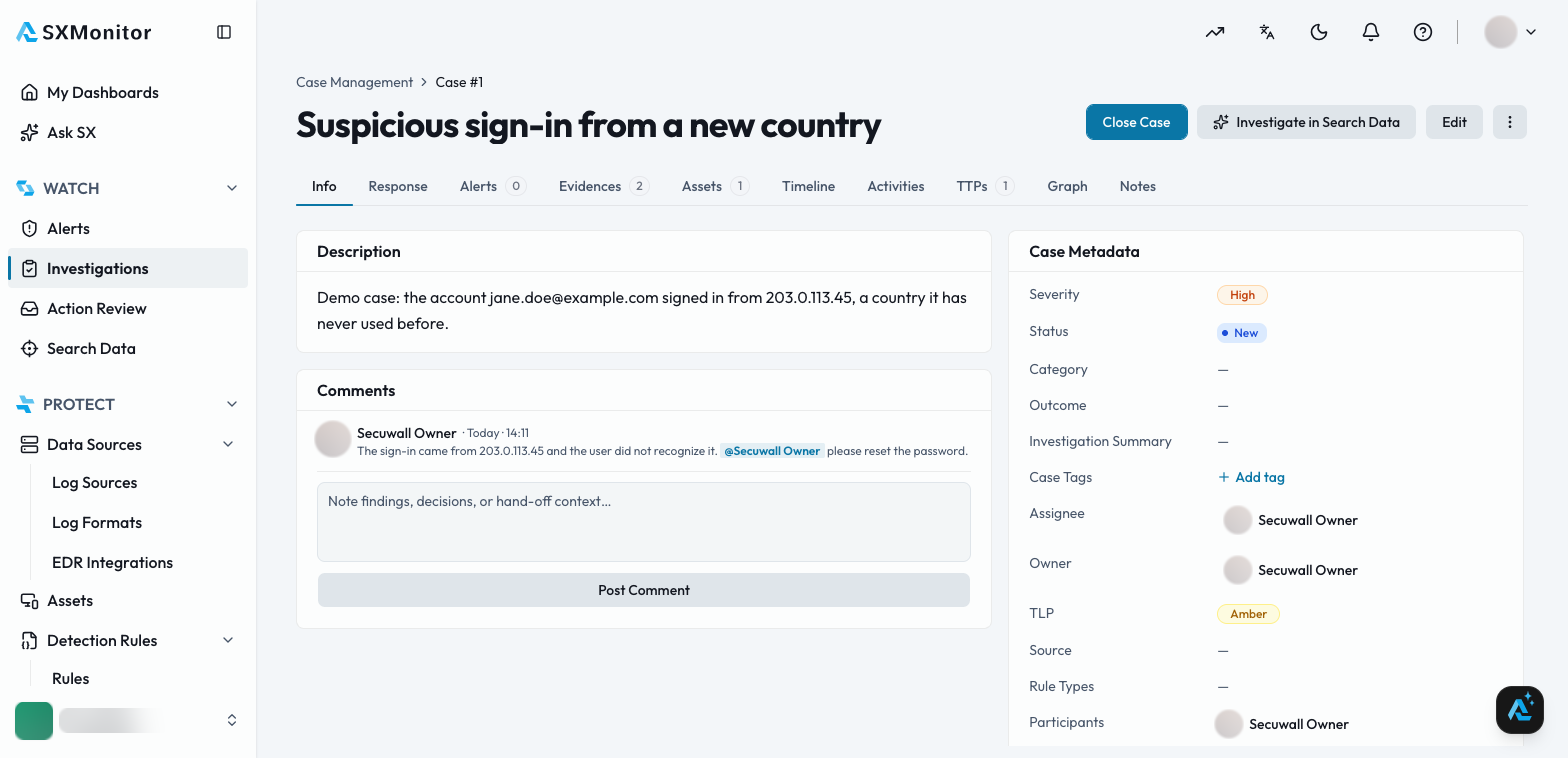
The case header
The breadcrumb above the title leads back to the case list, and on a merged case to the case it was merged into.
| Control | What it does |
|---|---|
| Close Case / Re-open Case | Closes the case, or reopens a closed one — see Close a case. |
| Investigate in Search Data | Opens Search Data, where Ask SX reads this case and suggests the searches to run first — see AI investigation. |
| Edit | Opens Edit Case to change the title, description, severity, status, investigation summary, category, TLP, tags, assignee and owner. |
| ⋮ (More actions) | Merge To Case, Unlink From Parent, Generate Report and Soft Delete Case, each when it applies — see Investigations. |
The tabs below the header split the case into parts. The numbers on Alerts, Evidences, Assets and TTPs count what each holds; the number on Response is how many requests are waiting on you.
| Tab | What it holds | Described in |
|---|---|---|
| Info | The description, comments and the case record. | Info, below |
| Response | What is waiting on you, the case's tasks, response actions and automation. | Response, below |
| Alerts | The alerts linked to the case. | Alerts |
| Evidences | Observables (indicators such as IP addresses) and attached files. | Evidences |
| Assets | The hosts and other systems involved. | Assets |
| Timeline | Events, activity and comments in time order. | Timeline |
| Activities | The change history of the case. | Activities |
| TTPs | The MITRE ATT&CK techniques seen in the incident. | TTPs |
| Graph | A map of how the case's alerts, assets and observables connect. | Graph |
| Notes | Longer investigation notes. | Notes, below |
Info
On the left are the Description, a Sub-cases card when other cases were merged into this one, and the Comments. On the right are Case Metadata and Timing & SLA.
| Case Metadata row | What it shows |
|---|---|
| Severity, Status | The current severity and status. A merged case also shows Sub-case of. |
| Category, Outcome | The incident category, and the verdict picked when the case was closed. |
| Investigation Summary | What happened and what was done, written when the case is closed. |
| Case Tags | The tags. Click Add tag to add one here. |
| Assignee, Owner | Who works the case and who is responsible for it. Click a name to change it. |
| TLP | The Traffic Light Protocol label — White, Green, Amber or Red — stating how widely the case may be shared. It does not change who can open the case. |
| Source, Rule Types | The log sources and rule types of the linked alerts. |
| Participants | Everyone who has worked on the case. |
| Related Cases | Other cases that share an observable or an asset with this one. |
| Created, Updated, Closed | When the case was opened, last changed and closed. |
Timing & SLA shows the time open, the times to detect (TTD), acknowledge (TTA) and contain (TTC), and whether the Response SLA and Resolution SLA were met, are running or were breached.
Comments and @mentions
- Click the comment box (Note findings, decisions, or hand-off context…) and write your comment.
- To mention a colleague, type
@and the start of their name or email, then pick them from the Mention a colleague list. - Press Enter or click Post Comment. Shift+Enter starts a new line.
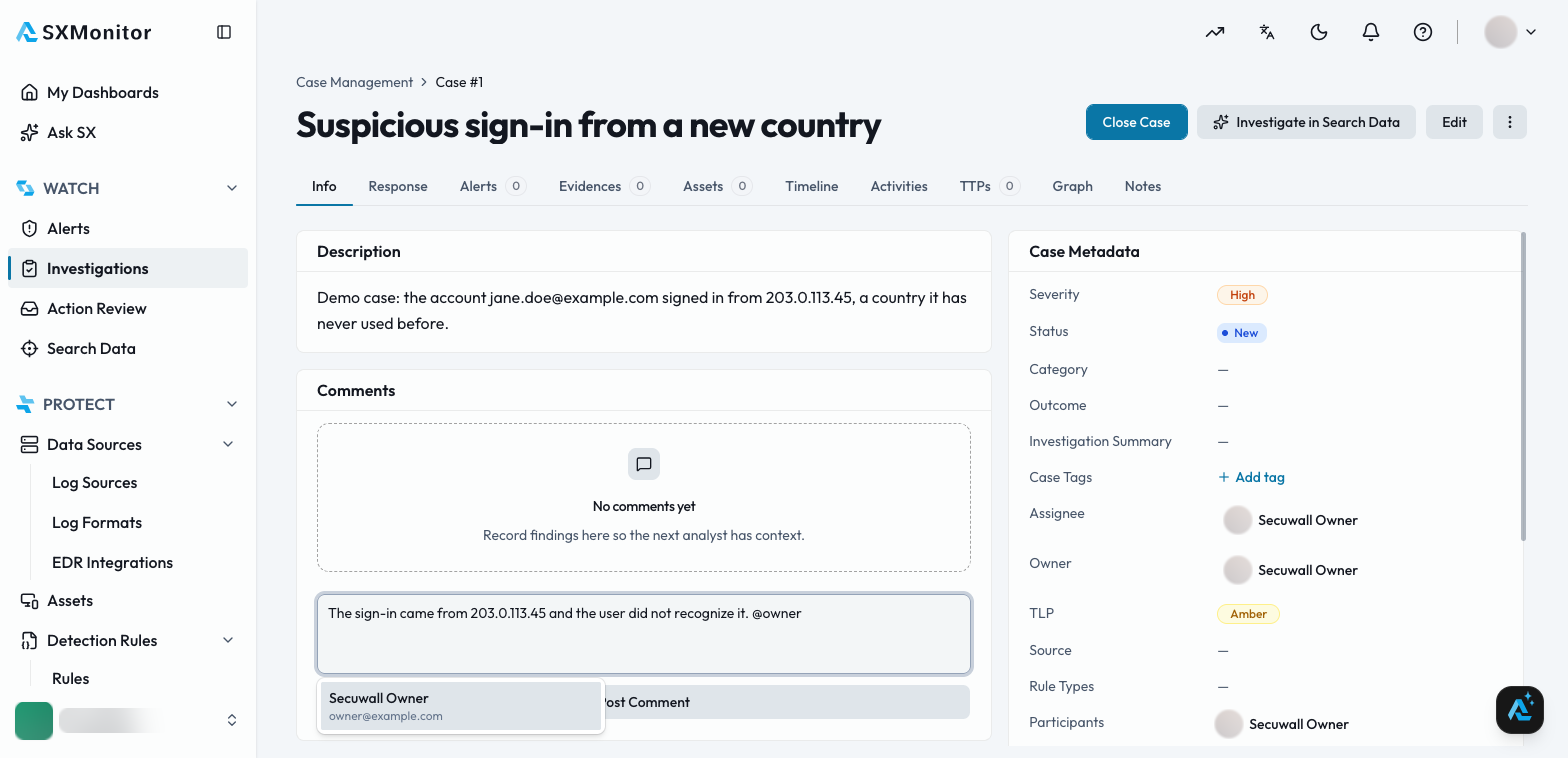
The person you mention gets a notification, depending on their notification settings. Mentioning needs edit access to the case. Comments on tasks and notes accept mentions too.
Response
The Response tab reads from the top down: Needs You, Tasks, Response Actions and Automation. You see the sections your role can read.
The Tasks section splits the investigation into steps, each with an owner, and shows how many are complete.
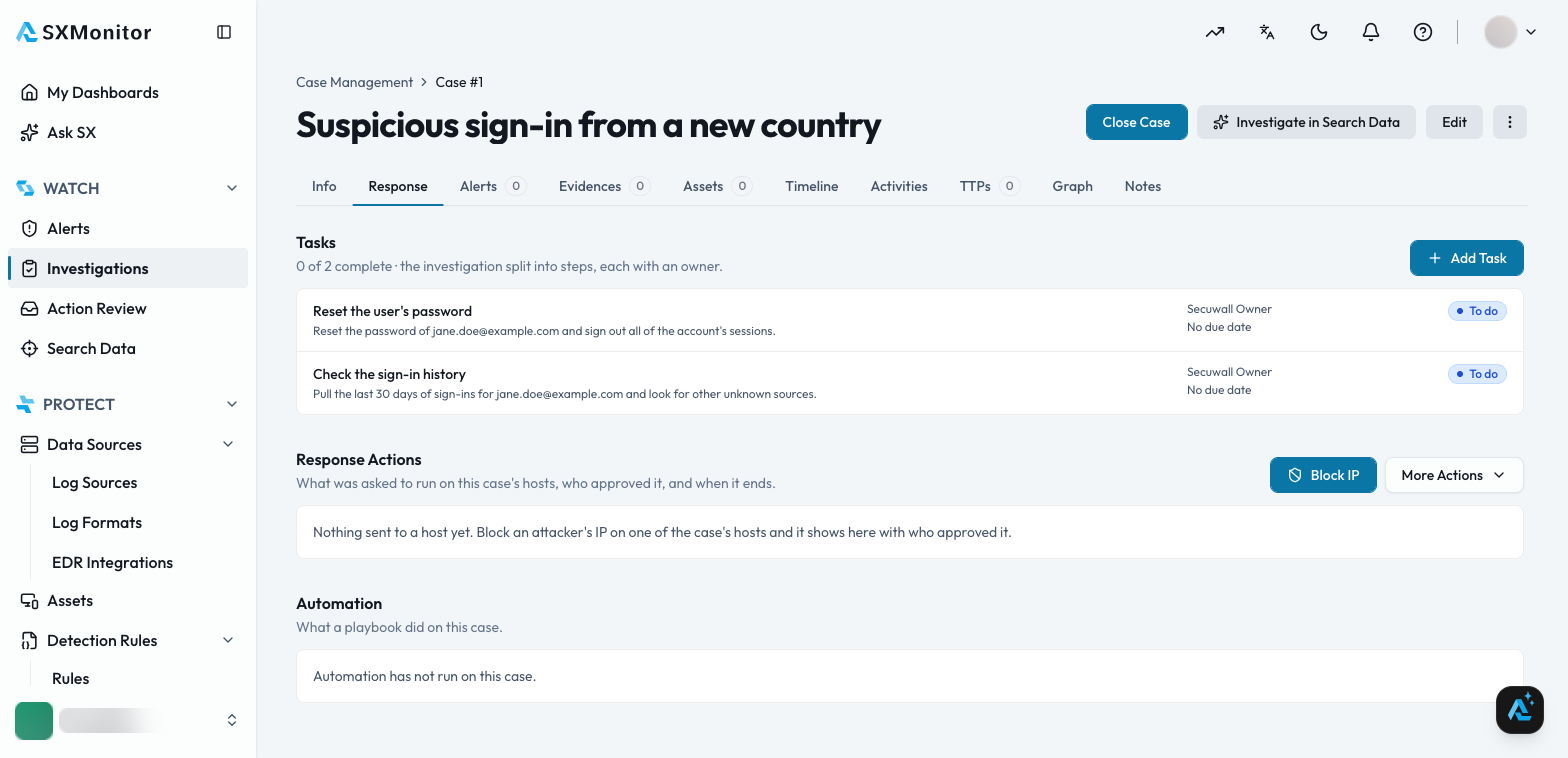
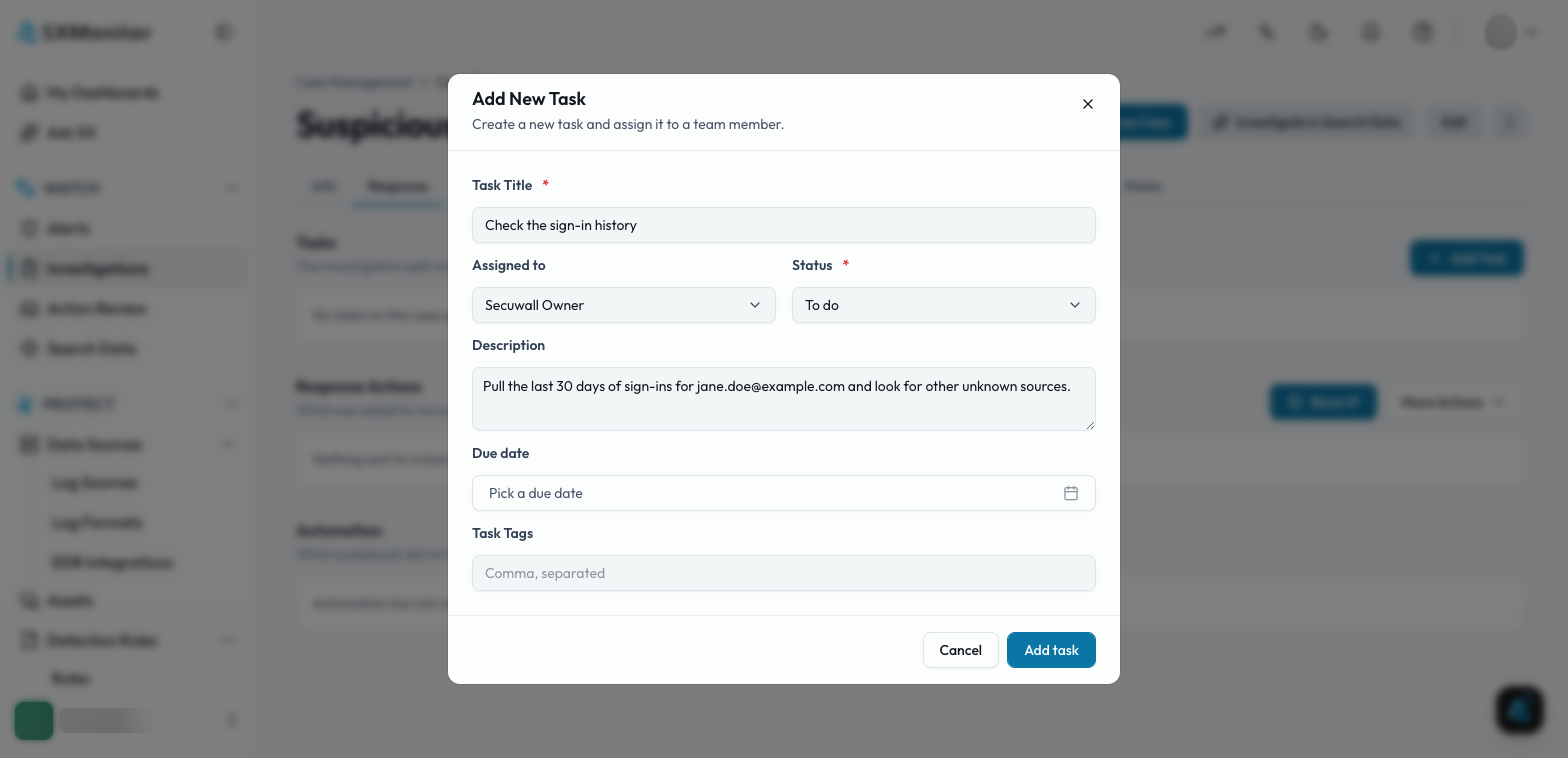
To add a task, click Add Task and fill in Task Title (required), Assigned to (one or more people), Status (required: To do, In progress, Done, On hold or Cancelled), Description, Due date and Task Tags. Then click Add task.
Click a task to open Task Detail: comment on it, Edit it or delete it.
When your security team or a playbook asks you something about this case, Needs You appears at the top of the tab; at the bottom, Automation shows what a playbook did. Both are described in Playbooks on a case.
If your role has access to EDR, Response Actions lists the actions sent to the case's hosts, such as Block IP, and who approved them — see EDR Integrations.
Notes
The Notes tab holds longer write-ups, such as a day-by-day log. Click the
new note icon, enter a title and the text, and click the save icon. Notes are
written in Markdown, so a line that starts with - becomes a bullet.
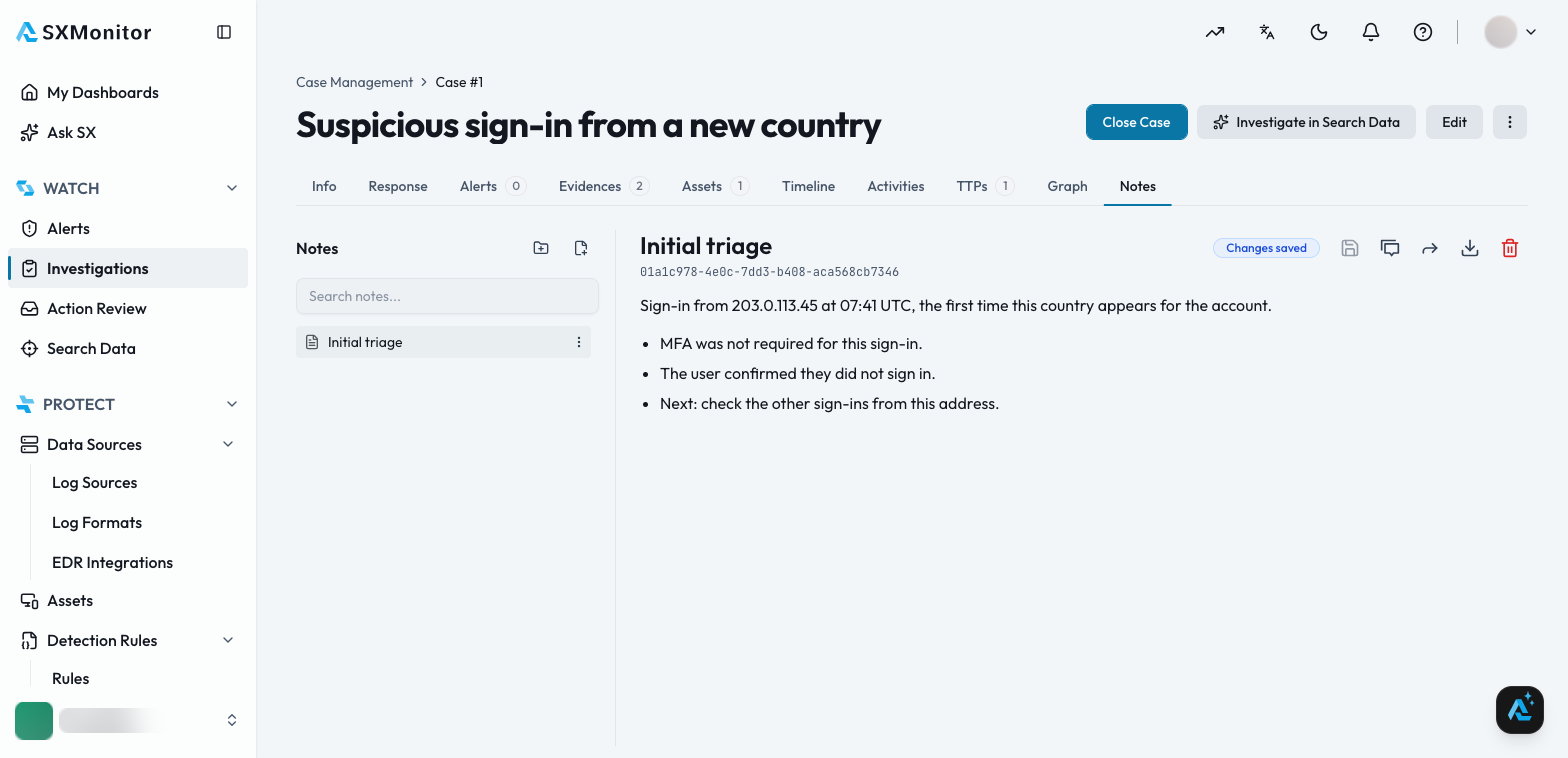
The icons above a note open its comments, copy a link to it, download it as Markdown and delete it. Group notes with the new group icon and move a note with its ⋮ menu (Move to); deleting a group keeps its notes. Only the author can edit a note — double-click its text to edit.
Close a case
Close Case shows when the case is New, Triaged or Remediated.
- Click Close Case.
- Pick the Outcome: Unknown, True positive (with impact), True positive (no impact), False positive, Legitimate or Not applicable.
- Write the Investigation summary: what happened, what was done and what the impact was. It is required for Critical and High cases.
- Click Close Case.
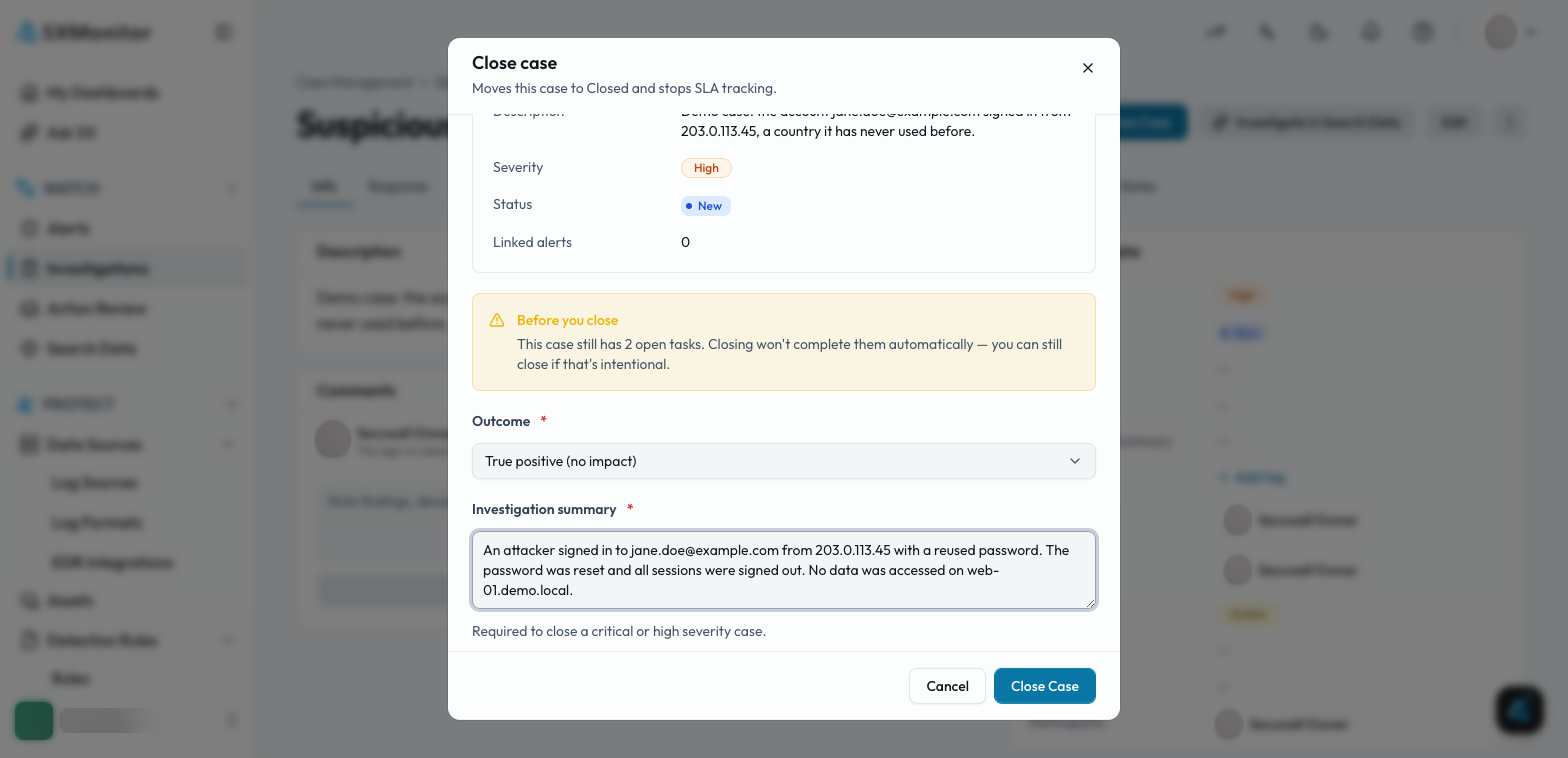
Closing stops SLA tracking but does not complete open tasks; the dialog warns you when some are still open. The outcome and summary then show on the Info tab and in the case report. To reopen the case, click Re-open Case and confirm with Yes.
What customers see
A role with the Cases (Customer View) permission instead of full case access gets a read-only view meant for customers. Their case list has no cards, no Sources or Assignee columns, and filters by severity, status, category and tag only. On a case they see only Info (without comments and timing), the tasks on Response, and Assets — no observables, alerts, notes, change history or report. Set it up in Role Management.
Next
- Read the other tabs, each on its own page, starting with Alerts.
- See what automation and Ask SX do on a case in Playbooks on a case and AI investigation.
- Manage cases as a whole — statuses, merging, deleting and reports — in Investigations.
- Choose how you hear about mentions in Notification settings.