

Ask SX
Ask the AI assistant about your alerts, cases, rules and coverage in plain words, and check the sources behind each answer.
Ask SX is the AI assistant built into SXMonitor. Ask in plain words — about an alert, a host, a MITRE ATT&CK technique, your detection rules or a case — and it answers from your tenant's data, writing the answer while you watch and listing the sources it used so you can check them. Every conversation is kept, so you can pick it up again later.
Ask SX only reads: it sees what your own role lets you see and never changes a case, a rule or a setting. It needs no role permission of its own; your organization's plan decides whether it is available.
To open it, click Ask SX in the sidebar for the full page, or the dark Ask SX button at the bottom right of any page for a panel over the page you are on.
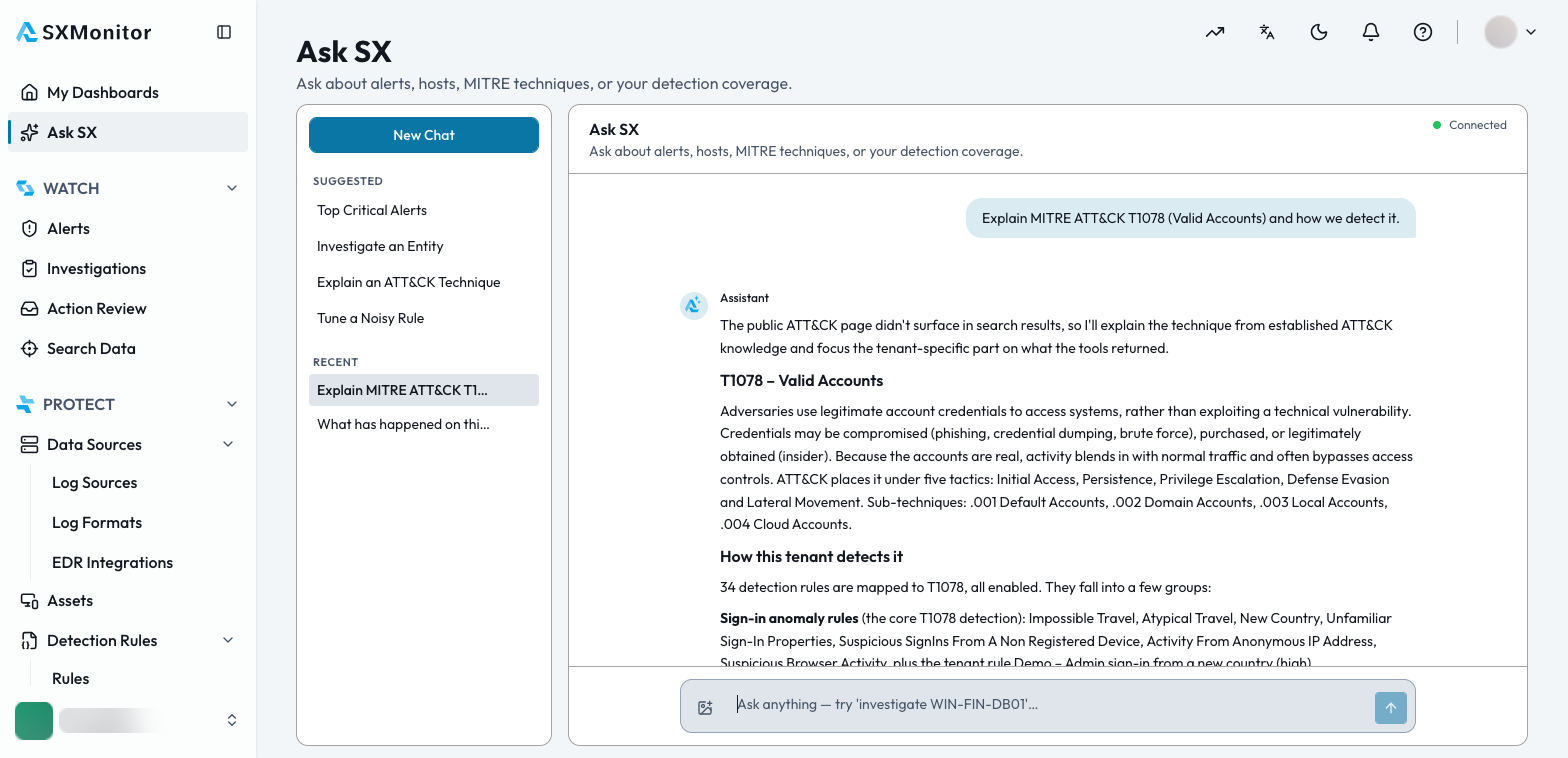
| Area | What it does |
|---|---|
| New Chat | Starts a new conversation. |
| Suggested | Ready-made questions, such as Top Critical Alerts or Explain an ATT&CK Technique. Click one to ask it in a new conversation. |
| Recent | Your conversations in the current tenant: pinned ones first, then the most recently used. |
| Status | Connected when Ask SX is ready, Answering while it writes, Offline when it cannot be reached and Not enabled when it is switched off on your SXMonitor deployment. |
| Question box | Where you type. A new conversation also shows the suggested questions as cards above it. |
Ask a question
- Open Ask SX from the sidebar, or click the Ask SX button on the page you are looking at.
- Type your question, or click a suggested question. Name what you mean — a host, an alert, a technique or a case — to get a precise answer, for example Explain MITRE ATT&CK T1078 (Valid Accounts) and how we detect it.
- Press Enter or click Send. Shift+Enter starts a new line. A question can be up to 8,000 characters; a counter appears near the limit.
- Watch the answer arrive. The status shows Answering, and lines such as Reading … show what Ask SX is looking up. Click Stop to end the answer early.
- Check the sources under the answer — see below.
When image attachments are available, the image button in the question box attaches screenshots (PNG, JPEG, WebP or GIF). You can also paste or drop them on the box.
An answer that stopped part way shows Continue, which picks up where it stopped. Try Again asks a failed question again, and the copy icon under an answer copies its text.
Check the sources
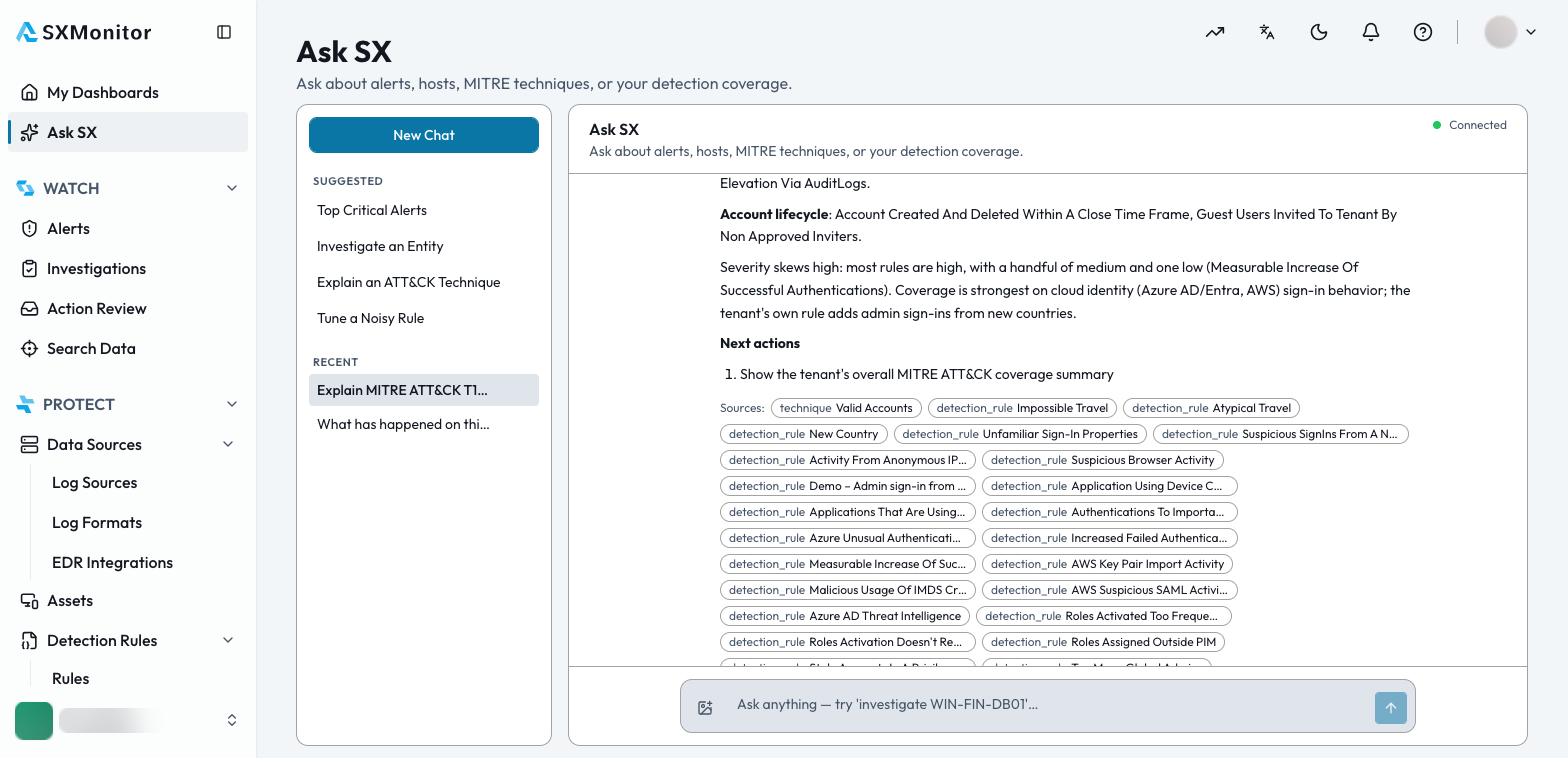
Each answer ends with its Sources: one chip per item Ask SX used, with the kind of item first — technique Valid Accounts, detection_rule New Country, task Check the sign-in history. Click a chip to open that item: a case, an alert, a detection rule, a log source, a log format, an asset, an EDR integration, or a technique on the MITRE ATT&CK page. A web page opens in a new tab. Items without a page of their own, such as a timeline entry or a task, stay plain labels.
When an answer rests on a search of your events, it also shows Searches: the log source, time range, query and number of events of each search, with Open in Search Data to run the same search yourself.
Answers can differ from one time to the next, and an answer can be wrong. Check the sources before you act on one. When Ask SX cannot back an answer with your data, it withholds the answer and tells you why.
Keep and manage conversations
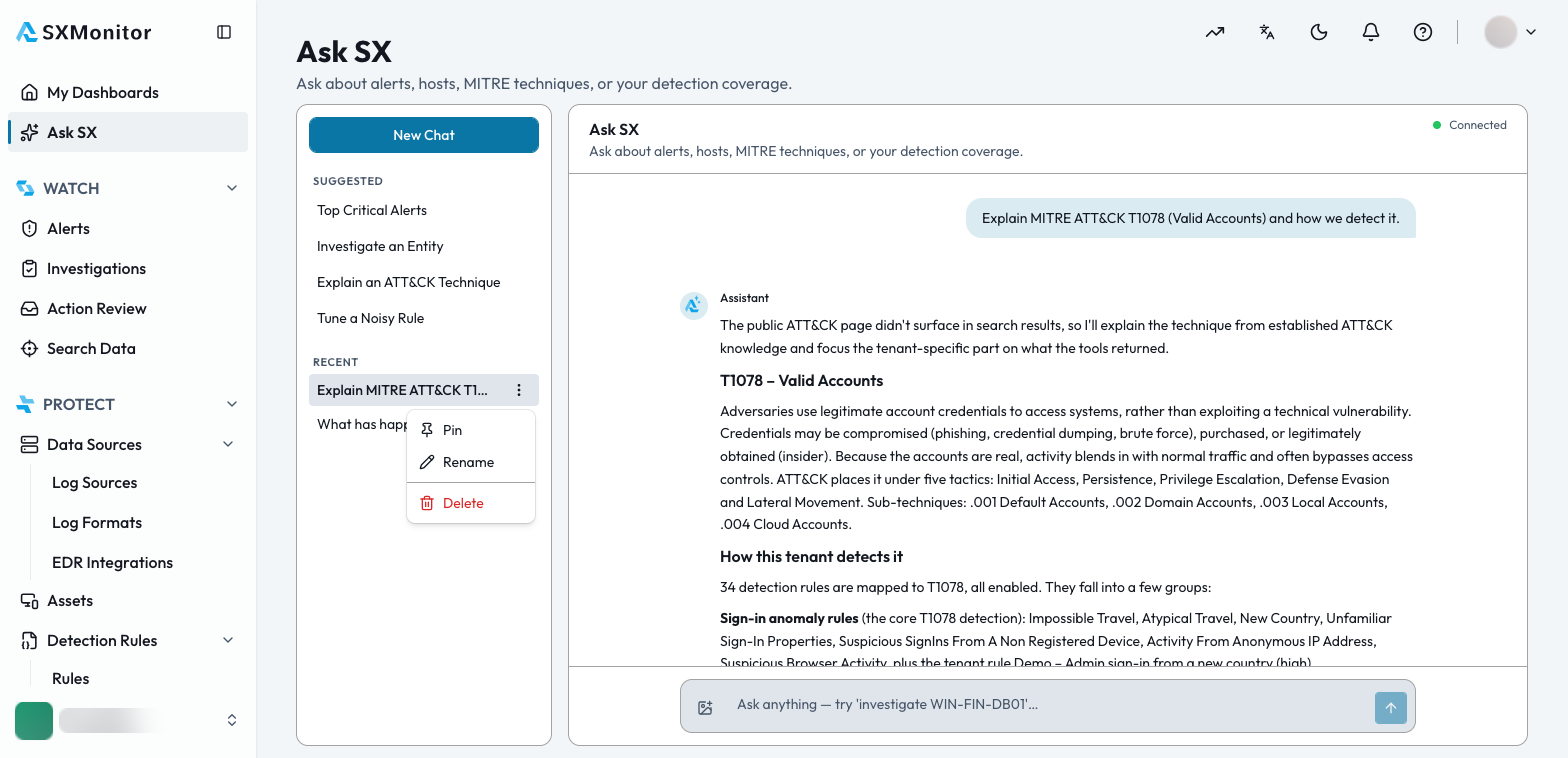
Ask SX saves every conversation you hold in the panel or on the page; its title is your first question. Click a conversation under Recent to open it again, or point at it and click ⋮:
| Action | What it does |
|---|---|
| Pin | Keeps the conversation at the top of Recent, marked with a pin. Unpin reverses it. |
| Rename | Opens Rename Conversation: enter a Title and click Save. |
| Delete | Asks you to confirm, then removes the conversation and all its messages. This cannot be undone. |
You can close the panel or move to another page while Ask SX is answering: the answer is finished and saved in the conversation. Conversations that belong to a page — the investigations of Ask SX in Search Data, the Add Log Source assistant and Map With AI in Log Formats — stay on that page and are not listed under Recent.
Ask about a case
On a case page, Ask SX is grounded on that case: the panel header says Grounded on this case, and the suggested questions are about the case. It answers from what the case holds and you can see — details, alerts, comments, tasks, notes, the timeline, observables, assets, TTPs and evidence details, but not the content of evidence files.
How to ask about a case, and how to have Ask SX look for the case's values in your events with Investigate in Search Data, is described in AI investigation.
What Ask SX can read
| Rule | What it means |
|---|---|
| Your access only | Ask SX reads on your behalf, in the tenant you are working in, and sees only what your role lets you see. |
| Read-only | It can look things up but cannot create, change or delete anything. |
| One case at a time | On a case page, it reads only that case. |
Ask from other pages
The panel follows the page you open it on. On these pages it is grounded on the page and suggests questions about it — about the alert, rule or log source you have open, if any:
| Page | The panel header says |
|---|---|
| Alerts | Grounded on alerts |
| Search Data | Grounded on threat hunting |
| Detection Rules | Grounded on detection rules |
| MITRE ATT&CK | Grounded on MITRE ATT&CK |
| Log Sources | Grounded on log sources |
| Log Formats | Grounded on log formats |
| EDR Integrations | Grounded on EDR integrations |
Anywhere else, the panel is the general Ask SX, the same as the full page. Search Data also has an Ask SX panel of its own that writes and runs searches for you — see Ask SX about your data.
When Ask SX cannot answer
| Message | What to do |
|---|---|
| The AI Assistant is not enabled on this deployment. (status Not enabled) | Ask SX is switched off on your SXMonitor deployment. |
| The AI Assistant is not included in your plan. | Your plan does not include Ask SX. |
| Today's question quota is used up. | The tenant has used its questions for today. Try again tomorrow. |
| The assistant took too long to answer. | Narrow the question — for example to a shorter time range — and click Try Again. |
| The assistant withheld this answer: … | Ask SX could not back the answer with data. Ask a more specific question. |
The Ask SX button is hidden while a guided setup tour runs.
Next
- Let Ask SX write and run searches in Search Data.
- Owners can follow what Ask SX costs in AI Usage.